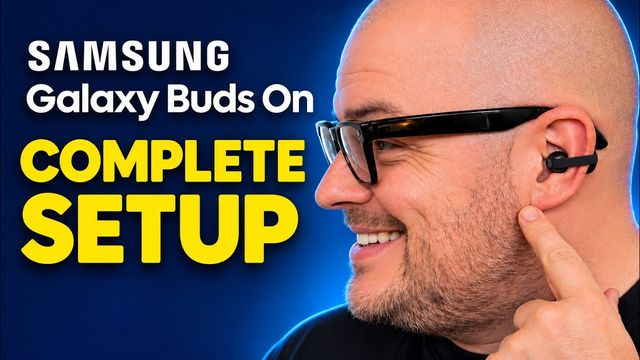
How to Connect Galaxy Buds On to iPhone and Android
How to pair Samsung Galaxy Buds On with an iPhone over Bluetooth and with non-Samsung Android via Galaxy Wearable, plus what's missing.
Quick summary: The Samsung Galaxy Buds On aren’t locked to Samsung phones. In this guide I connect them to an iPhone (my iPhone Duo) and to a Motorola Android phone, and point out which features you keep and which you lose outside the Samsung ecosystem.
Key takeaways
- On iPhone, pair them like any Bluetooth earbuds: hold the button on the back of the case until the light flashes.
- On non-Samsung Android phones, install the Galaxy Wearable app from the Google Play Store for the full app experience.
- Calls and music work everywhere, but firmware updates need an Android or Galaxy device, not an iPhone.
- A few extras, like some of the higher-end audio profiles, didn’t show up for me on the non-Samsung phone.
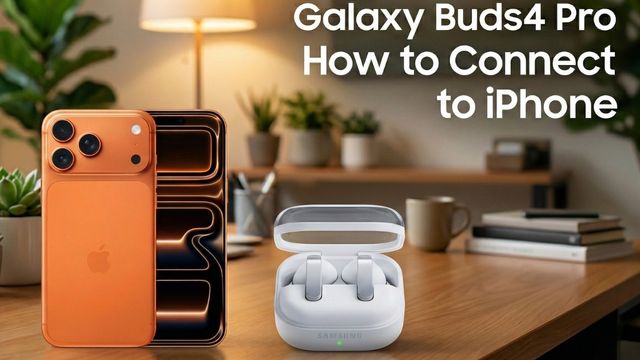
Connecting Galaxy Buds On to an iPhone
- On your iPhone, open Settings and go to Bluetooth. Make sure Bluetooth is turned on.
- Open the Galaxy Buds On case and keep it open.
- Press and hold the button on the back of the case. The light on the front will start blinking like crazy. That means the buds are in Bluetooth pairing mode.
- Look at the bottom of the Bluetooth screen, find Galaxy Buds On, and tap it. In a moment, it connects.
Once connected, you can disconnect, forget the device, choose the device type, or rename the buds if you want. Phone calls and music work just like you’d expect.
The catch: you can’t do firmware updates from the iPhone. To update the buds, you’ll need to connect them to an Android phone or a Samsung Galaxy phone at some point.
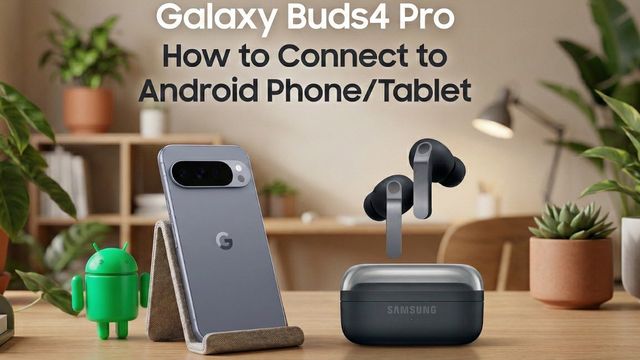
Connecting Galaxy Buds On to a non-Samsung Android phone
For this part I used a Motorola phone.
- Open the Google Play Store and download and install the Galaxy Wearable app.
- Open it, tap Start, and allow the permissions it asks for. It will start searching for devices.
- Open the buds case and press and hold the button on the back again until you see that crazy flashing light.
- Galaxy Buds On will show up in the app. Tap it and confirm the pairing.
- Allow access to contacts if you want, and sign in with your Samsung account if you have one.
- Go through the setup screens. I usually turn off diagnostic data, but you can keep it on. I turn the other two options on, then agree and allow notification access.
What you get in the Galaxy Wearable app
Even on a non-Samsung phone, you get a lot:
- Sound quality and effects, including different equalizer presets
- Advanced features
- Notifications on the buds and ear detection
- Connection management
- Find your buds
- Firmware updates, which is super important
What’s missing outside Samsung
Compared with using them on a Samsung phone, a few things are missing. As far as I could tell, some of the higher audio profiles you can choose on a Galaxy phone weren’t there. I could be wrong, but that’s basically what I noticed. And honestly, these still sound amazing even without those options.
Final thoughts
The Galaxy Buds On are very easy to connect and use on other devices. On iPhone they work great for calls and music, but you’ll need an Android or Galaxy device for updates. On other Android phones, the Galaxy Wearable app gets you almost everything.
Where to buy
Watch the full video on YouTube, and subscribe to GregglesTV for daily tech news, reviews and walkthroughs.
See today’s GregglesTV Best Tech Deals or browse all deals posts.
Comments
Comments are moderated. Hate, slurs, spam and scam posts are blocked. Don’t include personal info you wouldn’t want public. See the privacy policy.
Loading comments…