How to Track Sponsorship Deals in Google Sheets With Grok Bot (Brand Deals, Due Dates, and Payments)
A beginner's step-by-step guide to building a sponsorship tracker in Google Sheets with Grok Bot: set up the columns, add deals from notes and emails, see what's due, chase unpaid invoices, and get a weekly check-in.
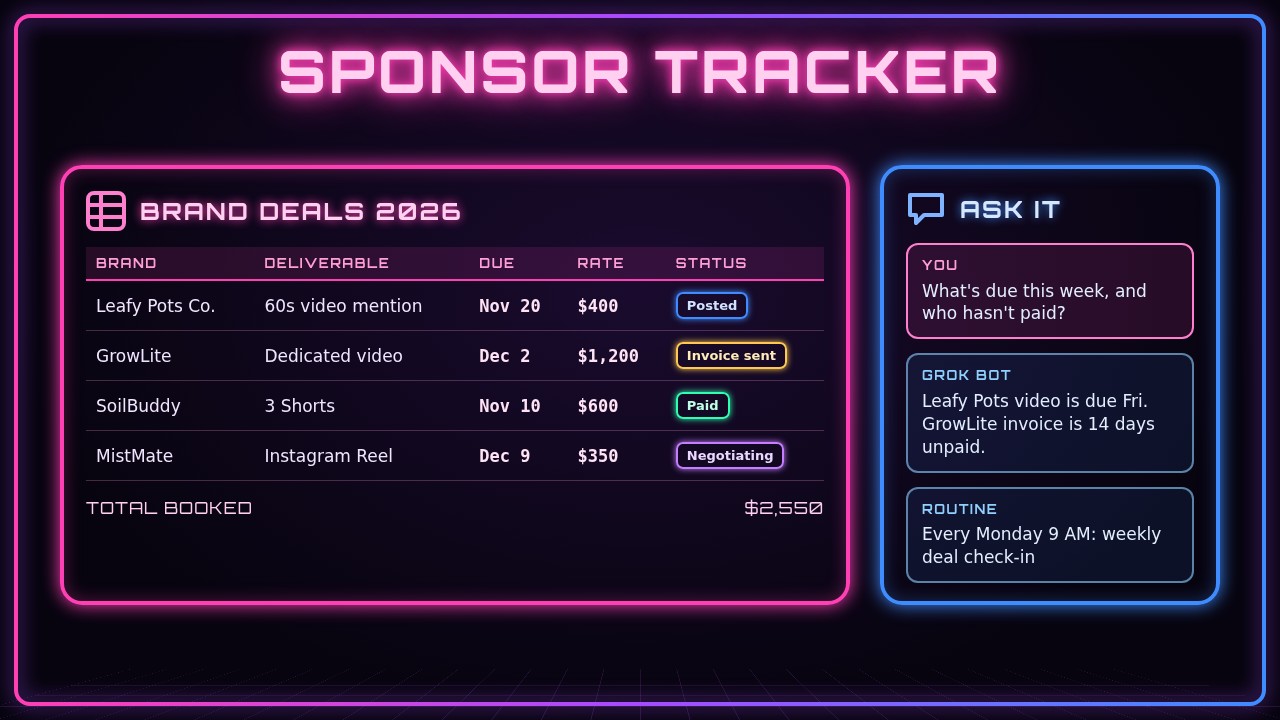
Once brands start reaching out, sponsorships get messy fast. One deal lives in an email thread, another in a DM, and the payment terms are buried in a PDF. It’s easy to miss a due date or forget that an invoice never got paid. In this guide you’ll use Grok Bot to build a simple sponsorship tracker in Google Sheets, fill it with your current deals, and ask it plain-English questions like “what’s due this week?” and “who still owes me money?”
Grok Bot does the setup and the busywork: creating the sheet, adding rows, and reading it back to you. You stay in charge of which deals you take, what you charge, and anything that gets sent to a brand.
You’ll follow one running example: Nia, who runs a plant-care YouTube channel called Nia’s Plant Corner. She has four brand deals going at once and wants one place to see all of them.
What you need
- A Grok Bot chat
- A Google account with Google Sheets
- Google Sheets connected to Grok Bot (step 2 covers this)
- The details of your current deals: brand names, what you agreed to make, due dates, and rates
- Optional: your email connected too, so Grok Bot can pull deal details from brand emails
- About 20 minutes for the first setup
1. Decide what you want to track
Before you build anything, list the questions you want the tracker to answer. That decides your columns. Most creators want to know what’s due, what’s been posted, and what’s been paid.
I'm a YouTube creator with a plant-care channel, and I want to track my brand sponsorship deals in Google Sheets. I want to see what's due soon, what's posted, what I've invoiced, and what's been paid. Suggest the columns I should use and keep it simple. Ask me any questions before we build it.What you should see: a short list of suggested columns, something like Brand, Contact, Deliverable, Platform, Due date, Rate, Status, Posted date, Invoice sent, Paid date, and Notes. Cut anything you won’t actually fill in. A short tracker you keep up to date beats a big one you abandon.
2. Connect Google Sheets to Grok Bot
Grok Bot needs access to Google Sheets to create and update your tracker. If you haven’t connected it yet, ask Grok Bot to walk you through it.
I want you to be able to create and edit a Google Sheet for me. Is Google Sheets connected? If not, walk me through connecting it, one step at a time.What you should see: Grok Bot either confirms it can use Google Sheets or explains how to connect it. Follow its steps and sign in to your Google account when asked. Never paste your Google password into the chat.
3. Create the tracker sheet
Now ask Grok Bot to build the sheet with the columns you picked. Be specific about the name and the columns so you don’t have to fix them later.
Create a new Google Sheet called "Nia's Plant Corner - Sponsorships 2026". Add these columns in this order: Brand, Contact email, Deliverable, Platform, Due date, Rate (USD), Status, Posted date, Invoice sent, Paid date, Notes. Make the header row bold and freeze it so it stays at the top. Send me the link when it's done.What you should see: a link to a new sheet with your header row. Open it and check that every column is there and spelled the way you want.
4. Add a status list so every deal is labeled the same way
If one row says “paid” and another says “PAID - done!”, sorting and totals get messy. A fixed list of statuses keeps it clean.
In the Status column, add a dropdown with these options: Negotiating, Agreed, In production, Posted, Invoice sent, Paid. Format the Due date and Paid date columns as dates, and the Rate column as US dollars.What you should see: Grok Bot confirms the dropdown and formats were added. Click a Status cell in the sheet to check that the list appears. If something didn’t apply, tell Grok Bot which column looks wrong.
5. Add your current deals
Give Grok Bot your deals in plain words. You don’t need a perfect format; it will sort the details into the right columns.
Add these deals to the tracker:
1. Leafy Pots Co., contact sam@leafypots.example, one 60-second mention in my next YouTube video, due Nov 20, $400, status Posted, posted Nov 17.
2. GrowLite, contact ads@growlite.example, one dedicated YouTube video about grow lights, due Dec 2, $1,200, status Invoice sent, invoice sent Nov 4.
3. SoilBuddy, three YouTube Shorts, due Nov 10, $600, status Paid, paid Nov 14.
4. MistMate, one Instagram Reel, due Dec 9, $350, status Negotiating. Note: they asked for usage rights for 90 days, still deciding.
If anything is missing, leave the cell blank and tell me what's missing.
What you should see: four new rows and a short list of blanks (like SoilBuddy’s contact email). Fill those in later or tell Grok Bot now. Don’t let it guess at rates, dates, or email addresses.
6. Add a deal straight from an email
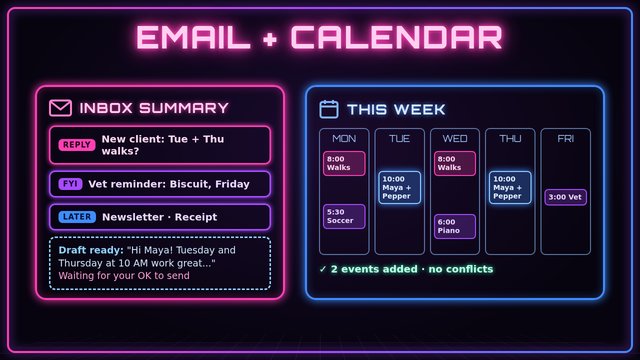
If your email is connected, Grok Bot can read a brand’s message and pull out the details for you. (New to this? See how to manage your email and calendar with Grok Bot.)
Find the most recent email from the brand "Fernly" about a sponsorship. Pull out the deliverable, due date, rate, and any usage or exclusivity terms. Show me what you found first. Don't add it to the sheet until I say yes.What you should see: a short summary of the offer. Check it against the email yourself, then reply “yes, add it” or correct anything that’s off. If there’s no email connected, just paste the brand’s message into the chat instead.
7. Ask what’s due and what’s unpaid
This is where the tracker pays off. Instead of scrolling through rows, ask Grok Bot questions about it.
Look at my sponsorship tracker. What's due in the next 7 days? Which deals are marked "Invoice sent" but have no paid date, and how many days has it been since each invoice went out?What you should see: a short answer, like “Nothing is due in the next 7 days. GrowLite’s invoice was sent Nov 4 and is 14 days unpaid.” If an answer looks wrong, check the dates in the sheet. A typo in a date is the most common cause.
8. Draft a payment reminder (and approve it first)
When an invoice is overdue, ask Grok Bot to draft a polite follow-up. Read it before anything goes out.
Draft a short, friendly email to GrowLite reminding them that my invoice from Nov 4 for the grow light video ($1,200) hasn't been paid yet. Ask them to confirm a payment date. Don't send it; show me the draft.What you should see: a draft in the chat. Edit the wording until it sounds like you. Then either send it yourself or tell Grok Bot clearly to send it. Grok Bot shouldn’t contact a brand without your OK.
9. Add a summary tab with totals
A second tab gives you the big picture: how much you’ve booked, how much has been paid, and how much is still out.
Add a second tab called "Summary". Show total booked, total paid, and total still unpaid, plus a count of deals by status. Use formulas that read from the first tab so the totals update when I change a row.What you should see: a Summary tab with live totals. For Nia’s four deals, that’s $2,550 booked. Test it by changing one Status to Paid and checking that the numbers move.
10. (Optional) Get a weekly check-in automatically
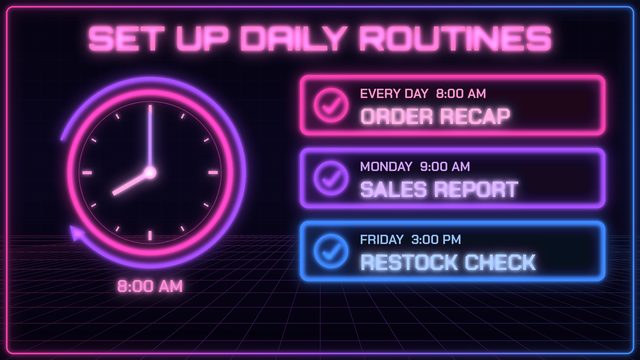
Once the tracker works, you can have Grok Bot check it for you every week. (See how to set up daily routines with Grok Bot for the details.)
Every Monday at 9 AM, check my sponsorship tracker and send me a short summary: what's due this week, what's posted but not invoiced, and any invoice unpaid for more than 30 days. If nothing needs attention, just say "All clear."What you should see: Grok Bot confirms the routine and its schedule. Ask it to run the check once now so you can see what the Monday message will look like.
Tips and troubleshooting
- Keep sensitive info out of the sheet. Rates and due dates are fine. Bank details, tax ID numbers, and passwords don’t belong in a tracker or in the chat.
- Check who the sheet is shared with. A sponsorship sheet shows what you charge. Keep it private unless you’re sharing it with a manager or editor on purpose.
- Totals look wrong? Usually a rate was typed as text (“$400 flat”) or a date in the wrong format. Ask Grok Bot to “find any rows where the Rate or dates aren’t formatted correctly.”
- Grok Bot can’t find your sheet? Share the sheet’s link in the chat, or check that Google Sheets is still connected.
- Update it when things change. A quick message like “Mark Leafy Pots as Paid, paid today” keeps the tracker accurate. If it goes out of date, the answers in step 7 stop being useful.
- Don’t forget disclosures. Sponsored posts need a clear disclosure, like “#ad” or “Sponsored.” Add a “Disclosure added” column if you tend to forget.
- Read your contracts yourself. Grok Bot can summarize terms like usage rights or exclusivity, but you’re the one agreeing to them. When in doubt, ask the brand or a professional.
Recap checklist
- Decided what questions the tracker should answer
- Connected Google Sheets to Grok Bot
- Created the sheet with a bold, frozen header row
- Added a Status dropdown and date and dollar formats
- Added current deals, with blanks flagged instead of guessed
- (Optional) Pulled a new deal from an email after checking it
- Asked what’s due and what’s unpaid
- Drafted and approved a payment reminder before it went out
- Added a Summary tab with live totals
- (Optional) Set up a weekly Monday check-in
Gear that makes deal tracking easier
You don’t need special gear to track sponsorships, but a few things help. A 2-in-1 laptop like the HP OmniBook 5 Flip 14” handles spreadsheets, email, and editing in one machine. A second screen like the Samsung 27” Odyssey G4 lets you keep your tracker open next to your editing timeline or inbox. And a tablet like the Samsung Galaxy Tab S10 FE is handy for checking your sheet, reading brand briefs, and signing off on drafts with the S Pen when you’re away from your desk.
Subscribe to GregglesTV for daily tech news, reviews and walkthroughs.
See today’s GregglesTV Best Tech Deals or browse all deals posts.
Comments
Comments are moderated. Hate, slurs, spam and scam posts are blocked. Don’t include personal info you wouldn’t want public. See the privacy policy.
Loading comments…