How to Compare Products and Check Prices With Grok Bot Before You Buy (Step by Step)
A beginner's step-by-step guide to shopping smarter with Grok Bot: write your must-haves, get a shortlist, build a side-by-side comparison with sources, check prices at more than one store, and decide with return policies in mind.
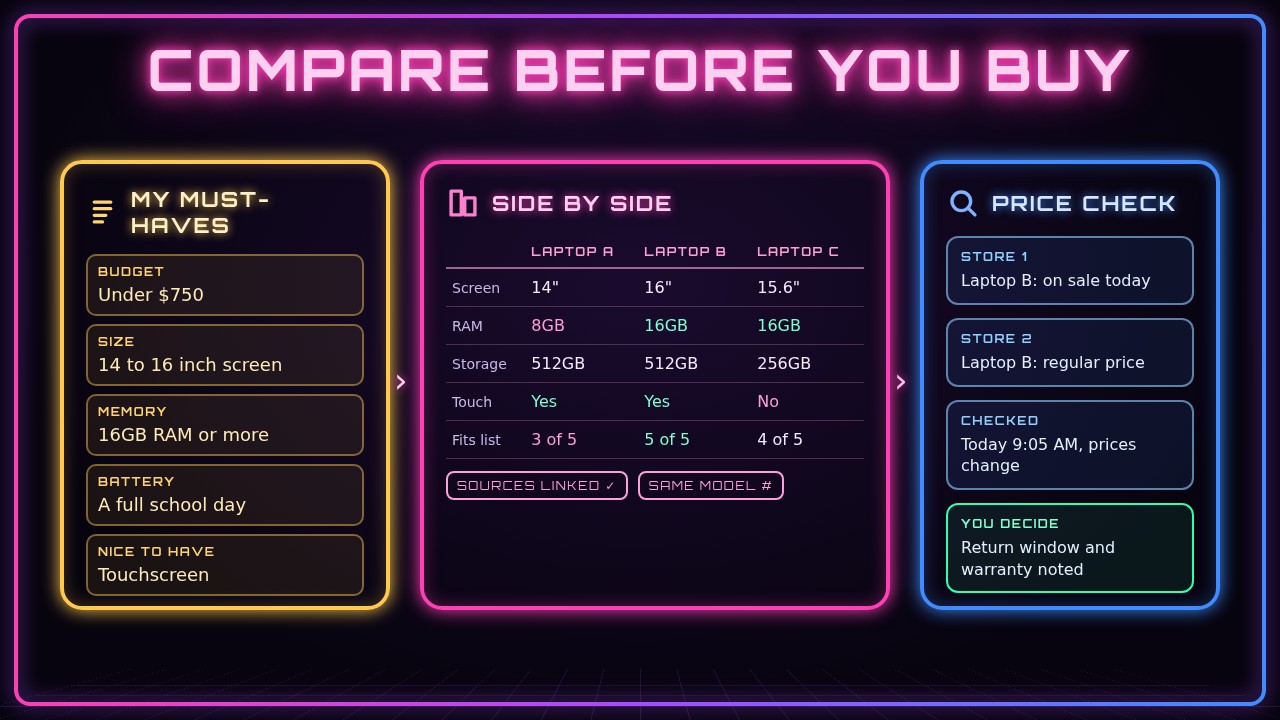
Shopping for something big, like a laptop, a TV, or a tablet, usually means twenty open tabs, spec sheets that all look the same, and “sale” prices you can’t tell are real. In this guide you’ll use Grok Bot to do the legwork: turn your needs into a short checklist, find a few models that fit, line them up side by side with sources, and check the current price at more than one store before you buy.
Grok Bot does the searching, reading, and organizing. You make the final call and do the checkout yourself.
You’ll follow one running example: the Ramirez family, shopping for a laptop for their daughter Sofia, who starts college in the fall. Their budget is under $750, and they want something light enough to carry to class.
What you need
- A Grok Bot chat
- A rough budget and an idea of what the product is for
- A few minutes to answer Grok Bot’s questions
- Optional: a Google Sheets connection if you want the comparison saved as a spreadsheet (see the connect your apps guide)
1. Describe what you need, not what to buy
Start with the job the product has to do. Grok Bot can turn that into specs, so you don’t need to know the jargon. Ask it to ask you questions before it recommends anything.
We're buying a laptop for our daughter, who starts college in the fall.
She'll write papers, do video calls, stream shows, and edit a few photos.
Budget is under $750. She'll carry it to class every day.
Before you suggest anything, ask me up to 5 questions so you get this right.
What you should see: a few short questions, like “Does her school require Windows or Mac?”, “Does she want a touchscreen?”, or “How long are her days on campus?” Answer them in plain words.
2. Turn your answers into a must-have list
Ask Grok Bot to split your answers into must-haves and nice-to-haves. This list is what every product gets measured against, so keep it short.
Turn my answers into a checklist with two parts: must-haves (max 5) and nice-to-haves (max 3).
Use plain words and put the spec in brackets, like "lasts a full school day (8+ hours battery)".
What you should see: a list like “Under $750”, “14 to 16 inch screen”, “16GB memory (RAM) or more”, “a full day of battery”, with “touchscreen” under nice-to-haves. Fix anything that doesn’t sound right before moving on.
3. Ask for a shortlist of 3 to 4 models
Now let Grok Bot search. Ask for only a few options, and ask it to include the exact model number, because the same laptop name often comes in several versions.
Search for laptops that meet every must-have on our list and are sold by major US stores right now.
Give me 3 or 4 options. For each one, list the exact model number, the store page you found it on,
and one sentence on why it fits. Skip anything that misses a must-have.
What you should see: 3 or 4 models, each with a model number and a link. Open one or two of the links yourself to make sure they go to the right product.
4. Build a side-by-side comparison
A table makes the differences jump out. Ask Grok Bot to compare only the things on your checklist, and to say where each fact came from.
Make a side-by-side table of these models. Rows: price, screen size, memory (RAM), storage,
battery life claimed by the maker, weight, touchscreen (yes/no), and how many must-haves it meets.
Link the source for each model, and mark anything you couldn't confirm as "not listed".
What you should see: a table with one column per model. If something says “not listed”, that’s useful: it means you should check the product page before you trust a guess. If you connected Google Sheets, you can ask Grok Bot to put the same table in a new sheet so you can share it with family.
5. Ask for reviews and common complaints
Specs don’t tell you if the keyboard feels cheap or the fan is loud. Ask Grok Bot to look for what reviewers and owners say, and to keep the pros and cons short.
For each model in the table, find what professional reviews and owner reviews say.
Give me the top 2 pros and top 2 complaints for each, and link where you found them.
If a model has very few reviews, say so.
What you should see: a short pros-and-cons list per model with links. Watch for the same complaint showing up in several places; that’s usually the real one.
6. Check the price at more than one store
Prices change fast, especially around sales. Ask Grok Bot to check the current price for the exact same model at a few stores, and to tell you when it checked.
For our top pick, check the current price of this exact model number at 3 major stores.
For each store, list the price, whether it's marked as a sale, shipping or pickup, and the return window.
Tell me the date and time you checked. If a store sells a slightly different version, point it out.
What you should see: a short list of stores with prices, return windows, and a “checked at” time. Prices can change after Grok Bot checks, so always confirm the price on the store’s page right before you pay.
7. Ask “is this sale actually a good deal?”
A big “was” price doesn’t always mean a big saving. Ask Grok Bot what it can find about the regular price, and how this deal compares with similar models.
The store says this laptop is on sale. Is that a good price? Compare it with the regular price
listed by the maker and with the other models in our table. If you can't find a reliable regular price, say so.
What you should see: a plain answer, like “This is about $150 below the maker’s listed price and cheaper than Laptop C with better specs,” or “I couldn’t confirm the regular price.” If it can’t confirm, treat the “was” price with caution.
8. Make the decision with a quick summary
Ask Grok Bot to pull it all together in a few lines you can read in 30 seconds or send to whoever else is deciding with you.
Summarize our choice in 5 lines: which model, why it beats the others for Sofia,
the best price you found and where, the return window, and one thing to double-check before buying.
What you should see: a short summary you can paste into a family text or save for later. You buy it yourself on the store’s site; Grok Bot doesn’t need your card details for any of this.
9. Optional: ask Grok Bot to keep an eye on the price
If you’re not in a hurry, you can ask Grok Bot to check the price again on a schedule and tell you if it drops. This works like any other routine (see the daily routines guide).
Every morning at 9 AM for the next 2 weeks, check the price of this exact model at these 3 stores.
Only message me if it drops below $650 at any of them, and include the link.
What you should see: Grok Bot confirms the schedule, the stores, and the target price. It only checks; it won’t buy anything on its own.
Tips and troubleshooting
- Always use the exact model number. Many laptops, TVs, and headphones come in several versions with the same name. Compare model numbers, not just names.
- Confirm the price yourself before paying. Grok Bot tells you when it checked, but sale prices can end or sell out in minutes.
- Ask for sources. If a fact doesn’t have a link, ask Grok Bot where it came from, or check the product page yourself.
- “Not listed” is a good answer. It’s better than a guess. Check the maker’s spec page for those rows.
- Watch for marketplace sellers. Some big stores also list products from outside sellers. Ask Grok Bot whether the store itself sells it, and check the return policy.
- Keep payment details out of the chat. You don’t need to share card numbers or passwords to compare prices.
- Other examples to try: a small bakery comparing two espresso machines, an Etsy seller choosing a photo light kit, or a fitness creator picking a phone gimbal under $150.
Recap checklist
- Described what the product needs to do and answered Grok Bot’s questions
- Made a short must-have and nice-to-have list
- Got a shortlist of 3 to 4 models with exact model numbers
- Built a side-by-side table with sources
- Checked reviews for the top pros and complaints
- Compared prices at 3 stores, with return windows and a “checked at” time
- Asked whether the sale price is really a good deal
- Got a 5-line summary and confirmed the price on the store’s page before buying
- Optional: set up a price-drop check
Gear from this guide
These are the kinds of products this method works well for. A 14” laptop like the HP OmniBook 5 is light enough for class, while a 16” 2-in-1 like the Lenovo Yoga 7i gives you a bigger screen and 16GB of memory. If a full laptop is more than you need, a tablet like the Samsung Galaxy Tab S10 FE with S Pen is great for notes and reading. Run them through the steps above and see which one fits your list.
Subscribe to GregglesTV for daily tech news, reviews and walkthroughs.
See today’s GregglesTV Best Tech Deals or browse all deals posts.
Comments
Comments are moderated. Hate, slurs, spam and scam posts are blocked. Don’t include personal info you wouldn’t want public. See the privacy policy.
Loading comments…