How to Get Grok Bot to Write in Your Own Voice (and Edit Its Drafts So They Sound Like You)
A beginner's step-by-step guide to teaching Grok Bot how you write: collect a few samples, turn them into a one-page voice guide, test it on a real draft, give specific feedback, add the details only you know, and fact-check before anything goes out.
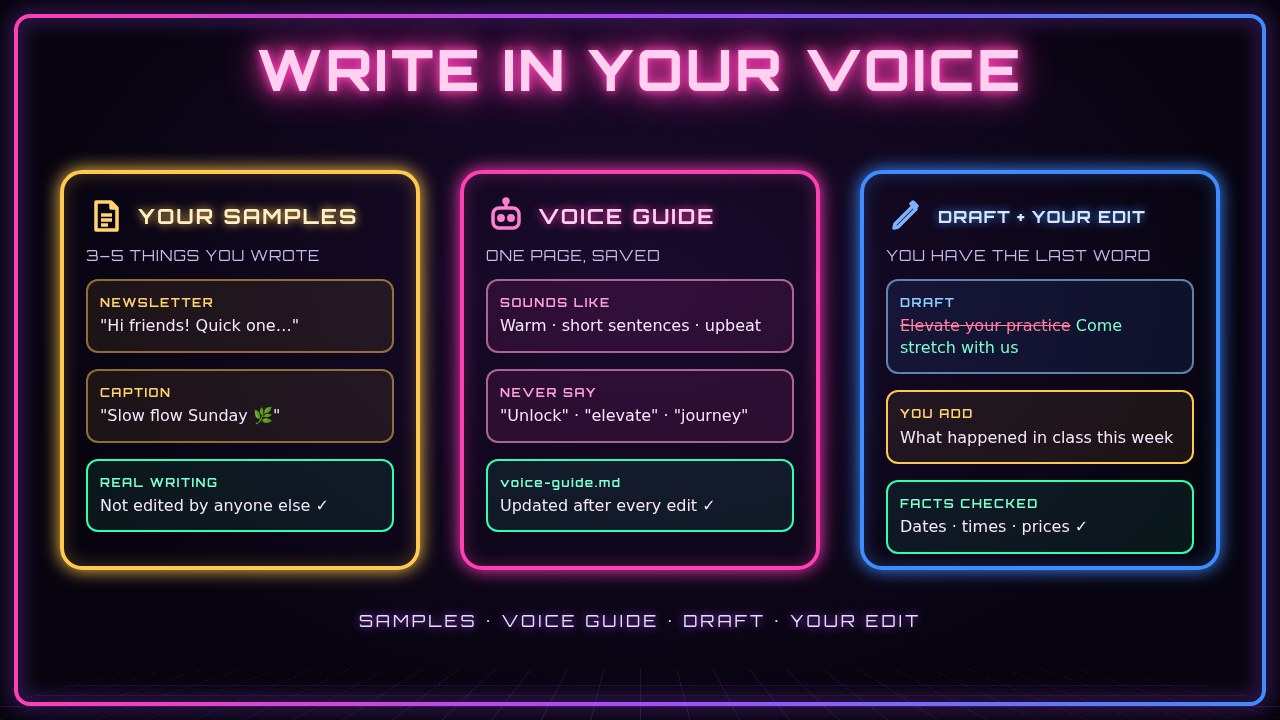
Grok Bot can write a newsletter, a caption, or a reply in seconds. The problem is that a first draft often sounds like anybody wrote it. In this guide you’ll teach Grok Bot how you actually write, save that as a one-page voice guide, and learn a simple way to edit its drafts so the final version sounds like you, not like a robot.
You’ll follow one running example: Priya, who runs a small neighborhood yoga studio. Every week she sends a short email newsletter to her students and posts a few Instagram captions. By the end, Priya has a saved voice guide, a weekly newsletter draft that sounds like her, and a habit of fixing the few things only she can fix.
What you need
- Grok Bot
- 3 to 5 things you’ve written yourself, such as old emails, newsletters, captions, or blog posts
- One real thing you need to write this week (Priya’s is her Friday newsletter)
- About 30 minutes for the first setup, then a few minutes each time after
1. Collect 3 to 5 samples of your own writing
Pick pieces you wrote yourself and were happy with. Mix the types if you can, like one email, one caption, and one longer post. Skip anything someone else heavily edited, since it won’t sound like you.
Priya picks two past newsletters, three Instagram captions, and a welcome email she sends to new students.
What you should see: a short pile of writing you’d be fine putting your name on. If you don’t have much written down, record yourself talking about your business for two minutes and paste the transcript as a sample.
2. Ask Grok Bot to describe your voice
Paste your samples into the chat and ask Grok Bot to describe how you write before it writes anything new.
Here are 5 things I wrote for my yoga studio: two newsletters, three Instagram
captions, and a welcome email. Don't write anything new yet.
Describe my writing voice: tone, sentence length, words and phrases I use a lot,
how I start and end messages, how I use emoji, and anything I never seem to do.
Quote short bits from my samples as examples.
What you should see: a description like “warm and casual, short sentences, starts with ‘Hi friends!’, signs off with ‘See you on the mat, Priya’, uses one emoji at most, never uses exclamation points twice in a row.” If something’s wrong, say so: “I’m not that formal” or “I do use humor, it’s just dry.”
3. Turn it into a one-page voice guide
A description is nice, but a short set of rules is easier to reuse. Ask Grok Bot to turn what it learned into a one-page guide with clear do’s and don’ts.
Turn that into a one-page voice guide I can reuse. Include:
- 3 to 5 words that describe how I sound
- Words and phrases I use (and when)
- Words I never use, including typical AI phrases like "unlock," "elevate,"
  "journey," and "dive in"
- How long my sentences and paragraphs are
- How I open and sign off
- Emoji and punctuation rules
- One short "sounds like me" example and one "doesn't sound like me" example
Keep it under one page.
What you should see: a one-page guide with sections you can scan in a minute. Priya adds two of her own rules: “Always mention the class time and day” and “Never guilt people about missing class.”
4. Save the guide where you can reuse it
Ask Grok Bot to save the guide as a file so you can point to it next time, and keep your own copy too (a note on your phone or a doc is fine).
Save this voice guide as a file called voice-guide.md.
Before you write anything for me in the future, read voice-guide.md first
and follow it. Tell me where you saved it.
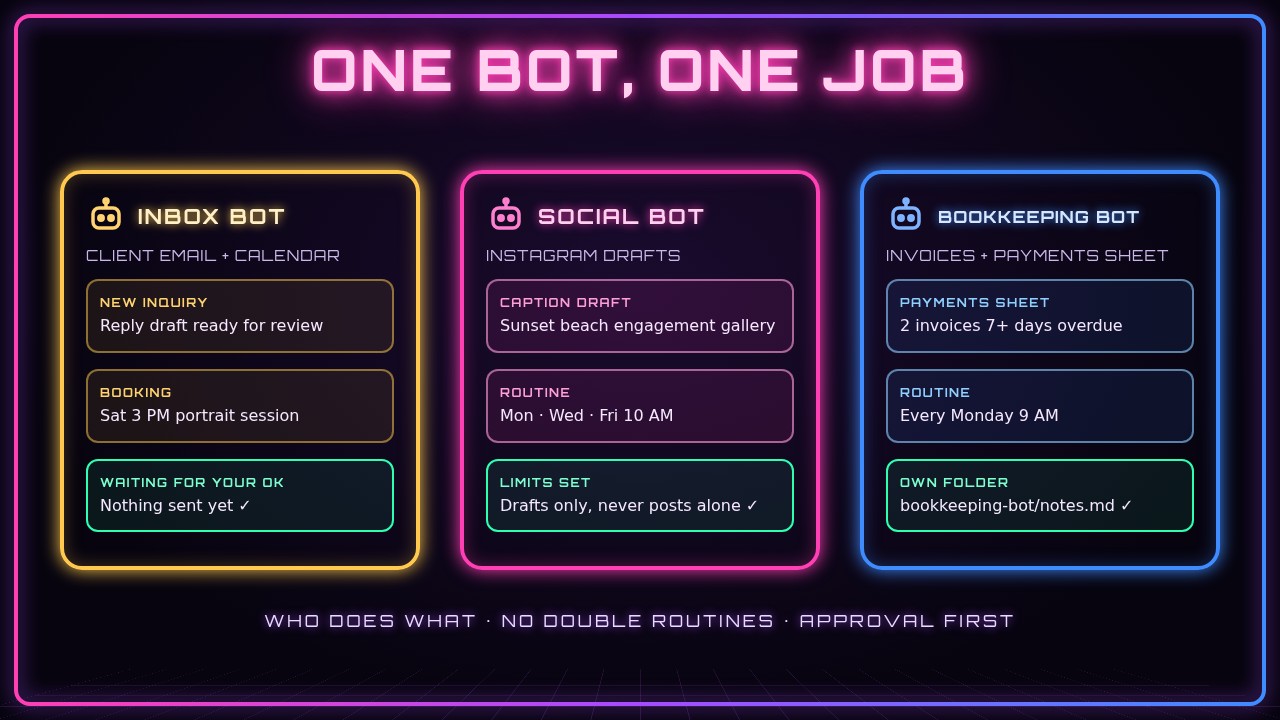
What you should see: Grok Bot confirms the file name and where it’s saved. If you use more than one bot, each bot that writes for you should read the same guide (see the more than one bot guide).
5. Test it on one real piece of writing
Now give Grok Bot a real job. Include the facts it needs, since it can’t guess what’s happening at your business this week.
Using my voice guide, write this Friday's newsletter for my yoga studio.
Facts for this week:
- New Saturday 9 AM slow flow class starts December 5
- Studio is closed Thursday, November 26
- Bring-a-friend week: friends take any class free through December 4
Keep it under 150 words. Show me the draft only, don't send anything.
What you should see: a short draft that opens and signs off the way you do and includes every fact you gave it. Read it out loud. Mark anything that makes you wince.
6. Give specific feedback, not “make it better”
Vague feedback gets vague changes. Point at the exact words that sound wrong and say what you’d write instead.
Close, but a few fixes:
- "Elevate your weekend practice" doesn't sound like me. I'd say "Come stretch with us."
- Too many exclamation points. One per email, max.
- The closing paragraph is too long. One sentence is enough.
Rewrite with those changes and keep everything else the same.
What you should see: a new draft that changes only what you asked for. If it rewrote the whole thing, ask it to “change only the lines I mentioned.”
7. Add your fixes to the voice guide
Every correction you make is a rule Grok Bot can follow next time. Ask it to update the guide so you don’t have to repeat yourself.
Add what I just corrected to voice-guide.md as new rules, so you get it right
next time. Show me only the lines you added.
What you should see: two or three new lines in the guide, like “Use ‘come stretch with us’ style invites, not ‘elevate’ language” and “One exclamation point per email.” After a few weeks of this, Priya’s drafts need almost no fixes.
8. Add the details only you know
This is the step that makes it really yours. Grok Bot doesn’t know what happened in class or how you felt about it. Add one or two real details yourself, like a student milestone, a funny moment, or why you started the new class.
Priya adds one line: “A few of you asked for something gentler on weekends, so this one’s for you.”
What you should see: a draft that sounds like a person who was actually there. If you’d rather Grok Bot place it for you, paste your detail and ask it to “work this in without changing the rest.”
9. Fact-check before it goes anywhere
Check every date, time, price, address, and link against your own calendar or website. Then ask Grok Bot to double-check the draft against the facts you gave it.
Compare this draft to the facts I gave you. List every date, time, and offer
in the draft and tell me if any of them don't match. Don't change the wording.
What you should see: a short list where every item matches. Priya catches that the draft said “Saturdays at 9:30” instead of 9 AM and fixes it before sending.
10. Make the shorter versions from the approved draft
Once the newsletter is final, use it as the source for your social posts. That keeps the facts and the voice the same everywhere.
Using my final newsletter and voice guide, write 3 short Instagram captions:
one for the new Saturday class, one for bring-a-friend week, and one reminder
that we're closed Thursday. Under 40 words each. Drafts only.
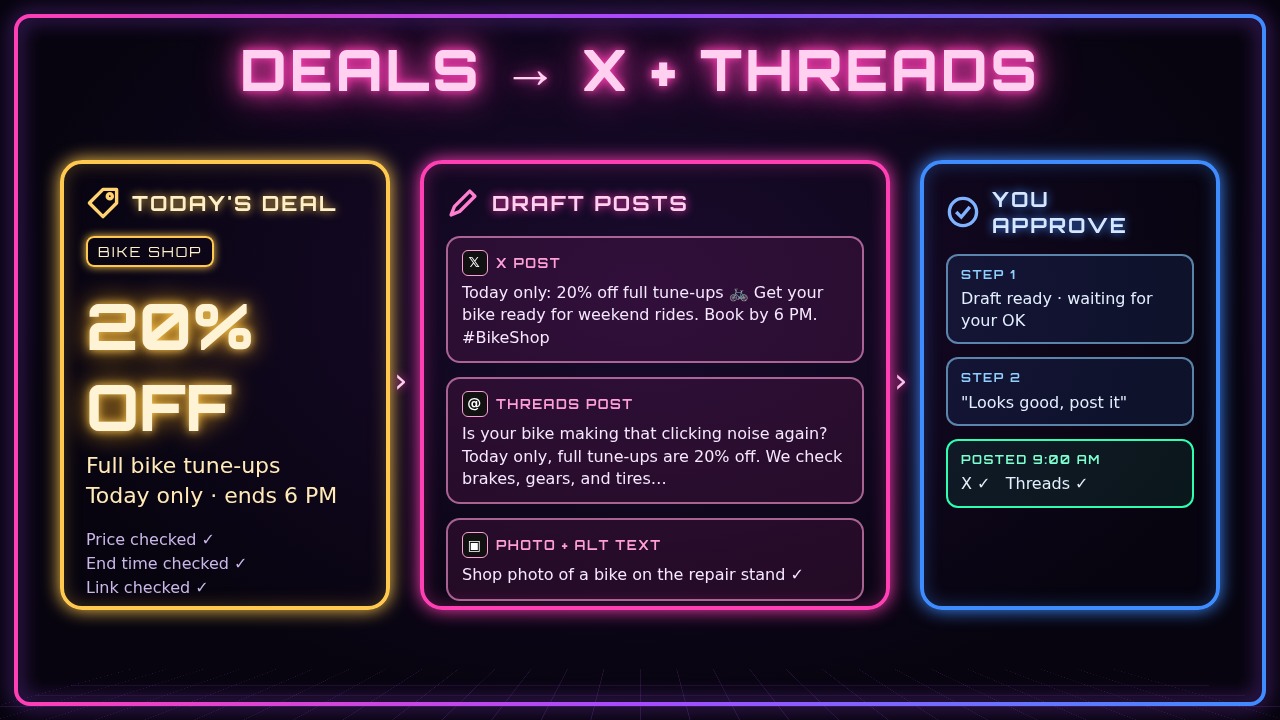
What you should see: three captions that sound like the newsletter, with the same dates and offers. If you want Grok Bot to post them for you, have it show you each draft and wait for your OK first (the daily deals to X and Threads guide walks through approval before posting).
11. Make it a weekly habit (optional)
If you write the same thing every week, ask Grok Bot to set up a routine that drafts it on a schedule using your voice guide, then waits for you. See the daily routines guide for how routines work.
Every Thursday at 10 AM, ask me for this week's studio news. Then draft Friday's
newsletter using voice-guide.md and show it to me. Never send it without my OK.
What you should see: a confirmation of the day, time, and time zone, plus a note that the draft will wait for your approval.
Tips and troubleshooting
- Draft still sounds generic? Give it more samples, especially casual ones. Two newsletters isn’t much to learn from; five or six mixed pieces work better.
- It keeps using the same AI words. Add them to the “never use” list by name. Specific bans work better than “sound less like AI.”
- It changed facts while fixing the tone. Ask it to change wording only and keep every date, time, and price exactly as given. Then repeat step 9.
- It forgot your guide. Start the request with “Read voice-guide.md first.” If it can’t find the file, paste the guide into the chat.
- Different places, different voices. Your newsletter may be chattier than your website. Ask Grok Bot to add a short section to the guide for each place you write.
- Read it out loud. It’s the fastest way to catch a sentence you’d never say.
- You’re the author. Grok Bot drafts; you decide what goes out. Keep approval on for anything it sends or posts.
- Other examples to try: a local bakery’s weekly specials email, a fitness creator’s video descriptions, a small Etsy shop’s product listings and customer replies, a photographer’s portfolio “About” page, or a family holiday letter. Turning your videos into posts? The YouTube to blog post guide pairs well with a voice guide.
Recap checklist
- Collected 3 to 5 samples of my own writing
- Asked Grok Bot to describe my voice before writing anything
- Turned it into a one-page voice guide with do’s and don’ts
- Saved the guide as voice-guide.md and kept my own copy
- Tested it on one real piece with all the facts included
- Gave specific feedback on the exact words that sounded wrong
- Added my corrections to the voice guide
- Added a detail only I know
- Fact-checked every date, time, price, and link
- Made the shorter versions from the approved draft
- (Optional) Set up a weekly routine that drafts and waits for my OK
Gear from this guide
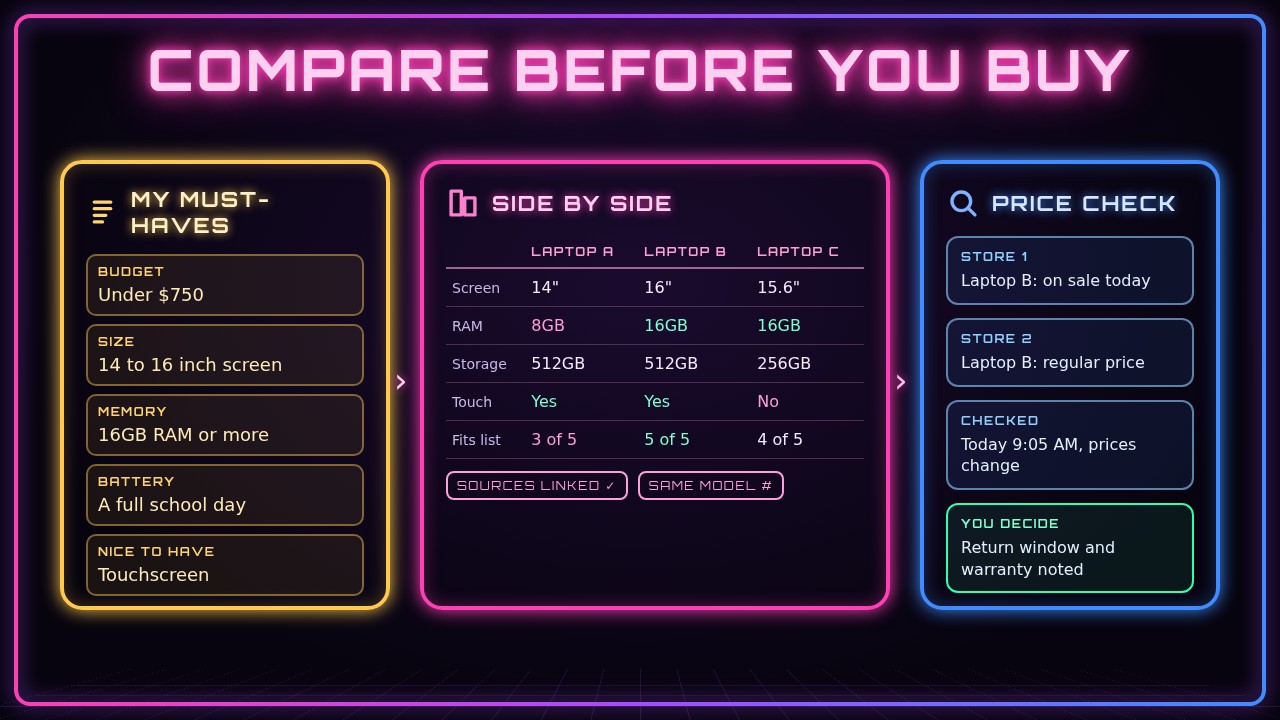
Writing and editing go faster with the right setup. Noise-canceling headphones like the Sony WH-1000XM5 help you focus while you read drafts out loud or edit in a busy space. A light 2-in-1 like the HP OmniBook 5 Flip 14” is easy to write on anywhere and folds into a tablet for a final read-through. And if you like your voice guide and draft side by side, the bigger screen on the Lenovo Yoga 7i 2-in-1 16” gives you room for both.
Subscribe to GregglesTV for daily tech news, reviews and walkthroughs.
See today’s GregglesTV Best Tech Deals or browse all deals posts.
Comments
Comments are moderated. Hate, slurs, spam and scam posts are blocked. Don’t include personal info you wouldn’t want public. See the privacy policy.
Loading comments…