How to Use Split Screen and Pop-up View on a Samsung Galaxy S26 (No Foldable Needed), Step by Step
You don't need a Galaxy Z Fold to run two apps at once. Here's how to use split screen, pop-up view, app pairs and the two-finger swipe gestures on a Galaxy S26 or any regular Samsung phone, plus a fix for apps that won't split.
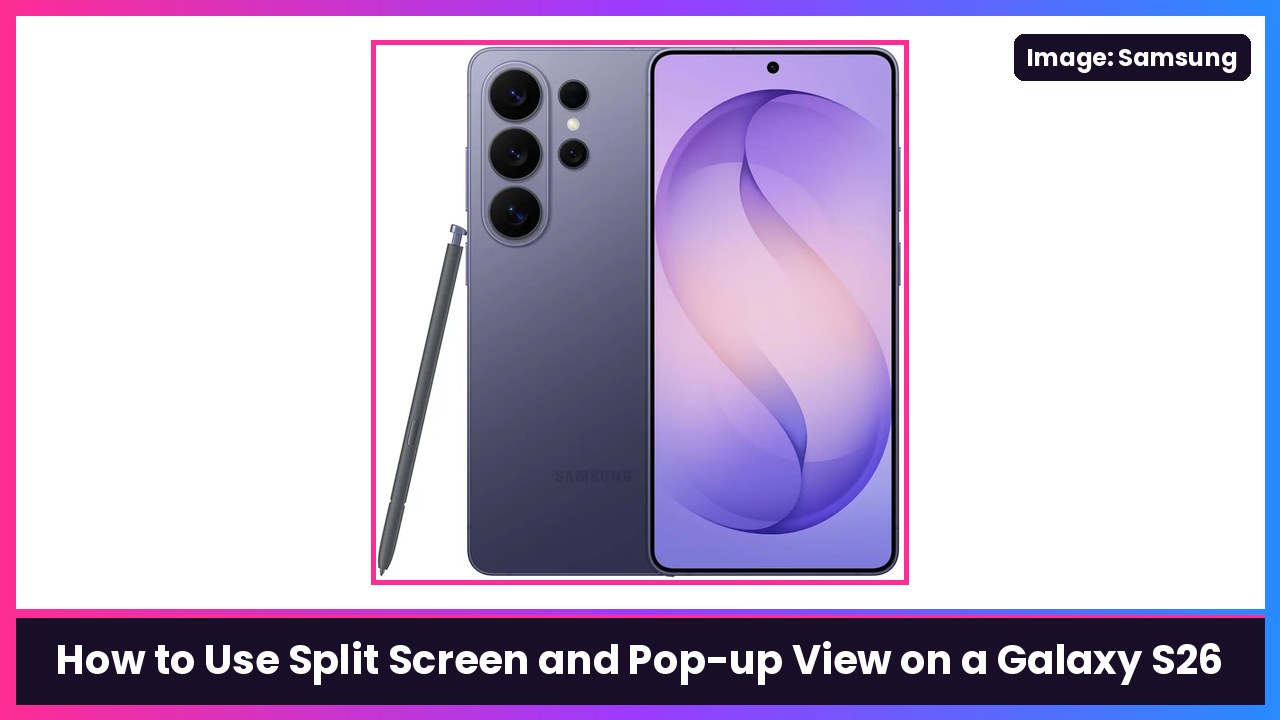
Quick summary: Split screen gets sold as a foldable feature, but as Engadget pointed out today, regular Android phones have had it since Android 7.0 Nougat back in 2016. On a Galaxy S26 Ultra, Galaxy S26 FE or pretty much any Samsung phone, Samsung calls it Multi window, and it gives you split screen, floating pop-up view windows and saved app pairs. Every menu name below comes from Samsung’s own support pages.
Key takeaways
- Fastest way: Recent apps > tap the app’s icon > Open in split screen view, then pick a second app.
- Resize by dragging the divider. Tap the divider for swap and app pair options.
- Pop-up view floats an app on top of another one: Recent apps > app icon > Open in pop-up view.
- Gestures: turn on Settings > Advanced features > Multi window > Swipe for split screen / Swipe for pop-up view.
- App pairs save a combo you use all the time so both open together.
Before you start
- This works on non-foldable Galaxy phones like the S26 series and A series, plus Galaxy tablets and foldables. Samsung notes that split screen and pop-up view aren’t supported on the cover screen of a Z Fold or Z Flip.
- Some apps don’t support split screen. If an app won’t split, jump to Step 6.
- Samsung says available screens and settings may vary by carrier, software version and model.
Step 1: Open two apps in split screen from Recent apps
This is straight from Samsung’s Recent apps and Multi window support pages.
- Open the first app you want, say a bakery’s online menu in Samsung Internet.
- Open Recent apps: tap the Recents button if you use navigation buttons, or swipe up from the bottom and hold if you use swipe gestures.
- Tap the app’s icon at the top of its preview card (not the preview itself).
- Tap Open in split screen view.
- Pick the second app, like Samsung Notes to jot down the order.
What you should see: Both apps stacked on screen, one on top and one on the bottom, with a divider between them.
Step 2: Resize, swap and close
- Drag the divider up or down to give one app more room.
- Tap the divider to see more options, such as swapping the app positions (the two arrows) or saving the combo as an app pair.
- To leave split screen, tap the Home button. Samsung says this closes them on the Home screen but keeps them together in Recents, so you can jump back in. Engadget also notes that dragging the divider all the way up or down exits split screen.
What you should see: The apps resize live as you drag, and after tapping Home, the pair shows up as a single card in Recent apps.
Step 3: Float an app in pop-up view
Pop-up view is great when you want to keep a calculator or a chat on top of a full-screen app instead of splitting the screen in half.
- Open Recent apps.
- Swipe to the app you want, then tap its icon.
- Tap Open in pop-up view.
- Drag the window to move it, and drag its edges to resize it.
Samsung’s support page lists the controls at the top of the pop-up window, left to right:
- Pin options menu to top
- Open in split screen view
- Minimize window (turns it into a floating icon you can tap later)
- Maximize window (back to full screen)
- Close app
What you should see: A smaller, movable window over whatever else you have open. Minimize it and it becomes a little floating bubble.
Step 4: Turn on the swipe gestures (my favorite)
Samsung added these in One UI 6 and later, per its Multi window page.
- Open Settings and tap Advanced features.
- Tap Multi window.
- Turn on Swipe for split screen and/or Swipe for pop-up view.
Now:
- A two-finger swipe up from the bottom of the screen moves the current app into split screen.
- A one-finger swipe in from either top corner turns the current app into a pop-up.
What you should see: Swiping up with two fingers in, say, YouTube shrinks it to the top half and shows your other apps to pick from for the bottom.
Step 5: Save an app pair
If you always use the same two apps together (Maps plus Spotify in the car, or an Etsy shop’s seller app plus your email), save them as an app pair:
- Open the two apps in split screen (Step 1).
- Tap the divider between them.
- Tap the Add to app pair icon (Samsung says it may show a plus sign or a star).
- Pick where you want to save it, like the Edge panel.
What you should see: A new shortcut with both app icons. Tap it and both apps open in split screen together.
Foldable owners: Samsung says the Z Fold series (including the Galaxy Z Fold 8) can save three-app pairs. I cover that in my Galaxy Z Fold 8 multitasking guide.
Step 6: If an app won’t split
Engadget says the split option will be greyed out or missing for apps that don’t support multi-window.
- First, update the app in the Play Store or Galaxy Store. Newer versions sometimes add support.
- Still no luck? Android has a Force activities to be resizable toggle in Developer options. To turn on Developer options on a Galaxy, Samsung’s support page says to go to Settings > About phone > Software information and tap Build number seven times, then enter your PIN if asked.
- Open Developer options (it appears near the bottom of Settings), turn on Force activities to be resizable, and try again.
What you should see: The app may now open in split screen. Engadget warns this doesn’t always work, and forced apps may not behave perfectly.
Be careful in Developer options. Don’t change settings you don’t recognize, since some can affect performance and stability.
Tips
- Use the Edge panel: Samsung also lets you swipe in the Edge panel handle, tap the All apps grid and drag an app to the top or bottom of the screen to split it.
- Drag a link: Samsung’s page says you can drag and drop a URL or hyperlink or a notification to open it in Multi window.
- Videos float on their own: apps like YouTube support picture-in-picture, so you may not need pop-up view for those.
- Bigger screen, more apps: a Galaxy Tab S10 FE or a Fold gives each app much more room than a phone.
- On a Pixel? It’s the same basic idea: Recents > tap the app icon > Split screen. See my Pixel Fold split screen guide.
Recap checklist
- Recent apps > app icon > Open in split screen view, then pick a second app
- Drag the divider to resize, tap it to swap or save
- Recent apps > app icon > Open in pop-up view for a floating window
- Settings > Advanced features > Multi window: turn on Swipe for split screen and Swipe for pop-up view
- Save your favorite combo as an app pair
- For stubborn apps: update, then try Force activities to be resizable
My take
I use split screen on my phones way more than people expect, mostly a video on top and messages or notes on the bottom. The two-finger swipe gesture is the one setting I’d turn on today, because it makes split screen something you actually use instead of something you forget exists. You really don’t need a $2,000 foldable for this, though a Galaxy S26 Ultra’s big screen sure helps.
Sources: Engadget: You don’t need a foldable phone to use split screen on Android, Samsung: Use Multi window and App pairs on your Galaxy phone or tablet, Samsung: Manage Recent apps on your Galaxy phone or tablet, Samsung: Use multiple apps and multitask on your Galaxy Z Fold8, Samsung: Turn on the Developer options menu on your Galaxy phone. Lead image: Samsung’s official Galaxy S26 Ultra product image.
Subscribe to GregglesTV for daily tech news, reviews and walkthroughs.
See today’s GregglesTV Best Tech Deals or browse all deals posts.
Comments
Comments are moderated. Hate, slurs, spam and scam posts are blocked. Don’t include personal info you wouldn’t want public. See the privacy policy.
Loading comments…