Pixel 9 Pro Fold: How to Multitask With Split Screen
Three ways to run two apps side by side on the Pixel 9 Pro Fold, how to swap apps, save app pairs to your home screen, and customize the taskbar.
Quick summary: The Pixel 9 Pro Fold’s big inner screen is made for running two apps side by side. I use gestures. If you use the three buttons, the square recent apps button does what my swipe-up does.
Way 1: Drag from the taskbar
- Open an app, like YouTube.
- Swipe up a little to bring up the taskbar.
- Press and hold another app and drag it to the side of the screen. Now both run at the same time.
Save an app pair
- With two apps open, swipe up and hold (or tap the square button).
- Tap Save app pair. It goes on your home screen, and you can drag it anywhere.
- Tap the pair any time to open both apps exactly how you had them.
Swap one of the apps
- Bring up the taskbar and tap the all apps button.
- Press and hold any app and drag it over one of the open windows to replace it. I swapped in the Play Store, then Instagram, while keeping YouTube open.
Way 2: The app’s top handle
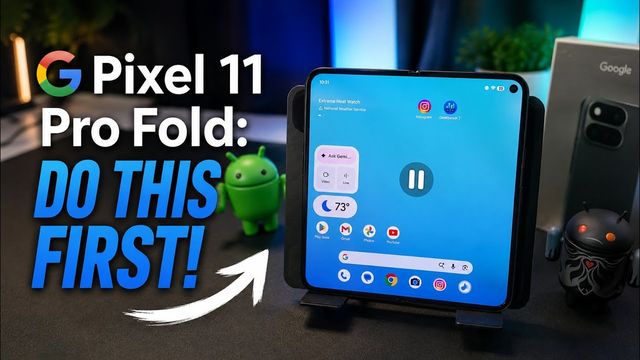
Press and hold inside an app and tap the icon that looks like a pause button at the top. It’s not pause. It opens a second window so you can pick another app.
Way 3: Recent apps
Open recent apps, tap Split on an app, then choose the second app.
Customize the taskbar
The apps in the taskbar match your home screen’s dock at the bottom. To change them, add or move apps in the dock. I added Instagram there and it showed up in the taskbar.
Get it
Watch the full video on YouTube, and subscribe to GregglesTV for daily tech news, reviews and walkthroughs.
See today’s GregglesTV Best Tech Deals or browse all deals posts.
Comments
Comments are moderated. Hate, slurs, spam and scam posts are blocked. Don’t include personal info you wouldn’t want public. See the privacy policy.
Loading comments…