Google Pixel 11 Pro Fold: First 20 Things To Do
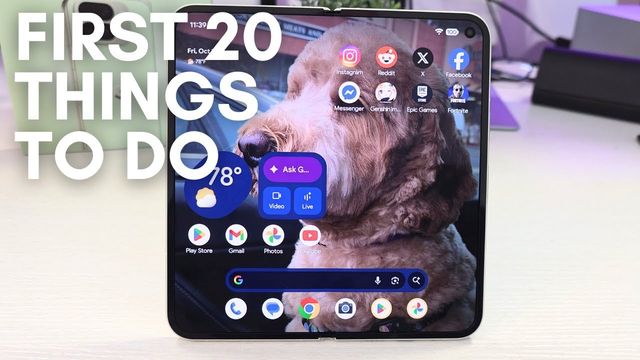
The first 20 things I change on the Pixel 11 Pro Fold: spam filtering, voice translate, camera, notification history, display contrast and power button.
Quick summary: Here are the first 20 things I do on a new Google Pixel 11 Pro Fold, in the order I do them.
Phone app
- Caller ID and spam filtering: in the Phone app, tap the menu > Settings, turn on Caller ID and spam, and turn on Filter spam calls so suspected spam doesn’t bother you.
- Voice translate: turn it on and let it download. It translates calls with someone speaking another language in real time, in your voice, and you can download more languages.
- Proactive assistance: Gemini looks at what’s on your screen during calls and anticipates what you need. Leave it off if that bothers you for privacy reasons.
- Visual voicemail and Audio Emoji: set up visual voicemail (it walks you through it). Audio Emoji lets you play a laugh track, applause or a sad trombone during a call.
- Contact ringtones and calling cards: give individual contacts their own ringtone, and create a calling card for how you look to others when you call.
- Announce caller ID: have it say who’s calling always or only with a headset. I’d pick headset only.
Camera
- 4K60 and no camera sounds: in Video, tap the gear, set the resolution to 4K and everything to 60 fps, and turn off camera sounds.
- Grid and palm timer: I use a 3x3 grid to frame shots, and the palm timer to start a countdown when you show your palm.
- Fix washed-out videos: if your videos look washed out on your computer or social media, turn off 10-bit HDR. Leave optimize FPS automatically on so it drops from 60 to 30 fps in low light.
Quick settings, network and apps
- Rearrange quick settings: swipe down and edit. Tap a tile and tap Remove, drag tiles to move them, tap the plus to add one (like Hotspot), and resize tiles.
- Wi-Fi preferences: in Network and internet > Internet > Network preferences, turn on Turn on Wi-Fi automatically and turn off Notify for public networks.
- Default apps and aspect ratio: in Apps, change your default browser, SMS or wallet app. If an app looks weird on the big screen (like an airline app), set its aspect ratio to full screen or app default.
Notifications and sound
- Notification history and enhanced notifications: turn on notification history to find missed or swiped-away notifications, and enhanced notifications for suggested replies and actions.
- Sounds and Clear Calling: turn off vibrations and haptics you don’t want (I turn off keyboard vibration) and system sounds, and turn on Clear Calling to reduce background noise on calls.
Display
- Lock screen and cover screen: choose how notifications show on the lock screen, and set lift to check phone and wake screen for notifications. I set continue using apps on the cover screen to Never, so apps stop when I close the phone.
- Screen timeout and dark theme: 2 minutes. Turn on dark theme, and the expanded option that applies it to most apps that don’t support it.
- Text size, navigation, contrast and touch: adjust text and display size, pick gestures or buttons (and the button layout), and set color contrast to high. It pops more, like a Samsung screen. Increase touch sensitivity if you use a screen protector, and make sure Smooth Display is on.
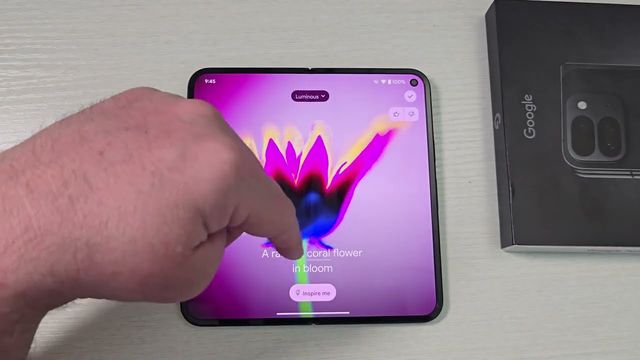
- Wallpaper and colors: pick a wallpaper and change the colors for your quick toggles and more. Theme packs said “coming soon” when I made this.
Battery and system
- Battery percentage and updates: turn on battery percentage, then check System > Software update.
- Gestures, power button and Circle to Search: I keep Quick Tap (tapping the back of the phone) off because of accidental taps. Double press power opens the camera (or your wallet). Press and hold opens the assistant or the power menu. Keep Circle to Search on, try the light on the back that glows when the phone is face down, and turn on face detection for auto-rotate.
Get it
Watch the full video on YouTube, and subscribe to GregglesTV for daily tech news, reviews and walkthroughs.
See today’s GregglesTV Best Tech Deals or browse all deals posts.
Comments
Comments are moderated. Hate, slurs, spam and scam posts are blocked. Don’t include personal info you wouldn’t want public. See the privacy policy.
Loading comments…