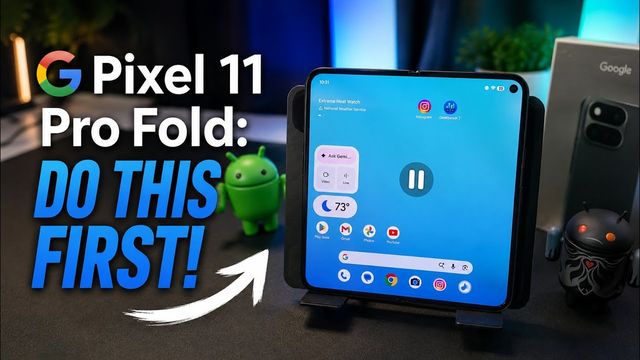
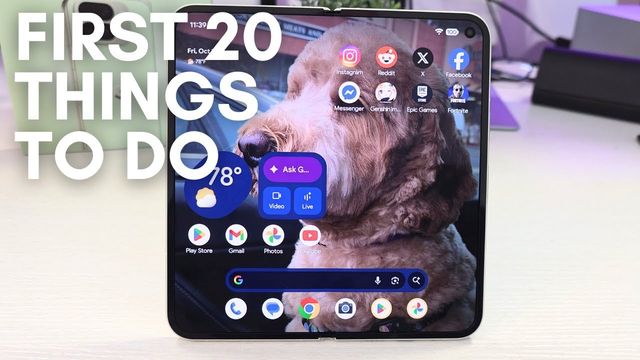
Google Pixel 9 Pro: First 20 Things To Do
The first 20 things I change on the Pixel 9 Pro: camera, Wi-Fi alerts, notification history, charging, Now Playing, full resolution and more.
Quick summary: Here are the first things I do on a new Google Pixel 9 Pro (or 9 Pro XL), in the order I do them.
Camera and home screen
- Turn off camera sounds: in the Camera, open Settings > More settings and turn off Camera sounds.
- 4K video: in Video, tap the gear and set Resolution to 4K. You can go up to 8K, but it takes too much space, isn’t as stable and crops in more. Choose 30 or 60 fps. I use 30.
- Google feed: press and hold the home screen, tap Home settings, and turn off Swipe to access Google app if you don’t want the feed.
Network and apps
- Public network alerts: Settings > Network and internet > Internet > Network preferences, turn off Notify for public networks. Open Wi-Fi can be risky without a VPN anyway.
- Default apps: in Apps, change your default browser, call redirecting, caller ID and spam app, launcher and more.
Notifications
- Notification history: turn it on so you can see notifications you dismissed or snoozed.
- Flash notifications: the camera light and/or screen flash when a notification comes in. You can preview it.
- Enhanced notifications: turn it on for suggested actions and AI reply suggestions.
Battery and sound
- Adaptive charging: I turn it off so the phone charges faster. Keep it on if you plan to keep the phone for a really long time. I upgrade often.
- Battery percentage: turn it on to see the actual percentage.
- Volumes, ringtones and spatial audio: set your media, call, ring, notification and alarm volumes, pick ringtones and your default alarm sound, and turn on spatial audio for headphones if you want.
- Now Playing: turn it on. It identifies songs playing around you and keeps a history. I have a home screen shortcut to it.
- Haptics, Clear Calling and system sounds: I turn off vibration and haptics and the dial pad and other system sounds. I turn Clear Calling on to reduce background noise on calls.
Display
- Brightness, timeout and Screen attention: keep adaptive brightness on, set Screen timeout to 2 minutes, and turn on Screen attention so the screen stays on while you’re looking at it.
- Lock screen: set up the dynamic clock, show Now Playing, and choose always show time and info, tap or lift to check phone and wake screen for notifications. I have them all on.
- Dark theme, text size and navigation: I keep dark theme on (or schedule it), set display size and text a little bigger, turn on bold text or high contrast if you need them, and choose gestures or three buttons.
- Full resolution: Screen resolution defaults to High resolution. Change it to Full resolution. It uses a little more battery, but you paid for that display.
Security, updates and style
- Face and fingerprint unlock: under Security and privacy > Device unlock, set up your PIN or pattern, Face Unlock and Fingerprint Unlock. I turn off always require confirmation so face unlock skips the lock screen and goes straight to home.
- Updates: System > Software updates, check System update and App updates.
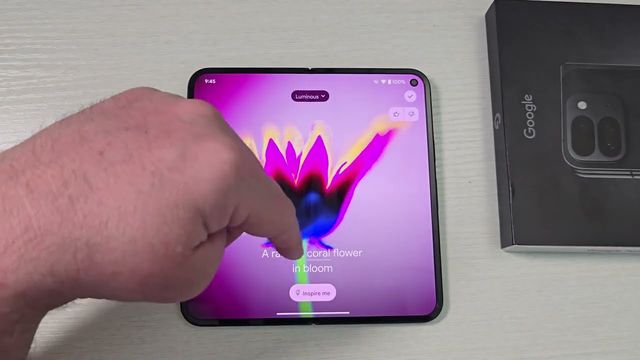
- Wallpaper and themed icons: press and hold the home screen and tap Wallpaper and style. Try an AI wallpaper (I made “purple clouds”), browse categories like cityscapes, then turn on Themed icons so your icons match your wallpaper.
Get it
Watch the full video on YouTube, and subscribe to GregglesTV for daily tech news, reviews and walkthroughs.
See today’s GregglesTV Best Tech Deals or browse all deals posts.
Comments
Comments are moderated. Hate, slurs, spam and scam posts are blocked. Don’t include personal info you wouldn’t want public. See the privacy policy.
Loading comments…