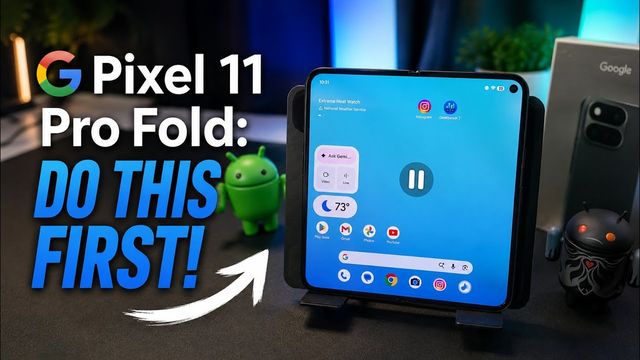
Pixel 10 Pro Fold: First 20 Things To Do
The first 20 things I change on the Pixel 10 Pro Fold: live wallpaper effects, 4K video, notifications, Now Playing, display, battery and Magic Cue.
Quick summary: Here are the first 20 things I do on the Google Pixel 10 Pro Fold, in the order I do them.
Wallpaper and home screen
- Wallpaper with live effects: press and hold the home screen, tap Wallpaper and style, and pick a photo. Under live effects you can add a shape, weather effects (snow, sun, rain or fog, and you can make them denser) and cinematic zoom. Tap the check mark to save.
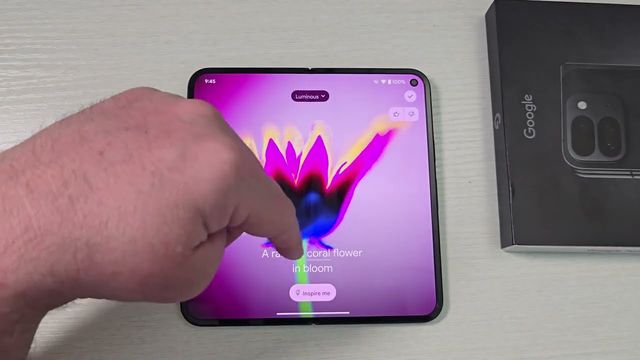
- AI wallpapers: pick a theme, answer a few prompts (like “minerals,” “muted”), tap Feeling lucky, and it creates one for you. There are also collections to browse.
- Home settings: press and hold the home screen and open Home settings. Turn notification dots and the At a Glance banner on or off, keep add app icons to home screen on, and choose whether to show the Google app feed when you swipe right.
Camera and quick settings
- 4K video: open the camera, go to Video, open settings and choose 4K. You can do 60fps for super smooth video (I usually use 30). Flip to the front camera and make sure it’s 4K too.
- Photo settings: choose 16:9 or 4:3, and adjust options like Night Sight, face smoothing (subtle, smooth or off; mine’s off) and Top Shot / Motion photo (I use Auto).
- Quick settings: swipe down, tap the pencil, and remove, add (like Hotspot) or drag tiles around.
Network, apps and notifications
- Public network alerts: Settings > Network and internet > Internet > Network preferences, turn off Notify for public networks.
- Default apps: in Apps > Default apps, change your browser, digital assistant, launcher, phone, SMS or wallet app.
- Notification history: turn it on so you can see notifications you missed or swiped away.
- App notifications: turn off apps that bug you, or just certain categories (like deals and recommendations).
- Notification cooldown: lowers the volume and minimizes alerts for up to a minute when you get a lot at once. I keep it on.
Sound
- Sounds and vibration: set volumes, adjust or turn off haptics, change ringtones, notification and alarm sounds, and turn off system sounds (dial pad, screen lock, charging, tap and click).
- Now Playing: it identifies songs playing around you. Turn on notifications, enhanced Now Playing (uses Google Search for songs it doesn’t recognize), check your history, and set your default music app (I’d pick Spotify).
Display
- Brightness and lock screen: I keep adaptive brightness on. Choose how notifications show on the lock screen, and set lift to check phone, tap to check phone and wake screen for notifications (uses more battery). Turn Always On Display on or off.
- Continue apps on cover screen: on the Fold, I’d use swipe up to continue or never. I don’t want an app to keep running when I close the phone.
- Screen timeout and attention: 2 minutes, plus screen attention so it stays on while you’re looking at it.
- Dark theme, size and navigation: dark theme (or a schedule), display size and text (bold and outline text), gestures or buttons, and back-gesture sensitivity. I turn off adaptive tone, keep colors on Adaptive, and set color contrast to high.
Battery, system and AI
- Battery: turn on battery percentage. Charging optimization finishes charging right before you wake up, and you can limit charging to 80%. I turn these off because I don’t keep phones long.
- Gestures and updates: in System > Gestures, I keep Quick Tap off (too many accidental taps), set double press power for the camera (or wallet), and turn on flip to shush. Check System update.
- Magic Cue: make sure it’s on. It uses AI to show useful details and actions related to what’s on your screen, like upcoming calendar events.
Get it
Watch the full video on YouTube, and subscribe to GregglesTV for daily tech news, reviews and walkthroughs.
See today’s GregglesTV Best Tech Deals or browse all deals posts.
Comments
Comments are moderated. Hate, slurs, spam and scam posts are blocked. Don’t include personal info you wouldn’t want public. See the privacy policy.
Loading comments…