How to Turn On Auto Blocker on a Samsung Galaxy (and When to Use Maximum Restrictions), Step by Step
One UI 9.5 now stops anyone from turning off Auto Blocker during a phone call, a direct hit on scam calls. Here's how to check that Auto Blocker is on, what it blocks, when Maximum restrictions is worth it and how to safely turn it off for a minute.
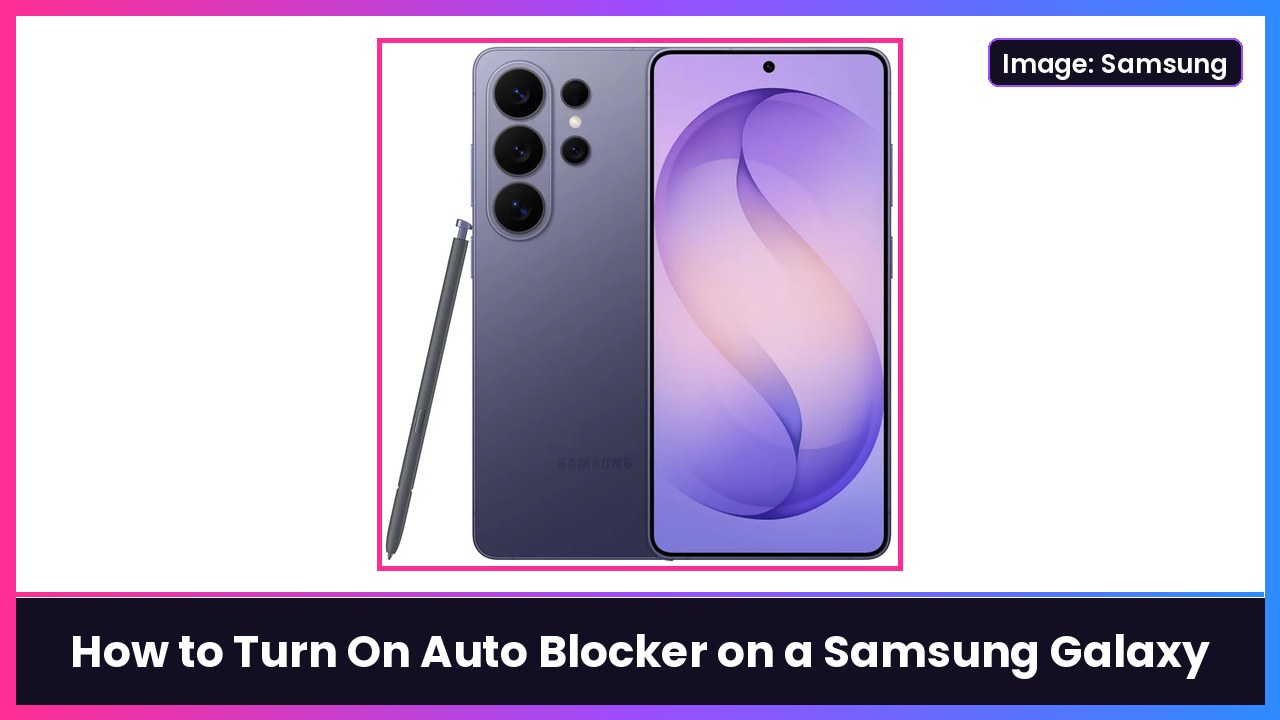
Quick summary: SamMobile spotted tonight that in the One UI 9.5 beta, you can’t turn off Auto Blocker while you’re on a voice call. That’s a big deal, because a classic scam is a “bank” or “tech support” caller talking you into switching off your phone’s protection so they can get you to install a malicious app. The lock goes away when the call ends. Whether you’re on a Galaxy S26 Ultra with the beta or an older Galaxy, here’s how to make sure Auto Blocker is actually on, what it does, and when to go further with Maximum restrictions. Every menu name comes from Samsung’s own Auto Blocker support page.
Key takeaways
- Where it lives: Settings > Security and privacy > Auto Blocker.
- Standard Auto Blocker blocks apps from outside the Galaxy Store and Google Play, commands over USB, malware images in messaging apps and non-official software updates.
- Maximum restrictions is optional and stricter. It blocks 2G, link previews in texts, shared albums and more.
- New in One UI 9.5: Auto Blocker can’t be switched off during a call.
- If anyone on the phone asks you to turn it off, hang up. That’s the whole scam.
Step 1: Check that Auto Blocker is on
Samsung says Auto Blocker is often turned on during setup, but it’s worth checking. If you upgraded from an older One UI version, Samsung says your old setting carries over, so it could still be off.
- Open Settings.
- Scroll down and tap Security and privacy.
- Tap Auto Blocker.
- If the switch is off, tap the switch to turn on Auto Blocker.
What you should see: The Auto Blocker switch is on, with Maximum restrictions listed near the bottom of the screen. Android Police also sees a Turn on automatically option on this screen (more on that in Step 4).
Step 2: Know what Auto Blocker is blocking
Once it’s on, Samsung says your phone automatically:
- Blocks apps from unauthorized sources. Try to install an app from outside the Galaxy Store or Google Play Store and Auto Blocker will notify you and stop the install.
- Blocks commands by USB cable. It blocks unauthorized commands when you plug into a charger, computer or other USB device (think sketchy public charging stations).
- Blocks malware images in messaging apps. Images suspected of carrying malicious code get blocked before they open.
- Blocks non-official software updates. Software that isn’t certified by Samsung can’t be installed. Samsung says official updates through Settings or Smart Switch aren’t affected.
What you should see: Nothing different day to day. Apps from Google Play and the Galaxy Store install and update normally. You’ll only notice Auto Blocker when it stops something.
Step 3: Turn on Maximum restrictions (optional)
Samsung says Maximum restrictions is for people who want stronger security even if it costs some convenience, and that standard Auto Blocker is enough for most people who only install apps from trusted stores. I’d turn it on for a parent or grandparent who gets a lot of scam calls and texts.
- Go to Settings > Security and privacy > Auto Blocker.
- Make sure the main Auto Blocker switch is on.
- Tap Maximum restrictions at the bottom of the screen.
- Tap the switch at the top to turn it on.
- If a pop-up asks you to agree to the App protection terms, agree. Samsung’s FAQ says Maximum restrictions can’t turn on without it.
What you should see: Per Samsung, your phone now:
- Turns on App protection, which scans your apps for viruses and spyware
- Blocks device admin apps and work profiles
- Blocks 2G networks
- Blocks auto reconnection to non-secure Wi-Fi networks you’ve joined before
- Blocks hyperlinks and previews in texts that contain web addresses
- Blocks shared albums in Gallery
- Removes location data when you share pictures from Gallery
The trade-offs: Samsung warns some work apps that need device admin or a work profile won’t work, you won’t get calls or data in a 2G-only area, and you’ll have to copy and paste links from people you trust into your browser yourself.
Step 4: Need to install something outside the Play Store? Turn it off the safe way
Sometimes you really do want an app from outside the stores. Samsung’s FAQ says that if the app is safe, you can temporarily turn off Auto Blocker and try again.
- Hang up first. On One UI 9.5, the switch is locked during a voice call anyway.
- Go to Settings > Security and privacy > Auto Blocker and tap the switch to turn it off.
- Confirm with your PIN, pattern, password or fingerprint. Samsung’s FAQ says phones with a screen lock have to unlock to turn Auto Blocker off, so nobody else can quietly disable it.
- Install your app, then go back and turn Auto Blocker on again.
What you should see: Android Police says the Turn on automatically option switches Auto Blocker back on 30 minutes after you turn it off, so you can’t forget. If you see that option, use it.
Step 5: Add Google’s in-call protections on top
Samsung’s new call lock mirrors what Google already does. Google says Android’s in-call protections block risky actions during calls with people who aren’t in your contacts, including disabling Google Play Protect and, on Android 16, sideloading an app for the first time or granting accessibility permissions. You don’t have to set those up. Just keep Play Protect on:
- Open the Play Store app.
- Tap your profile picture, then Play Protect.
- Tap the Settings gear and make sure Scan apps with Play Protect is on.
What you should see: The Play Protect screen shows when your apps were last scanned. If a caller ever tells you to turn this off, that’s your cue to hang up.
Tips
- Want the One UI 9.5 version now? The beta is open on the Galaxy S26 series. Here’s how to join the One UI 9.5 beta.
- Old apps not updating? Samsung says apps you installed from outside the stores can’t update while Auto Blocker is on. That’s another reason to stick to Google Play and the Galaxy Store.
- Set it up on family phones. Auto Blocker plus a spam call filter covers most of the scams older relatives actually get.
- Stay updated too. Auto Blocker doesn’t replace security patches. Here’s how to install the November security update.
- Going further? Android Police recommends using Auto Blocker together with Google’s Advanced Protection (Settings > Google services > All services > Advanced Protection), since they barely overlap.
Recap checklist
- Settings > Security and privacy > Auto Blocker is on
- I know it blocks outside apps, USB commands, malware images and unofficial updates
- Maximum restrictions is on for phones that need extra protection
- I only turn Auto Blocker off after hanging up, and turn it back on right after
- Turn on automatically is enabled if my phone shows it
- Google Play Protect is on
My take
This One UI 9.5 change is one of those small things that will genuinely save people money. With Auto Blocker on, it’s much harder for a scammer to get a malicious app onto a Galaxy S26 FE or Galaxy Z Fold 8, so they try to talk you into switching it off. On One UI 9.5, they can’t, at least not while they’ve got you on the line. Take 30 seconds tonight to check it on your phone and on your parents’ phones, and if you’re setting up a Galaxy Tab S10 FE as a gift this holiday, flip it on before you wrap it.
More Samsung how-tos: use split screen and pop-up view on a Galaxy S26, block spam and scam calls, and archive apps you don’t use.
Sources: SamMobile: One UI 9.5 won’t let you turn off Auto Blocker during calls, Samsung Support: Protect your Samsung Galaxy device with the Auto Blocker feature, Samsung: Introduction of Auto Blocker in One UI 6.0 FAQ (PDF), Android Police: I tested Samsung’s Auto Blocker and Google’s Advanced Protection, Google: What’s New in Android Security and Privacy in 2025.
Subscribe to GregglesTV for daily tech news, reviews and walkthroughs.
See today’s GregglesTV Best Tech Deals or browse all deals posts.
Comments
Comments are moderated. Hate, slurs, spam and scam posts are blocked. Don’t include personal info you wouldn’t want public. See the privacy policy.
Loading comments…