How to Turn On Battery Protection on Samsung Galaxy (Basic, Adaptive or Maximum)
Samsung's Battery protection setting can stop your Galaxy phone from sitting at 100% all night, which helps the battery last longer. Here's where to find it, which mode to pick, and how to fix a phone that won't charge past 80%.
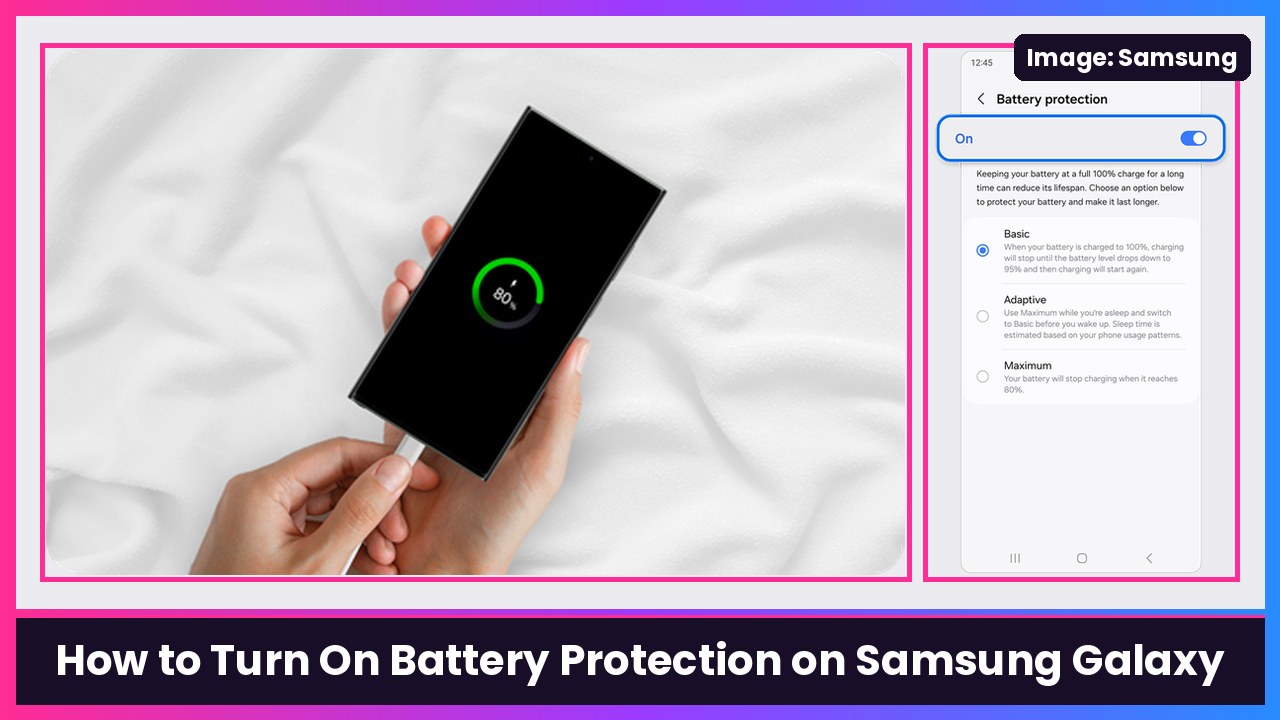
Quick summary: Samsung says keeping your battery at a full 100% charge for a long time can reduce its lifespan, and that’s exactly what happens when your phone charges all night. Samsung’s Battery protection setting fixes that by changing how your Galaxy phone or tablet charges. It’s in Settings > Battery > Battery protection, and it takes about 30 seconds to set up. Here’s how to do it on a phone like the Galaxy S26 Ultra or Galaxy Z Fold 8, based on Samsung’s official support steps.
Key takeaways
- Basic: stops charging at 100%, then starts again when it drops to 95%.
- Adaptive: learns your routine, holds the battery at 80% while you sleep, then finishes charging before you wake up.
- Maximum: stops charging at a limit (80%, or a level you set on newer software). Best for battery lifespan.
- Samsung says the three modes came with One UI 6.1. Older software only had a single 85% limit.
- If your phone suddenly won’t charge past 80% or 85%, this setting is almost always why.
Step 1: Open Battery protection
- Open Settings.
- Tap Battery.
- Tap Battery protection.
What you should see: A Battery protection screen with an On/Off switch at the top and a list of options below it.
Note: Samsung says available screens and settings can vary by carrier, software version and model. On some older software, Battery lives under Device care.
Step 2: Turn it on and pick a mode
- Tap the switch at the top so it turns on (blue).
- Pick one option:
- Basic if you want a full charge every day but less time stuck at 100%.
- Adaptive if you charge overnight on a regular schedule.
- Maximum if you’re usually near a charger and want the battery to last the most years.
What you should see: The option you picked has a filled-in dot. On newer One UI versions, Maximum may let you choose the exact charging level. Samsung says the lower the level, the more you can extend the battery’s life.
If you don’t see “Adaptive”
Samsung’s menus have shifted a bit between One UI versions. On some software, Adaptive is its own option. On others, Samsung’s support page describes a Sleep time protection switch under Basic that does the same idea: it pauses charging at 80% during your sleep hours and tops up to 100% just before your scheduled wake-up time. If you see that switch, turn it on.
Step 3: Plug in and check
- Plug your phone in like normal.
- Pull down the notification shade and watch the charging status.
What you should see: With Maximum, charging stops at your limit (for example, 80%). With Basic, it reaches 100% and stops. With Adaptive or Sleep time protection, it might sit at 80% overnight and then finish before your alarm.
Samsung notes that Adaptive may not work well if your sleep schedule is irregular.
Fix: “My Galaxy won’t charge past 80%”
This is Samsung’s own troubleshooting fix:
- Go to Settings > Battery.
- Tap Battery protection.
- Choose a different option, or turn off the switch at the top (it turns gray when off).
- Plug in and let it charge to 100%.
Which mode should you use?
| Your situation | Pick |
|---|---|
| Charge overnight, same bedtime most nights | Adaptive (or Basic + Sleep time protection) |
| Need every bit of battery each day | Basic |
| Work at a desk, phone plugged in a lot | Maximum |
| Big travel day tomorrow | Turn it off the night before, then back on |
Tips
- Travel day trick: Switch to Basic (or turn protection off) the night before a long trip so you leave at 100%. Then turn it back on.
- Carry backup power: If you use Maximum, an Anker 25,000mAh power bank makes up for the missing 20% on long days.
- Same setting on foldables and tablets: Samsung says Battery protection works on Galaxy phones and tablets, so set it up on your Fold 8 and Galaxy Tab too.
Recap checklist
- Settings > Battery > Battery protection
- Turn on the switch at the top
- Pick Basic, Adaptive or Maximum (or Basic + Sleep time protection)
- Plug in and confirm where charging stops
- Stuck at 80%? Change the option or turn the switch off
If you charge overnight, Adaptive is the easy pick. It’s one of those set-it-once settings that quietly helps your phone’s battery hold up longer.
Sources: Samsung US: Get the most out of your Galaxy phone or tablet battery, Samsung US: Galaxy device battery is not charging past 80% or 85%, Samsung UK: Galaxy Battery protection feature in One UI 6.1.
Subscribe to GregglesTV for daily tech news, reviews and walkthroughs.
See today’s GregglesTV Best Tech Deals or browse all deals posts.


Comments
Comments are moderated. Hate, slurs, spam and scam posts are blocked. Don’t include personal info you wouldn’t want public. See the privacy policy.
Loading comments…