Galaxy Z Fold 8: How to Multitask on Both Displays
How to multitask on the Galaxy Z Fold 8: settings to turn on, cover screen split view, app pairs, edge panels, three vertical windows and pop-ups.
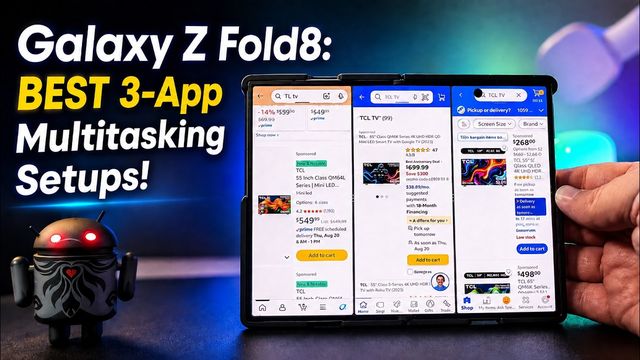
Quick summary: Multitasking is one of the coolest things about the Galaxy Z Fold 8, and it works on both the cover screen and the main display. Here’s how I set it up and use it. Three vertical windows are exclusive to the Fold 8 and the TriFold.
Turn these on first
- Settings > Advanced features > Labs: turn on Multi window for all apps.
- Back in Advanced features > Multi window: make sure Swipe for split screen and Full screen in split screen view are on. The others are up to you.
Cover screen
- From Recents: open the recent apps view, press and hold an app, and it goes straight into multi window.
- Two-finger swipe: with an app open, swipe up from the bottom with two fingers and pick a second app from your most-used apps, the app list or search.
- The three-dot handle lets you swap the apps or tap the star to save the pair to your home screen or app edge panel. You can rotate the phone and resize the windows.
- No edge panel? Go to Settings, search “edge” and turn on Edge panels. You can drag the handle to either side.
Main display
- Open an app, swipe in from the side with two fingers (or up from the bottom) and choose another app.
- The three-dot handle swaps, saves (home screen, taskbar or edge panel) and resizes.
- Press and hold a window’s handle to replace an app, or drag in a third app for three vertical windows.
- Drag an app to the middle for a pop-up window you can move, minimize to an icon, expand to full screen or drop into split view.
- From Recents, press and hold a window to jump into multi view.
My setup
I’m using the dbrand Grip case with its glow-in-the-dark skin and dbrand glass screen protector, plus the OhSnap SnapGrip Stand, which works as a grip and a stand and lets you charge wirelessly through it.
Watch the full video on YouTube, and subscribe to GregglesTV for daily tech news, reviews and walkthroughs.
See today’s GregglesTV Best Tech Deals or browse all deals posts.
Comments
Comments are moderated. Hate, slurs, spam and scam posts are blocked. Don’t include personal info you wouldn’t want public. See the privacy policy.
Loading comments…