How to Update Your Website With Grok Bot (Edit Pages, Add a Menu Tab, and Republish)
A beginner's step-by-step guide to updating a site you already have with Grok Bot: save a backup, make a list of edits, add a new page and menu tab, preview on phone and desktop, republish to the same host, and roll back if something breaks.
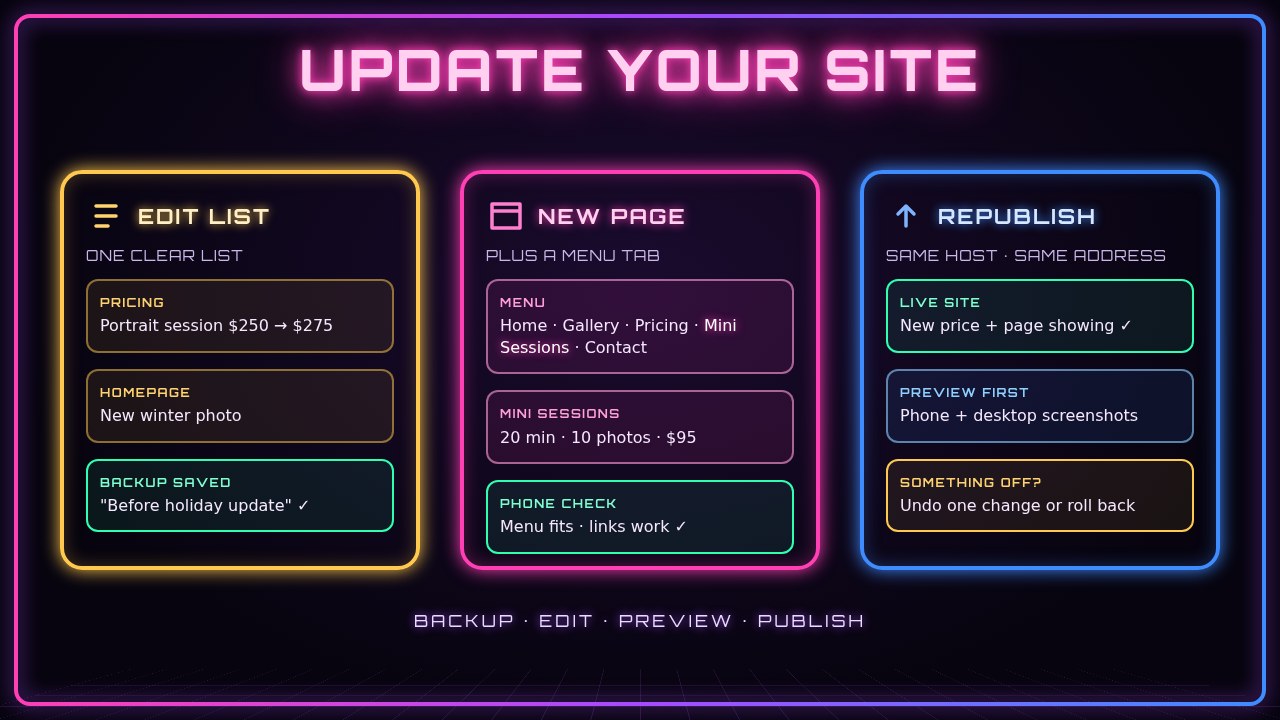
Building a website is the fun part. Keeping it up to date is where most small sites fall behind: old prices, last year’s photos, a page that still says “coming soon.” In this guide you’ll use Grok Bot to update a website you already have: save a backup, make a clear list of edits, add a brand-new page with its own menu tab, check everything on a phone and a desktop, republish to the same host, and undo a change if something goes wrong.
You’ll follow one running example: Lena, a portrait photographer with a simple portfolio site. It has a homepage, a gallery, a pricing page, and a contact form. For the holidays she wants to raise her session price, swap in new photos, fix a typo, and add a new “Mini Sessions” page to the top menu so people can book short 20-minute holiday shoots.
If you don’t have a site yet, start with the build and publish your own website guide, then come back here.
What you need
- Grok Bot
- A website you already have, plus a way for Grok Bot to get to its files. If Grok Bot built the site, the files are usually already on its computer. If not, you can share the project files or a code repository.
- Access to the account where the site is hosted (for example, Cloudflare Pages), so you can sign in yourself if asked
- Your changes: new text, prices, dates, and any new photos
- About 30–45 minutes
Don’t paste passwords or deploy tokens into the chat. When a service needs a login, ask Grok Bot to tell you when to sign in yourself.
1. Tell Grok Bot which site you’re updating
Start by pointing Grok Bot at the right project and asking for a quick tour. This makes sure you’re both looking at the same site before anything changes.
I want to update my photography portfolio site. You built it earlier and it's published
on Cloudflare Pages. Find the project files, then give me a short tour:
list every page, what's in the top menu (in order), and where the live site is published.
Don't change anything yet.
What you should see: a short list of pages (Home, Gallery, Pricing, Contact), the menu order, and the live address. If Grok Bot can’t find the files, ask it what it needs from you, such as the project folder or repository.
2. Save a backup before you change anything
Ask Grok Bot to save a copy of the site exactly as it is now. That gives you a safe point to go back to.
Before any edits, save a backup of the site as it is right now and label it
"before holiday update." Tell me how we'd go back to this version if we need to.
What you should see: a confirmation that the backup was saved, with a name or label you can refer to later, plus a one-line explanation of how to restore it.
3. Write your edits as one clear list
Put every small change in a single message. Be exact: old text, new text, and which page it’s on. Grok Bot will make fewer mistakes with a list than with a long paragraph.
Here are the edits for my portfolio site:
1. Pricing page: change "Portrait session $250" to "Portrait session $275."
2. Homepage: replace the top photo with the new photo I attached (winter-park.jpg).
3. Gallery: add the three new photos I attached to the start of the gallery.
4. Contact page: fix the typo "availible" to "available."
Make only these changes. When you're done, list exactly what you changed on each page.
What you should see: a short change list, page by page, that matches your four edits and nothing else. If it mentions a change you didn’t ask for, ask Grok Bot to undo that one.
4. Preview the changes on a phone and a desktop
Ask Grok Bot to open a preview of the updated site in its browser and check both screen sizes. It can show you screenshots so you can see the result before anything goes live.
Open a preview of the updated site in your browser. Show me screenshots of the homepage,
gallery, and pricing page at phone size and desktop size. Point out anything that looks
broken, cut off, or hard to read.
What you should see: screenshots of each page at both sizes, with the new price, new photos, and fixed typo visible. Look closely at the photos on the phone screenshots; that’s where images most often look stretched or cropped.
5. Add a new page
Now the bigger change. Describe the new page the way you’d explain it to a customer: what it’s for, what goes on it, and what the reader should do next.
Add a new page called "Mini Sessions" to my portfolio site. It should match the style of
the other pages and include:
- A short intro: 20-minute holiday mini sessions in the park, 10 edited photos each.
- Price: $95.
- Dates: Saturdays, December 5 and December 12, 9 AM to 1 PM.
- What to wear tips (3 short bullets).
- A "Book a mini session" button that goes to my contact page.
Use [blanks] for anything I didn't give you instead of making it up.
What you should see: a preview of the new page with your price, dates, and button, plus any [blanks] Grok Bot left for details you didn’t provide (like the park’s name). Fill those in with a quick follow-up message.
6. Add the page to the top menu
A new page doesn’t help if nobody can find it. Ask Grok Bot to add it to the menu in a specific spot, and to check that the menu still fits on a phone.
Add "Mini Sessions" to the top menu, right after "Pricing." Make sure it shows up on every
page. Then check the menu at phone size: it should still be easy to tap and shouldn't
need sideways scrolling. Show me a phone screenshot of the menu open.
What you should see: a menu with Home, Gallery, Pricing, Mini Sessions, Contact on every page, and a phone screenshot where everything fits.
7. Check every link before you publish
Ask Grok Bot to click through the site for you and report anything that doesn’t work.
Before we publish, check every link and button on the site, including the new
"Book a mini session" button and every menu item. List anything that's broken
or goes to the wrong page, and fix it.
What you should see: a short “all links work” report, or a list of problems that Grok Bot fixed (for example, a gallery link that still pointed to an old page).
8. Republish to the same place
Ask Grok Bot to publish the update to the same host and the same project as before, so your address stays the same. Ask it to tell you if you need to sign in.
Everything looks good. Republish the site to the same Cloudflare Pages project it's on now,
so the address doesn't change. Tell me if I need to sign in. Don't create a new project.
What you should see: a message that the update was published, usually with a preview link from the host, and confirmation that it went to the existing project.
9. Check the live site
The preview isn’t the final word; the live site is. Ask Grok Bot to open your real address and confirm the changes are there.
Open my live site (not the preview) and confirm:
the new price on the Pricing page, the new homepage photo, and the Mini Sessions
page in the menu. Show me a phone screenshot of the live Mini Sessions page.
What you should see: screenshots from your real address showing the new price, photo, and page. If you see the old version on your own phone, try a private browser window; your phone may be showing a saved copy.
10. Undo a change if something breaks
If something looks wrong after publishing, don’t panic. You saved a backup in step 2, and you can ask Grok Bot to fix one thing or go back completely.
The new homepage photo looks blurry on phones. Put the old homepage photo back,
keep every other change, and republish. If that's not possible, go back to the
"before holiday update" backup and tell me what we'd need to redo.
What you should see: the one fix republished, or the site back to its backup, plus a short list of what changed.
11. Optional: set a reminder for the next update
If your site needs regular updates (seasonal prices, new photos, event dates), ask Grok Bot for a reminder on a schedule. You stay in control of what goes live. The daily routines guide explains how routines work.
Create a routine for the first Monday of every month at 9 AM my time that reminds me to
review my portfolio site. List any dates on the site that have already passed (like old
mini session dates) and suggest updates. Don't publish anything without my OK.
What you should see: a routine you agreed to that sends you a check-in, not one that changes your site on its own.
Tips and troubleshooting
- One batch at a time. Group small edits into one list, preview, and publish. Ten separate tiny publishes are harder to keep track of.
- Grok Bot changed something you didn’t ask for. Ask, “List every change you made compared to the backup,” then ask it to undo anything extra.
- The live site still looks old. Try a private browser window or a different device. If it still looks old, ask Grok Bot to confirm the update actually published to the same project.
- The new menu tab breaks on phones. Long names cause most of it. Try a shorter name (“Minis” instead of “Holiday Mini Sessions”) or ask Grok Bot to switch to a menu button on small screens.
- Photos load slowly. Ask Grok Bot to resize and compress new photos for the web before adding them.
- Old dates and prices. When an event is over, ask Grok Bot to remove the page or mark it “Booked up / see you next year,” and take it out of the menu.
- Keep secrets out of site files. Don’t put passwords, deploy tokens, or private email lists anywhere that gets published.
- Other examples to try: a local bakery adding a “Holiday Orders” page, a fitness creator updating class times and adding a “Free Workouts” tab, an Etsy shop owner adding a “Custom Orders” page, or a family updating a reunion site with a new “Travel and Hotels” page.
Recap checklist
- Told Grok Bot which site I’m updating and got a quick page and menu tour
- Saved a backup before changing anything
- Sent all small edits as one clear list
- Previewed the changes at phone and desktop size
- Added the new page with real details and filled in any [blanks]
- Added the page to the top menu and checked the menu on a phone
- Had Grok Bot check every link and button
- Republished to the same host and project
- Checked the live site, not just the preview
- Know how to fix one change or go back to the backup
- Set a reminder for the next update (optional)
Gear from this guide
Updating a site is easier when you can see the preview and your notes at the same time. A light laptop like the HP OmniBook 5 14” handles edits from anywhere. Plug in a bigger screen like the Samsung 27” Odyssey G5 to keep the desktop preview and your change list side by side. And a 16-inch 2-in-1 like the Lenovo Yoga 7i 16” gives you a big touchscreen for scrolling through photos before they go on the site.
Subscribe to GregglesTV for daily tech news, reviews and walkthroughs.
See today’s GregglesTV Best Tech Deals or browse all deals posts.
Comments
Comments are moderated. Hate, slurs, spam and scam posts are blocked. Don’t include personal info you wouldn’t want public. See the privacy policy.
Loading comments…