How to Keep Galaxy AI on Your Phone: Turn On "Process Data Only on Device" and Turn Off Cloud AI Features, Step by Step
Don't want your Galaxy AI requests going to Samsung's servers? Here's exactly where Samsung's on-device-only switch lives, what you lose when you flip it, and how to turn off individual Galaxy AI features.
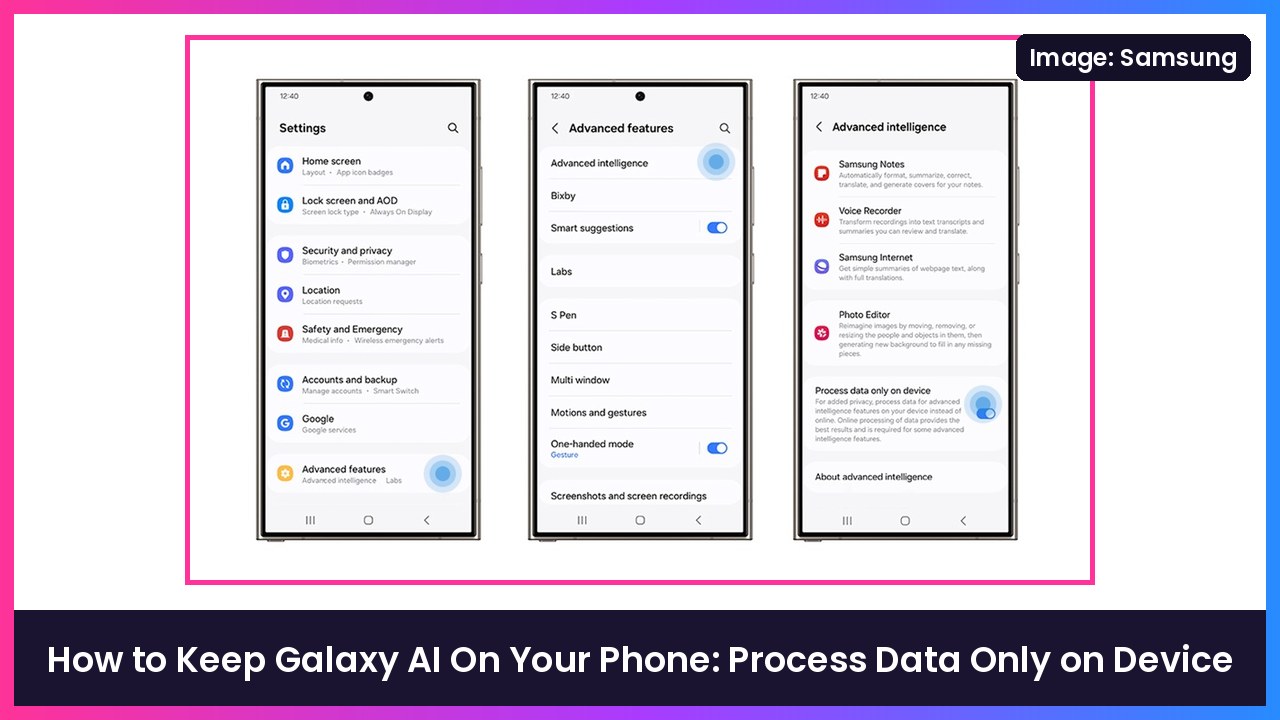
Quick summary: A lot of Galaxy AI features quietly send your stuff to Samsung’s servers to work. If you’d rather keep everything on your phone, Samsung has a master switch called Process data only on device. It takes about 30 seconds to turn on, and I’ll walk you through it, plus what you give up and how to turn off individual AI features. This is extra timely, guys, because code in the One UI 9.5 beta suggests Samsung is building its own private cloud for Galaxy AI, but that’s not live yet.
Key takeaways
- The switch: Settings > Galaxy AI > Process data only on device, per Samsung’s support guide. On some older software it’s under Advanced features > Advanced intelligence.
- What stays working: Samsung lists translation, time and weather Ambient wallpapers and Google Messages suggestions as on-device features.
- What you lose: Samsung lists auto formatting, auto summarizing, auto corrections and image editing as cloud-based.
- You can undo it anytime by flipping the same switch back off.
Before you start
- You need a Galaxy phone or tablet with Galaxy AI, which Samsung says requires One UI 6.1 or higher. That includes the Galaxy S26 Ultra, Galaxy S26 FE, Galaxy Z Fold 8, the S24 and S25 families and more, per Samsung’s list.
- Menu names can vary a little by model and software version, which Samsung notes too. If you don’t see one of these exactly, use the search bar at the top of Settings and type “on device”.
Step 1: Open Galaxy AI settings
- Open the Settings app.
- Tap Galaxy AI.
- Don’t see it? On some models, tap Advanced features first. Depending on your software, the next menu may be called Galaxy AI, Advanced intelligence or Intelligent features.
What you should see: A list of AI features like Call assist, Writing assist, Note assist, Photo assist and Interpreter.
Step 2: Turn on Process data only on device
- Scroll to the bottom of the Galaxy AI list.
- Turn on the switch next to Process data only on device.
That’s it. Samsung calls this the “master switch” that disables all cloud-based processing for Galaxy AI features.
What you should see: The switch turns on, and some cloud-only features in the list may be grayed out or unavailable.
Step 3: Test it so you know what changed
- Open something that uses the cloud, like a summary in Samsung Notes or Samsung Internet’s browsing assist.
- If it needs the cloud, you’ll get a message instead of a summary. Tom’s Guide found Browsing assist pops up asking you to cancel or change your processing settings.
- Now try translation, like Interpreter. Samsung says most translations are handled on the device, so that should keep working.
What you should see: On-device stuff works normally; cloud stuff asks you to change the setting.
Step 4 (optional): Turn off individual Galaxy AI features
Maybe you don’t want to lose everything, just one or two features. Here’s Samsung’s way to do it:
- Go to Settings > Galaxy AI (or Advanced features > Galaxy AI on some devices).
- Tap a feature, like Call assist.
- Turn off the switch next to the feature(s) you don’t want.
- Restart your phone afterward. Samsung recommends this so the changes take effect.
Samsung says some AI features can also be turned off right inside apps like Phone, Notes, Camera, Gallery, Samsung Messages, Samsung Health and SmartThings. Open the app, go to its settings and turn off the AI feature there. Samsung also warns some AI features are built into the system and can’t be disabled.
Step 5: How to turn cloud AI back on
- Go back to Settings > Galaxy AI.
- Turn off Process data only on device.
What you should see: Summaries, Writing assist and generative photo edits work again.
Tips
- Signed out of your accounts? Samsung says you need your Samsung account and Google account signed in for the full Galaxy AI experience, so features may be limited if you aren’t.
- Saving mobile data: Turning on on-device-only also means fewer AI requests going over your connection, which Tom’s Guide points out is a side benefit.
- Photos you edit: Android Authority notes Samsung’s Photo Editor already tells you images “will be sent to servers for processing… but not stored by Samsung.” If that bugs you, this switch is the fix.
- Want more privacy settings? Here’s how to change your password manager on Galaxy and how to check if your passwords were leaked.
Recap checklist
- Settings > Galaxy AI (or Advanced features > Advanced intelligence)
- Scrolled down and turned on Process data only on device
- Tested a summary (should be blocked) and a translation (should work)
- Optionally turned off individual features and restarted the phone
- Know how to flip it back off if you miss a feature
My take
I’ll be honest with you, I leave cloud AI on most of the time because summaries and the photo eraser are really, really handy. But if you’re sending sensitive stuff through your phone, or you just don’t love the idea of your data hitting a server, this switch is awesome and it’s easy to flip back. And if Samsung’s rumored private cloud actually ships, the choice might get a lot easier. I’ll keep you posted.
Sources: Samsung US: Use features with Galaxy AI on your Galaxy phone and tablet (master switch, disabling features, on-device vs cloud list, supported devices), Samsung Newsroom: The Knox Journals: Stay in Control of Your Security (Advanced features > Advanced intelligence path), Tom’s Guide: Galaxy AI on-device-only processing, Android Authority: Samsung is working on a private cloud for Galaxy AI.
Subscribe to GregglesTV for daily tech news, reviews and walkthroughs.
See today’s GregglesTV Best Tech Deals or browse all deals posts.
Comments
Comments are moderated. Hate, slurs, spam and scam posts are blocked. Don’t include personal info you wouldn’t want public. See the privacy policy.
Loading comments…