How to Check If Your Passwords Were Leaked on iPhone, Pixel and Galaxy (and Fix Them), Step by Step
Your phone can already tell you if a saved password showed up in a data leak. Here's exactly where to find that check on iPhone and on Android with Google Password Manager, how to fix flagged passwords, and how to make sure the alerts are turned on.
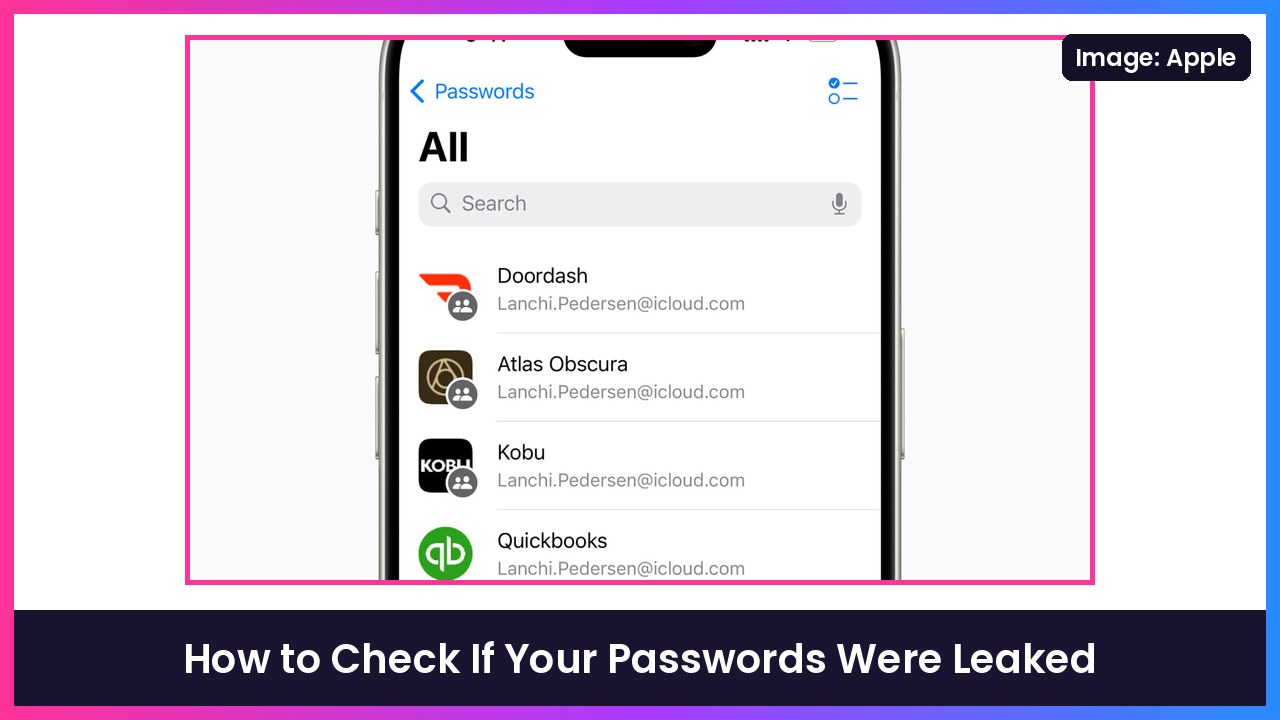
Quick summary: Every time a big company says “we had a security incident” (like 1Password did today), the first question is: are my passwords out there? Here’s the good news, guys. The phone in your pocket already checks for you. On iPhone it’s the Passwords app, and on Android (Pixel, Galaxy and most others) it’s Password Checkup in Google Password Manager. I’ll show you exactly where to find both, how to fix anything that gets flagged, and how to make sure the alerts are actually on. Every step here comes straight from Apple and Google’s own support guides.
Key takeaways
- iPhone: Open the Passwords app and tap Security. Turn on alerts in Settings > Apps > Passwords > Detect Compromised Passwords.
- Android: Open Chrome, tap More (three dots) > Settings > Autofill and passwords > Google Password Manager > Checkup.
- A compromised warning means that password showed up in a leak somewhere. It does not automatically mean someone got into your account.
- Fixing it means changing the password on the website or app itself, not just editing what your phone saved.
- Use 1Password? Its version is called Watchtower.
Before you start
- These checks only cover passwords saved in that password manager. If you type a password from memory, your phone can’t check it.
- Give yourself 10 minutes. Changing a bunch of passwords takes a bit, so start with the important stuff: email, banking, Apple Account or Google Account, shopping.
- Never fix a password from a link in a text or email that says “your password was leaked.” Go straight to the app or settings below instead. That’s the number one way people get phished after a breach.
Part 1: iPhone (Passwords app)
Step 1: Make sure leak detection is turned on
- Open the Settings app.
- Tap Apps, then tap Passwords.
- Turn on Detect Compromised Passwords.
What you should see: The Detect Compromised Passwords switch is green. From now on, your iPhone will warn you if a saved password appears in a known data leak.
Apple says this check is private: your iPhone compares your passwords against a list of leaked passwords using cryptography, and your actual passwords are never shared with Apple.
Step 2: Check your Security list
- Open the Passwords app. Unlock it with Face ID, Touch ID or your passcode if it asks.
- Tap Security. If you don’t see it, Apple says you may need to tap the sidebar button to see your categories.
- Look through the list. If an account has a weak or compromised password, a message explains the problem.
What you should see: A list of accounts with warnings, or no accounts at all, which is what you want.
Step 3: Fix a flagged password
- In Security, tap the account.
- Tap the Password field, then tap Copy Password. Some sites ask for your old password when you change it, so this saves you a step.
- Tap Change Password. This takes you to the website or app, where you actually change it.
- If the site offers a passkey or Sign in with Apple, take it. Otherwise, let your iPhone create a strong password for you when it offers.
What you should see: After you change it, that account drops off the Security list.
Tip: If the warning is for a website that doesn’t exist anymore, go to the Passwords app, tap All, then swipe left on the account to delete it. And if you truly can’t fix one, tap the account and tap Hide. Just know hiding a warning doesn’t fix the password.
Part 2: Android (Pixel, Galaxy and more) with Google Password Manager
This works on any Android phone that saves passwords to your Google Account, including Pixel and Galaxy.
Step 1: Run Password Checkup
- Open Chrome.
- Tap More (the three dots), then Settings.
- Tap Autofill and passwords, then Google Password Manager.
- Tap Checkup.
What you should see: Google checks your saved passwords and sorts the results into three types: compromised (exposed in a breach), reused and weak.
Step 2: Fix compromised passwords first
- Tap the compromised results.
- Tap an account and follow the prompts to change the password on that site.
- Do the reused ones next. Google is pretty blunt about it: using the same password for multiple accounts puts you at greater risk of being hacked.
What you should see: Each account you fix disappears from the compromised list the next time Checkup runs.
Tip: If you get a warning for an account you already fixed some other way, Google lets you dismiss it with More > Dismiss warning, and you can bring it back later under Dismissed warnings.
Step 3: Make sure the alerts are on
- Google Account alerts: Go to passwords.google.com, select Settings at the top right, and turn Password alerts on. Google says it keeps checking even with alerts off, but you won’t get the heads-up.
- Chrome alerts: In Chrome, tap More > Settings > Privacy and security > Safe Browsing. If you use Standard protection, make sure Warn you if a password was compromised in a data breach is on. With Enhanced protection, Google says these checks happen automatically.
Galaxy owners: which password manager are you using?
Galaxy phones can save your logins to Samsung Pass (which now lives in Samsung Wallet) instead of Google. Password Checkup only checks passwords saved in Google Password Manager. If you’re not sure which one your Galaxy uses, I’ve got a step-by-step on how to change the password manager on a Samsung Galaxy.
Part 3: Use 1Password? Check Watchtower
If your passwords live in 1Password, its built-in checker is called Watchtower. According to 1Password’s support guide:
- Open the 1Password app.
- Select Watchtower (in the sidebar on bigger screens).
- Check the Compromised websites and Vulnerable passwords categories first. Compromised websites are logins for sites that reported a breach where you haven’t changed the password since. Vulnerable passwords are ones that showed up in a breach.
Watchtower also flags reused and weak passwords, and sites where you could switch to a passkey.
Tips
- Start with your email. Whoever gets into your email can reset almost everything else.
- Switch to passkeys wherever a site offers them. There’s no password to leak.
- Turn on two-factor authentication for your most important accounts.
- A leaked password warning isn’t proof you were hacked. Apple’s warning doesn’t even tell you which site leaked it, and that’s exactly why reused passwords are the real danger.
Recap checklist
- iPhone: Settings > Apps > Passwords > Detect Compromised Passwords is on
- iPhone: Passwords app > Security reviewed and fixed
- Android: Chrome > Settings > Autofill and passwords > Google Password Manager > Checkup run
- Compromised passwords changed first, then reused ones
- Password alerts on at passwords.google.com
- Galaxy: confirmed whether you use Samsung Pass or Google
- 1Password users: Watchtower checked
- Ignored any “your password leaked” links in texts and emails
I’ll be honest with you, this is one of those 10-minute jobs everybody puts off, and it’s really, really worth doing this week. Thanks for reading. Have a great day.
Subscribe to GregglesTV for daily tech news, reviews and walkthroughs.
See today’s GregglesTV Best Tech Deals or browse all deals posts.
Comments
Comments are moderated. Hate, slurs, spam and scam posts are blocked. Don’t include personal info you wouldn’t want public. See the privacy policy.
Loading comments…