How to Use Quick Tap on Pixel: Double-Tap the Back of Your Phone for Screenshots, Flashlight, Gemini and More, Step by Step
Your Pixel has a hidden button on the back. Here's how to turn on Quick Tap, pick what a double-tap does, open any app with it, and fix it when taps don't register, step by step.
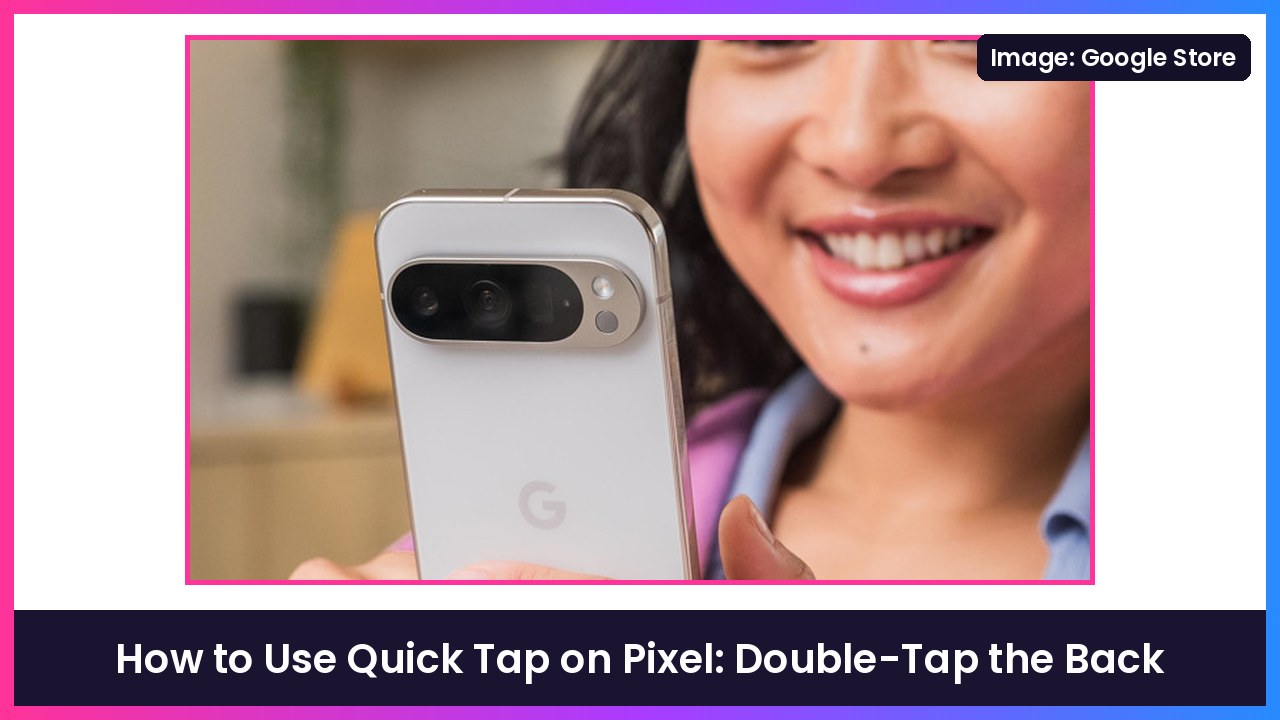
Quick summary: All right, Pixel owners, here’s one of my favorite hidden features. It’s called Quick Tap, and it basically turns the back of your phone into a button. Tap the back twice and your Pixel can take a screenshot, turn on the flashlight, pause your music, pull down notifications, bring up Gemini or open any app you want. Engadget called it out this week as one of the most underrated Pixel features, and I’ll be honest with you, once you set it up you’ll use it all the time. Every step below is checked against Google’s own Pixel Phone Help page. It works on everything from a Pixel 10 Pro to the Pixel 11 Pro Fold.
What you need
- A Pixel 4a (5G) or newer Pixel phone. Google says Quick Tap only works on the Pixel 4a (5G) and later.
- About 2 minutes.
Step 1: Turn on Quick Tap
- Open your phone’s Settings app.
- Tap System, then tap Gestures.
- Tap Quick Tap. On recent Pixel software this is labeled Quick Tap to start actions (that’s the name Android Authority and Engadget use), and Google’s own Pixel settings guide calls it Start an action with a quick tap. Same feature.
- Turn on Use Quick Tap.
Can’t find it? Google notes some steps vary by device, so just type “Quick Tap” into the search bar at the top of Settings.
What you should see: a list of actions with one selected. By default, Android Police says it’s set to play and pause media.
Step 2: Pick what a double-tap does
You only get one action at a time, so pick the one you’ll use most. The options on current Pixels, per Android Authority and Engadget, are:
- Take a screenshot. No more squeezing power and volume down at the same time. This is the one most people pick.
- Digital assistant. Wakes up Gemini without saying a word.
- Play and pause media. Really, really handy when you’re cooking or working out with a pair of Pixel Buds Pro 2 in. Works with music, videos and podcasts.
- See recent apps. Jumps to the app overview so you can switch apps.
- Show notifications. Pulls down the notification shade for you, which is awesome one-handed on a big phone.
- Toggle flashlight. Engadget says this one works even when your phone is locked.
- Open app. Launches any app you choose (Step 3).
Tap the one you want, then test it: tap the back of your phone twice, near the camera bar is a good spot to start.
Step 3: Make Quick Tap open your favorite app
- In the Quick Tap screen, select Open app.
- Next to “Open app,” tap the Settings gear icon.
- Pick the app you want.
That’s straight from Google’s help page. Android Police adds a cool bonus: some apps show their own gear icon in that list, which lets Quick Tap jump straight to a specific action inside the app. Their example is Spotify, which can open your most recent album, a Made for You playlist or search. Not every app has this, so scroll through and see what yours offer.
One heads-up from Android Police: if you uninstall the app Quick Tap was set to open, Quick Tap turns itself off until you turn it back on.
Step 4: Stop accidental taps (or fix taps that don’t register)
In the same Quick Tap screen there’s a switch called Require stronger taps.
- Turn it on if Quick Tap keeps going off when you set your phone down or slide it into a pocket. That’s exactly what it’s designed for, per Engadget.
- Turn it off if your taps aren’t registering, especially with a case on.
What you should see: a double-tap triggers your action every time, but setting the phone on a table doesn’t.
Tips to make it work better
- Cases: Thin cases usually work fine. With a really thick case, finger taps may not be enough, so try a firmer tap with Require stronger taps turned off.
- Magnetic accessories: If you’ve got a magnetic ring or wallet on the back, Engadget suggests tapping around until you find the sweet spot.
- Foldables: On the Pixel 9 Pro Fold and Pixel 11 Pro Fold, Engadget says you tap the rear glass panel, and it works folded or unfolded.
- Hold it like you’re using it: Android Authority readers found it triggers more reliably when you’re holding the phone and looking at it, not just grabbing it. Android Authority also reported Quick Tap got noticeably more reliable starting with the December 2025 Pixel update.
- Pair it with other gestures: Set Quick Tap to the flashlight, then use Settings > System > Gestures > Double press power button to open Camera or Wallet. Google’s help page walks through that one too.
Recap checklist
- Settings > System > Gestures > Quick Tap (or Quick Tap to start actions)
- Turn on Use Quick Tap
- Pick one action: screenshot, assistant, media, recent apps, notifications, flashlight or open app
- For Open app, tap the gear and choose your app
- Adjust Require stronger taps until it’s just right
My take
Quick Tap is literally one of those features I wish Google advertised more. For most people I’d start with screenshot or flashlight, since those are the two you’ll reach for the most, then try Open app once you get hooked. Set it up once and it just works. If you’re shopping for a new Pixel, the Pixel 10 Pro and the Pixel 11 Pro Fold both support it. And if you’re new to Pixel, check out my Pixel 11 Pro Fold first 20 things to do.
Sources: Google Pixel Phone Help: Use gestures on your Pixel phone, Google Store: Pixel setup and customization settings, Engadget: This underrated Pixel feature is more versatile than you realize, Android Authority: Google may have quietly fixed this frustrating Pixel gesture, Android Police: How to use Quick Tap on Android.
Subscribe to GregglesTV for daily tech news, reviews and walkthroughs.
See today’s GregglesTV Best Tech Deals or browse all deals posts.
Comments
Comments are moderated. Hate, slurs, spam and scam posts are blocked. Don’t include personal info you wouldn’t want public. See the privacy policy.
Loading comments…