How to Get Create My Widget on Your Pixel Right Now (and Build Your First AI Widget)
Google just opened a Play Store beta for Create My Widget, so eligible Pixel 10 and Pixel 11 owners don't have to wait for the November Pixel Drop. Here's how to join it and build a custom widget, step by step.
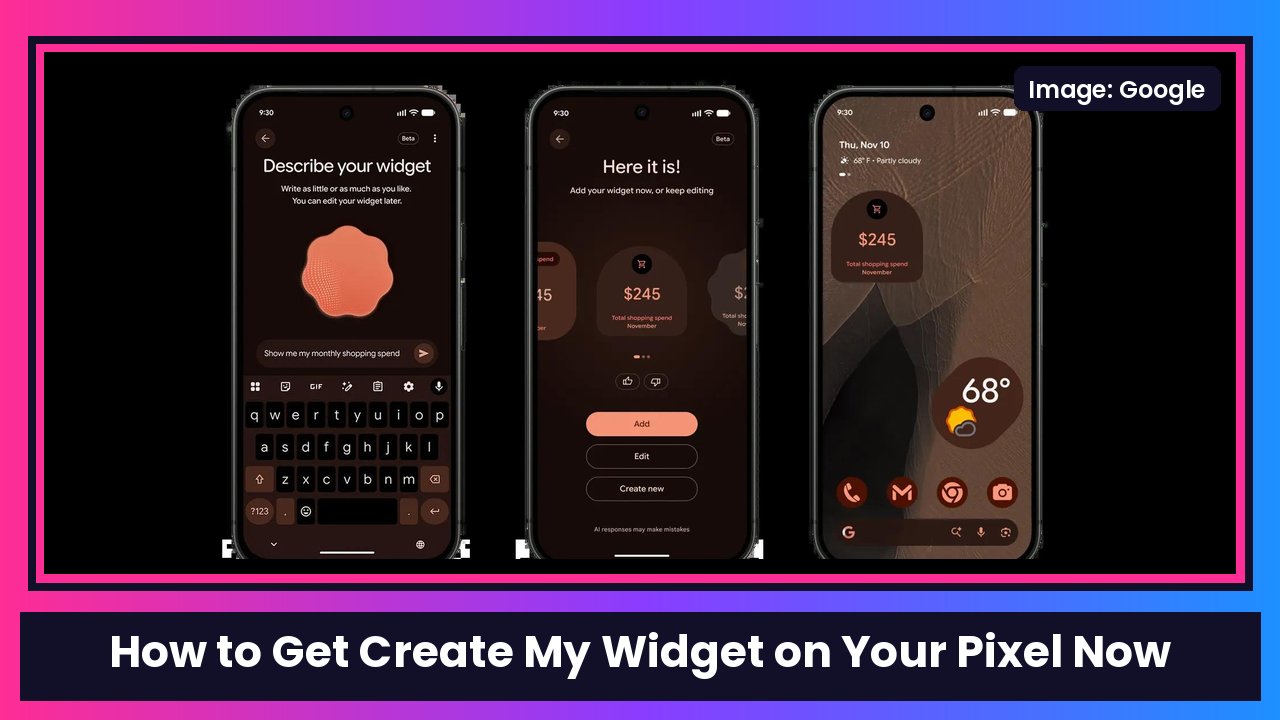
Quick summary: Create My Widget was one of the coolest things in the November Pixel Drop. You describe a widget in plain English and Gemini builds it for your home screen. The catch: Google is rolling it out slowly, and a lot of people still don’t have it. Today Google posted an official shortcut. You can join a Create My Widget beta on the Play Store and get it now, even if your phone hasn’t gotten the November update yet, as Android Authority and 9to5Google reported. I checked the widget steps against Google’s own Pixel Help page.
Key takeaways
- Phones: Pixel 10 and newer, except the Pixel 10a. That means Pixel 10, 10 Pro, 10 Pro XL, 10 Pro Fold, and the whole Pixel 11 lineup, including the Pixel 11 Pro Fold.
- Where: English only, in the US, UK, Canada, Australia and India.
- Age: you have to be 18 or older.
- UK note: Gemini Connected Apps (the part that pulls in your Calendar, Gmail and so on) isn’t available in the UK.
- No update needed: the Play Store beta works even if the November Pixel update hasn’t hit your phone.
Part 1: Join the Create My Widget beta
Step 1: Open the Play Store listing
On your Pixel, open the Create My Widget listing on Google Play.
Step 2: Join the beta
- Scroll down to the Join the beta section.
- Tap Join.
You can also enroll directly from Google Play’s testing page for the app.
Step 3: Install the beta update
- Give the Play Store a few minutes to finish signing you up.
- Go back to the listing (or your Play Store updates page) and tap Update to install the beta version.
If you don’t see the update right away, wait a few minutes and check again. 9to5Google notes it can take a little while after you sign up.
Part 2: Build your first widget
Option A: Describe it yourself
- On your Home screen, touch and hold an empty space.
- Tap Widgets, then Create. (9to5Google says the Create button sits in the top-right corner of the widgets sheet.)
- Tap Describe your widget.
- Type what you want it to show and tap Send. Google’s examples: “Show me the next soccer game” or “Countdown to my vacation on July 15.”
- Look over the preview and tap + Add.
Option B: Start from a template
- Touch and hold an empty space on your Home screen.
- Tap Widgets, then Create.
- Pick a category or suggestion, like Important dates, Sports & fitness or Finance. You can tweak the prompt if you want.
- Tap Add to drop it on your Home screen.
If a widget needs data from your phone or an app, Google says you’ll be asked for permission. Tap Allow so it can work.
Part 3: Edit a widget later
You don’t have to start over if it’s not quite right.
While you’re still on the preview screen:
- Tap Edit.
- Type the changes you want and tap Send.
- Tap + Add when you’re happy.
For a widget already on your Home screen:
- Touch and hold the widget.
- Tap Edit.
- On the Edit your widget screen, type your changes.
- Tap Send.
Want widgets with your own info?
During setup, 9to5Google says you get two choices: Use Google apps connected to Gemini (Calendar, Gmail and more) or Use web data & location only (weather, news, stocks and other public info). Google’s help page says to connect Google Workspace if you want widgets that show personal data, and you can change that later in the Create My Widget app’s settings under Connected Apps.
Two more things from Google’s fine print: some features may need a subscription for higher usage, and you should double-check what an AI widget tells you, because it can get things wrong.
Recap checklist
- Pixel 10 or newer (not 10a), 18+, English, US/UK/Canada/Australia/India
- Play Store > Create My Widget > Join the beta > Join
- Wait a few minutes, then tap Update
- Home screen: touch and hold > Widgets > Create
- Describe your widget (or pick a template) > Send > + Add
- Touch and hold a widget > Edit to change it
I’ve been wanting this since the Pixel Drop event, and honestly a game-day countdown on the home screen is exactly the kind of thing I’d use. If you’re on an older Pixel and thinking about upgrading, the Pixel 10 Pro qualifies, and Google says Create My Widget is coming to the Pixel Watch too. The Pixel Watch 5 would be my pick there.
Sources: Google Pixel Help: Create custom widgets on Pixel, Google Play: Create My Widget, Android Authority: Here’s how to get Create My Widget on your Pixel right now, 9to5Google: Google beta lets you test ‘Create My Widget’ on Pixel 10 and 11 now, Google: November 2026 Pixel Drop.
Subscribe to GregglesTV for daily tech news, reviews and walkthroughs.
See today’s GregglesTV Best Tech Deals or browse all deals posts.


Comments
Comments are moderated. Hate, slurs, spam and scam posts are blocked. Don’t include personal info you wouldn’t want public. See the privacy policy.
Loading comments…