How to Make Any App Fill the Screen on Pixel 11 Pro Fold (Aspect Ratio Setting)
Apps with black bars on your Pixel 11 Pro Fold's inner screen? Google has a per-app Aspect ratio setting that stretches them to full screen. Here's exactly where it is, what each option does, and how to undo it.
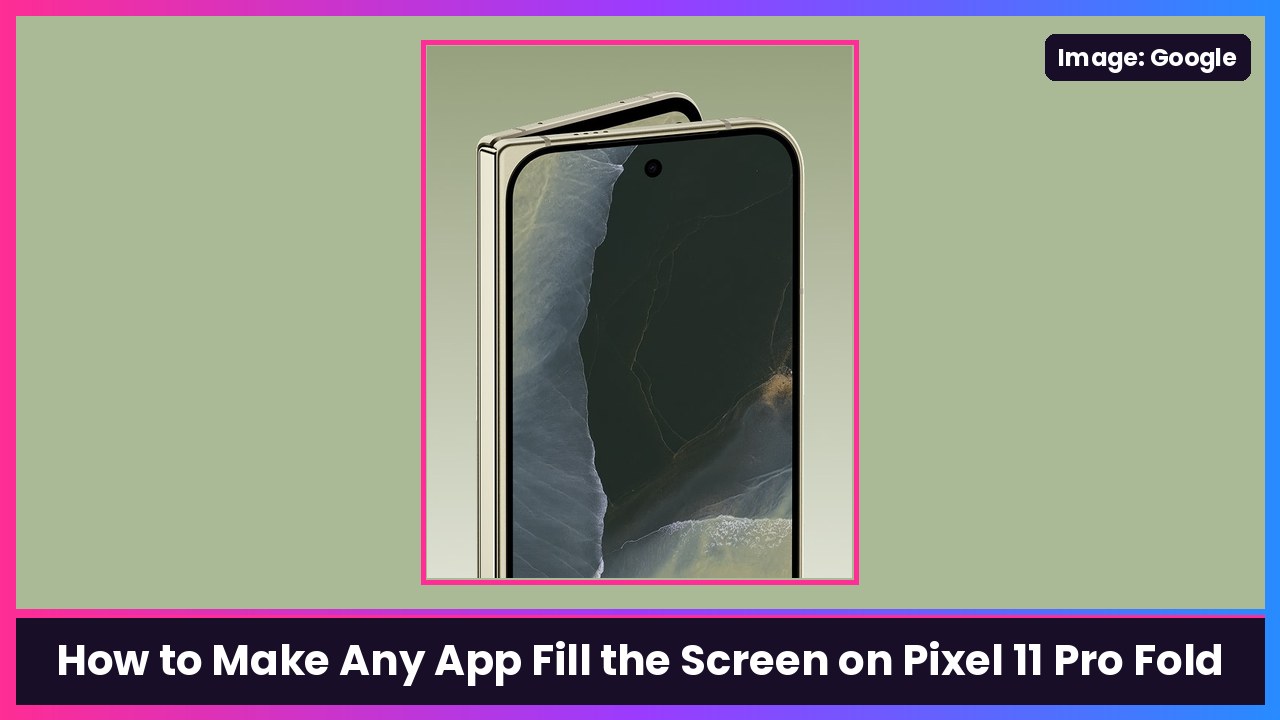
Quick summary: Some apps still open on your Pixel 11 Pro Fold’s big inner screen as a skinny phone-shaped box with black bars on the sides. Google just announced that Google Play will require apps to fill foldable screens starting April 2027, but you don’t have to wait. Pixel Fold phones have a per-app Aspect ratio setting that can stretch an app to full screen right now. Here’s how, based on Google’s Pixel Phone Help.
Key takeaways
- The setting is in Settings > Apps > Aspect ratio (experimental).
- You change one app at a time. Your choices are App default, Full screen and Half screen.
- The app restarts when you change it, so save anything you’re working on first.
- Google says it’s a Pixel Fold feature, so you won’t find it on a regular Pixel.
Step 1: Open the Aspect ratio menu
- Unfold your Pixel 11 Pro Fold so you’re on the big inner screen. (This is where letterboxing shows up.)
- Open the Settings app.
- Tap Apps.
- Tap Aspect ratio (experimental).
Tip: if you can’t find it, type aspect ratio into the search bar at the top of Settings.
Step 2: Pick the app
- You’ll see Suggested apps first. These are the ones Google thinks could use a fix.
- Don’t see the app you want? Tap All apps to see every app on the phone.
- Tap the app you want to change.
Step 3: Choose Full screen
Google lists three options:
- App default: Opens the app at its normal size (what the developer set).
- Full screen: Stretches the app so it fills your screen. This is the one you want for most letterboxed apps.
- Half screen: The app only takes up half the screen.
Tap Full screen, then open the app and check it out. Remember, Google says the app restarts when you change its aspect ratio.
Step 4: Check it, and undo it if it looks weird
Full screen doesn’t magically turn a phone app into a tablet app. It just gives the app more room. Most apps look way better, but Google warns that some apps may not be optimized for certain aspect ratios. If you see stretched images, cut-off buttons or anything broken:
- Go back to Settings > Apps > Aspect ratio (experimental).
- Tap the app.
- Pick App default to put it back the way it was, or try Half screen.
Which apps should you try this on?
Anything that opens with big black bars on the inner screen. In my Pixel 11 Pro Fold first-20-things video, an airline app was my example of one that looks weird on the big screen. If an app already fills the screen nicely, leave it on App default.
Got a Galaxy Z Fold instead?
Samsung has its own version of this. I walk through it here: Galaxy Z Fold 8: How to Fix Full Screen and Portrait Apps.
More Pixel 11 Pro Fold tips
Using the big screen for videos and games all day eats battery, so a power bank like the Anker 25,000mAh laptop power bank is nice to have in the bag, and Pixel Buds Pro 2 pair instantly with your Pixel for watching on that inner screen.
Source: Google Pixel Phone Help: Find, open & close apps on a Pixel phone (“Choose an aspect ratio for your apps (Pixel Fold only)”), Android Developers Blog: New adaptive quality standards on Google Play.
Subscribe to GregglesTV for daily tech news, reviews and walkthroughs.
See today’s GregglesTV Best Tech Deals or browse all deals posts.
Comments
Comments are moderated. Hate, slurs, spam and scam posts are blocked. Don’t include personal info you wouldn’t want public. See the privacy policy.
Loading comments…