How to Update Your Motorola Phone to Android 17 (and Check If Yours Is on the List)
Motorola just confirmed which Razr, Edge, Moto G and Signature phones are getting Android 17. Here's the full list, how to check your Android version and how to install the update, step by step from Motorola's own support page.
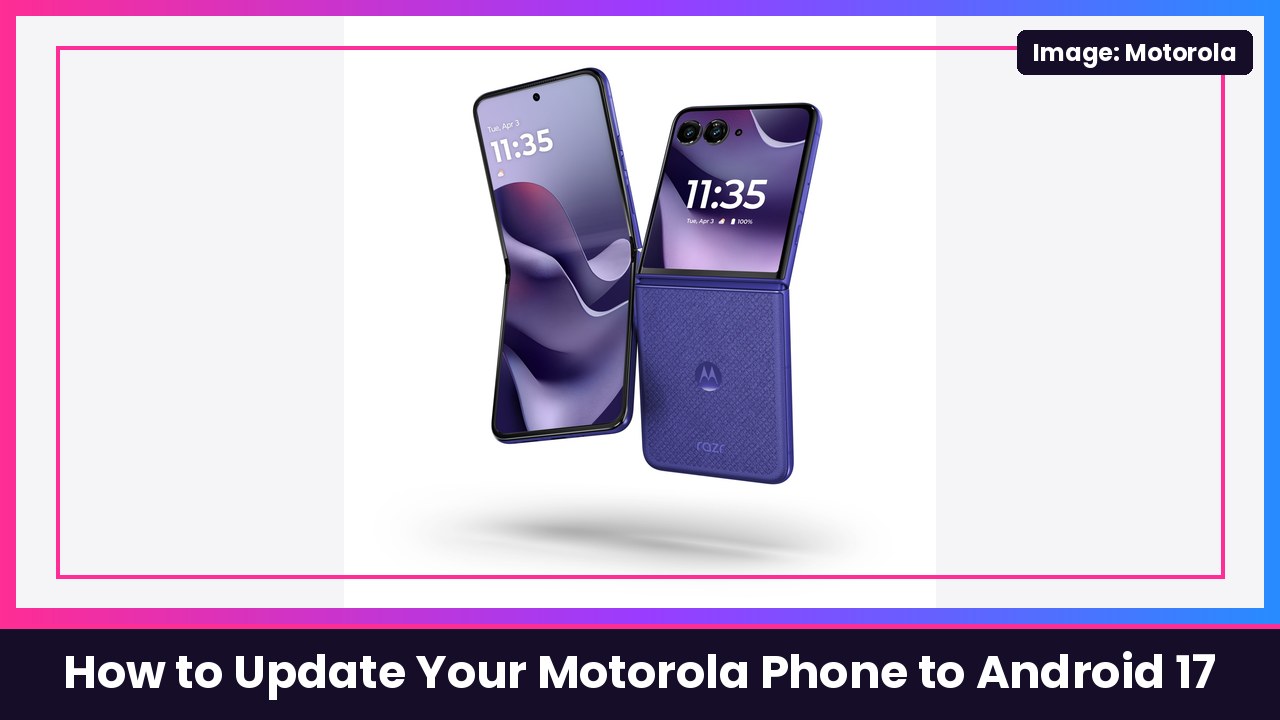
Quick summary: Motorola has posted its official list of phones getting Android 17, reports 9to5Google, and the update is already rolling out to some models, most recently the Razr Fold in some international markets. If you have a recent Razr, Edge, Moto G or Motorola Signature, here’s how to check whether you’re on the list and how to install it, using the steps from Motorola’s own support page.
Is your Motorola phone getting Android 17?
Here’s the list as reported by 9to5Google. One big catch: it was posted by Motorola Brazil, so it uses international names and includes phones Motorola doesn’t sell in the US. For example, 9to5Google notes the Razr 70 is the Razr (2026) here, and Motorola’s own press kit lists the Razr 70 Ultra as the Razr Ultra (2026).
- Motorola Signature: Motorola Signature
- Motorola Edge: Edge 70, Edge 70 Fusion, Edge 70 Fusion+, Edge 70 Pro, Edge 60, Edge 60 Neo, Edge 60 Fusion, Edge 60 Pro, Edge 50 Neo, Edge 50 Fusion, Edge 50 Pro, Edge 50 Ultra
- Motorola Razr: Razr 70, Razr 70 Ultra, Razr 60, Razr 60 Ultra, Razr 50, Razr 50 Ultra, Razr Fold
- Moto G: Moto G86, Moto G77, Moto G75, Moto G67, Moto G57, Moto G56, Moto G47, Moto G37, Moto G Max
The new Motorola Signature 27 already ships with Android 17 out of the box. Timing varies by region: the Razr Fold update, for example, is rolling out internationally but hadn’t landed in the US yet when 9to5Google posted the list.
Step 1: Check which Android version you have now
- Open Settings.
- Tap About phone.
- Tap Device details.
- Look at Android version. That number is the version your phone is running.
Step 2: Install the Android 17 update
Motorola says your phone will notify you when an update is available. To check manually:
- Open Settings.
- Tap System updates.
- Tap Check for updates.
- If an upgrade is available, follow the onscreen instructions to install it.
Before you update
- Use Wi-Fi. Motorola recommends downloading updates over Wi-Fi to save data charges.
- Charge up. A big OS update takes a while, so plug in or keep a power bank like Anker’s 25,000mAh handy.
- There’s no going back. Motorola says you can’t downgrade to a previous software version after installing an update.
- Don’t see it yet? That’s normal. Motorola says it may have hundreds of software versions to test across models, regions and carriers, so owners don’t all get updates at the same time, even in the same region. Carrier phones can take longer because carriers have to certify the update too.
What’s new in Android 17 on Motorola phones
Here’s how Motorola describes the update (via 9to5Google):
- New look and customization: more customization options, new icons, changes to buttons and widgets, and a redesigned Settings menu.
- Circle to Search can do real-time translations.
- Instant Hotspot for sharing your connection between compatible devices, and Quick Share improvements, including sharing with iPhones via QR code.
- Security: Authentication Failure Lock locks your screen after failed unlock attempts (handy if your phone is stolen), plus Message-Based Fraud Detection and faster access to emergency calls.
- HDR brightness control so you can tone down (or turn off) the extra-bright highlights in HDR photos and videos.
My take
Motorola has gotten a lot better about updates, and this list is longer than I expected, going all the way back to the Edge 50 and Razr 50 family. The Settings redesign might move a couple of things around, but the System updates button lives right in Settings on these phones, so the steps above should get you there. If you’re shopping for a new Moto, the Razr Ultra 2026 is Motorola’s top flip right now, and it’s on the list as the Razr 70 Ultra.
More Android how-tos: see running services in Developer options and schedule a text in Google Messages.
Sources: 9to5Google (Nov 20, full device list and Motorola’s feature description), Motorola Help: Update Android software, Motorola Support US: Check for software updates, Motorola News press kit: razr 70 ultra / razr ultra.
Subscribe to GregglesTV for daily tech news, reviews and walkthroughs.
See today’s GregglesTV Best Tech Deals or browse all deals posts.

Comments
Comments are moderated. Hate, slurs, spam and scam posts are blocked. Don’t include personal info you wouldn’t want public. See the privacy policy.
Loading comments…