How to Set Up Moto Tag 2 With Google Find Hub (and Use It to Find Your Phone), Step by Step
Moto Tag 2 just hit $18.99 for Black Friday. Here's how to pair it with Find Hub, name it, share it, use the Moto Tag app to ring your phone, and fix it when the pairing pop-up won't show up.
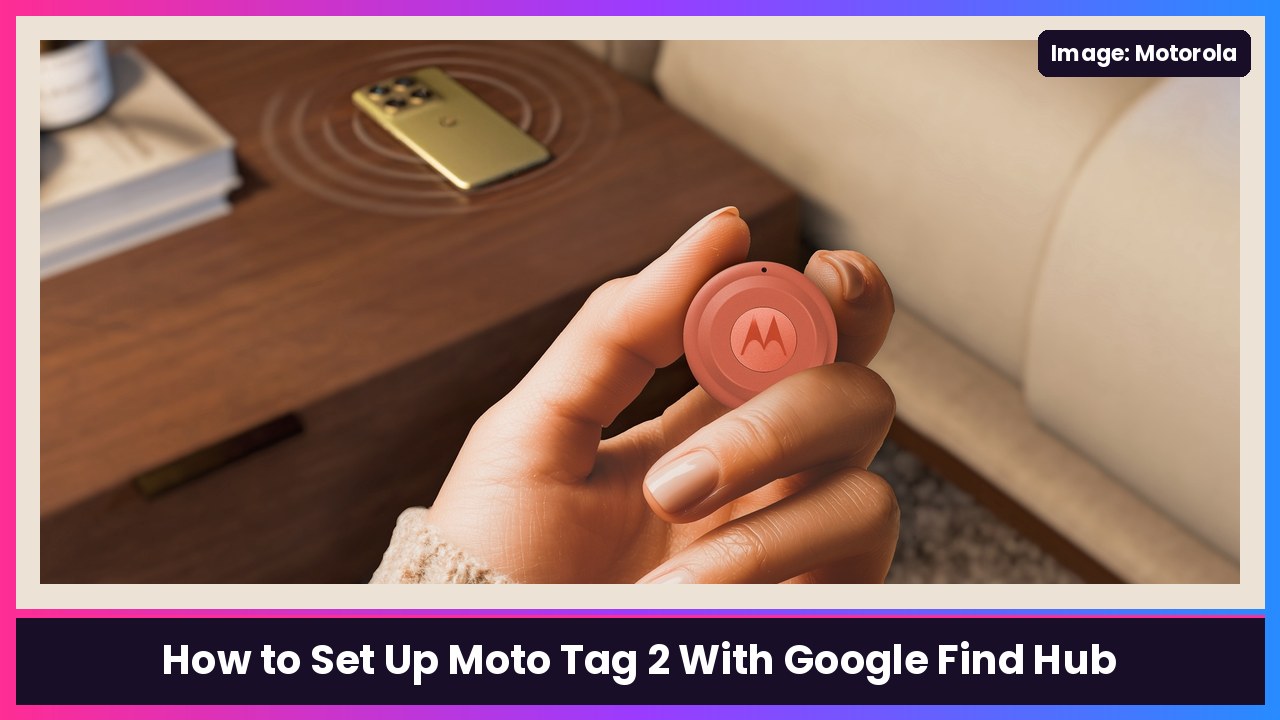
Quick summary: Motorola’s Moto Tag 2 just dropped to $18.99 at Amazon for Black Friday (9to5Google calls it the lowest price yet, and Amazon showed it at $18.99, down from $29.99, when I checked tonight). If you grabbed one or a four-pack, here’s how to set it up with Google Find Hub, straight from Motorola’s Moto Tag 2 user guide.
Key takeaways
- You need an Android phone running Android 9 or later. This is a Find Hub tracker, so it’s built for Android, not iPhone.
- Setup is Google Fast Pair: pull the film, hold it near your unlocked phone, tap Connect.
- The Moto Tag app is where the extras live: ring your phone from the tag, use it as a camera shutter, check the battery and update firmware.
- Precision finding needs a phone with Ultra-wideband (UWB) on Android 12 or later. Everyone else still gets the map, Play sound and Find nearby over Bluetooth.
- It runs on a replaceable CR2032 coin cell, and Motorola rates it IP68.
Before you start
Per Motorola’s guide, on your phone:
- Turn on mobile data or Wi-Fi.
- Turn on Bluetooth.
- Make sure you’re signed in to your Google Account. Fast Pair needs it.
- Install the Find Hub app. If you don’t have it, you’ll get prompted to install it during pairing anyway. When it asks for permissions, allow Find Hub to find, connect to and determine the relative position of nearby devices.
Also worth doing: Motorola says to make sure Allow device to be located is on. On a Motorola phone running Android 16 that’s Settings > Google > All services > Find Hub. Motorola notes the path can be different on other phones, so if you don’t see it there, search Settings for “Find Hub.”
Step 1: Activate the tag
Bring your phone close to the tag and make sure the phone is awake and unlocked. If the tag is brand new, gently pull out the protective film. The tag powers on and beeps.
Step 2: Tap Connect
When the pop-up saying your tag was detected shows up on your phone, tap Connect, then follow the on-screen steps. When pairing finishes, the tag shows up on the Find Hub map and in the device list in both Find Hub and the Moto Tag app.
Setting up a four-pack? Do them one at a time, and name each one before you grab the next (Step 4), so you don’t end up with four tags all called “moto tag 2.”
Step 3: Install the Moto Tag app
You’ll get prompted to download Moto Tag during pairing. If you don’t, Motorola says you can grab it at motorola.com/mymototag or from the Play Store. Allow it to find, connect to and determine the relative position of nearby devices when it asks.
Step 4: Name it, pick a category and set the volume
Open Find Hub, select your tag from the device list, then open its settings. From there you can:
- Device name: tap the edit icon to rename it (Car keys, Backpack, Wallet).
- Category: label it Bag, Bike, Camera and so on.
- Ring volume: Factory default, High, Medium or Low.
Want a different ringtone? That’s in the Moto Tag app: select the tag, tap Menu, choose a ringtone, then tap OK.
Step 5: Find your stuff
Open Find Hub and select the tag:
- Find nearby: your phone tells you whether you’re getting closer or farther away. With a UWB phone you get precision finding; Motorola also supports Bluetooth Channel Sounding on phones with Bluetooth 6.0 and Android 16 or later.
- Play sound / Stop sound: rings the tag.
- Get directions: opens Google Maps to the tag’s last known location.
- Mark as lost: you get notified if the Find Hub network spots your tag, and you can add a phone number, message or email so whoever finds it can reach you. Tap Mark as found when you get it back.
Step 6: Use the tag to ring your phone (and as a camera remote)
This is my favorite part of Motorola’s tags. In the Moto Tag app, select your tag, tap Locate your phone, and turn on Using the tag button to locate your phone. Now when your phone disappears into the couch, double-press the tag’s button and the phone plays a sound.
The same app also has Remote Camera: open your Camera app, then single-press the tag’s button to take a photo or start and stop a video. Both need you to allow a permission the first time.
While you’re in there, tap More > Firmware to check for a tag update, and tap Download and install if there is one.
Step 7: Share it with family
In Find Hub, select the tag, tap Share ownership, tap Continue, and send the link that’s generated. Once they accept, you confirm on your phone. To stop sharing, go back to Share ownership, tap Menu next to that person, then Stop sharing.
If the pairing pop-up never shows up
Straight from Motorola’s troubleshooting section:
- If the pop-up doesn’t come back within 5 minutes after you dismissed it, press the tag’s button once to start Fast Pair.
- Update Google Play services: open Settings, search Google Play services, then tap App details > Update.
- Restart your phone.
- Still stuck? Reset the tag: remove it from Find Hub first (select the tag, then Remove from Find Hub > Remove), then press the button once and immediately press and hold for 5 seconds until it beeps. A second beep means the reset is done.
Seeing “Unable to connect”? Check that the phone has a network connection and Bluetooth is on, then try again.
Battery
Moto Tag 2 uses a user-replaceable CR2032 coin cell. To swap it, use the pin in the box in the pinhole (never the buzzer hole), press down and twist the cover counter-clockwise, pop the old battery out and drop the new one in positive (+) side up. The Moto Tag app shows the battery status, and the tag plays a special ringtone when it’s getting low.
My take
At $18.99 this is the easiest stocking stuffer for anybody on Android. The Moto Tag 2 has UWB like Google’s own Pixel Tag, plus that ring-your-phone button trick. If you’re covering keys, a wallet, a backpack and luggage, the 4-pack makes sense too. Just know that, per 9to5Google, the $18.99 price is only on the beige color.
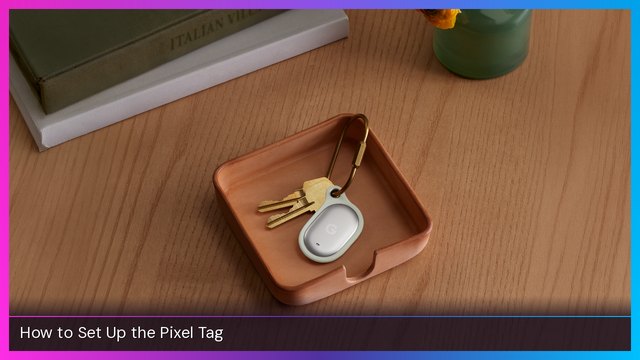
Related: How to set up the Google Pixel Tag and how to set up a Galaxy SmartTag 3.
Sources: Motorola moto tag 2 User Guide (XT2561-1), Motorola moto tag 2 product page, 9to5Google: Moto Tag 2 hits its lowest price ever at $18.99 (Nov 20), Amazon listing checked Nov 20.
Subscribe to GregglesTV for daily tech news, reviews and walkthroughs.
See today’s GregglesTV Best Tech Deals or browse all deals posts.

Comments
Comments are moderated. Hate, slurs, spam and scam posts are blocked. Don’t include personal info you wouldn’t want public. See the privacy policy.
Loading comments…