How to Send 1080p Video in Google Meet on Your Computer (Now Free for Everyone), Step by Step
Google Meet on the web now sends Full HD 1080p video for all users, including free personal Google accounts. Here's how to check your camera and browser, set Send and Receive resolution, and fix it when you're stuck at 720p.

Quick summary: Google just made 1080p video sending free for everyone in Google Meet on the web. Per Google’s official Workspace Updates post today, it’s now on by default for Workspace customers, Workspace Individual subscribers and personal Google accounts, as long as your computer has a 1080p camera and enough processing power and bandwidth. Before this, sending 1080p was limited to select paid plans like Google One 2TB (9to5Google, Android Authority). Here’s how to make sure you’re actually sending it, using the menu names from Google’s Meet Help page.
Example: Say you run a small bakery and do a weekly Meet call with a wholesale customer, holding up new cakes to the camera. 1080p makes the details actually visible instead of a mushy blur.
Key takeaways
- Where: meet.google.com > Settings > Video > Send resolution.
- You need: a 1080p webcam, a supported browser (Google says 1080p isn’t supported in Firefox and Safari), and decent bandwidth.
- It’s automatic: Google says 1080p is on by default under Auto on eligible computers, unless your work or school admin restricts it.
- It’s web only for now. 9to5Google says the change appears to be web-only, and the Android and iOS apps may still be limited.
- Rollout: Google started an extended rollout on November 11 that can take more than 15 days, so give it a little time if you don’t see it.
Step 1: Check your camera and browser
- Make sure your webcam is 1080p. Check the box or the product page. A lot of older laptop webcams are 720p, and Meet can’t send more than your camera captures.
- Use Chrome or Edge. Google’s help page says 1080p isn’t supported in Firefox and Safari.
- If you’re on a work or school account, know that your admin can set the default video quality, per Google.
What you should see: Your camera listed as a 1080p or “Full HD” camera, and Meet open in Chrome or Edge.
Step 2: Open Meet’s video settings
- In your browser, go to meet.google.com.
- Click Settings.
- Click Video.
What you should see: A Camera menu with your live video feed to the right, plus Send resolution and Receive resolution menus.
Step 3: Pick the right camera
- Under Camera, select your webcam. If you plugged in an external camera, pick that instead of the built-in one.
- Check that your video preview appears.
What you should see: Your face in the preview. If it’s black, another app may be using the camera. Close Zoom, Teams or your camera app and try again.
Step 4: Set Send resolution to 1080p (or leave it on Auto)
Google’s help page lists these Send resolution options:
- Full High Definition (1080p): only available on computers with a 1080p camera and enough processing power. Uses the most data.
- High Definition (720p): high quality, uses more data.
- Standard definition (360p): lower quality, uses less data.
- Click Send resolution.
- Choose Full High Definition (1080p). Google says it’s on by default under Auto on eligible computers, so Auto is fine too.
- Click Done.
What you should see: 1080p shows up as an option. If it doesn’t, your camera, browser or computer isn’t eligible yet (see Tips).
Step 5: Set Receive resolution
- Click Receive resolution.
- Choose Full High Definition (1080p) to see others in the best quality, or a lower option if your internet is slow. Audio Only uses the least data.
- Click Done.
What you should see: Other people’s video looks sharper, especially when you pin or enlarge them.
Step 6: Make your tile big enough
Google says Meet only sends 1080p when your video tile is large enough to show it, and it automatically scales down when CPU or bandwidth is tight. So in a 12-person grid, you won’t get 1080p for everyone, and that’s normal. For a one-on-one call or when someone pins you, it kicks in.
What you should see: Sharper video on one-on-one calls and when you’re pinned or presenting.
Tips
- Stuck at 720p? Use Chrome or Edge, close extra tabs and apps, and plug into Ethernet or move closer to your router.
- Google’s help page hasn’t caught up. As of today, its “Learn what you need to send 1080p video” section still lists only paid editions. Google’s announcement says personal accounts are included now, so the help page should get updated.
- Lighting matters more than pixels. Face a window or lamp. Meet also has a video lighting adjustment under Backgrounds and effects > Appearance.
- On a laptop with a 720p camera? A cheap external 1080p webcam like the Logitech Brio 101 or Logitech C920x is the easiest upgrade.
- Low on data or battery? Drop Send resolution to 360p. Google recommends lowering quality for poor connections, low battery and limited data.
Recap checklist
- My webcam is 1080p
- I’m using Chrome or Edge, not Firefox or Safari
- Settings > Video > Camera shows the right camera
- Send resolution is Full High Definition (1080p) or Auto
- Receive resolution is set for my connection
- I know Meet only sends 1080p when my tile is big enough
My take
This is a nice freebie. 1080p used to be a reason to pay for Google One 2TB, and now anyone with a decent webcam gets it. If your laptop camera is still 720p, a C920x clipped to your monitor is a better upgrade than a new laptop. If you’re shopping for a new laptop anyway, check the camera specs. I like the HP OmniBook 5 14 as an everyday laptop.
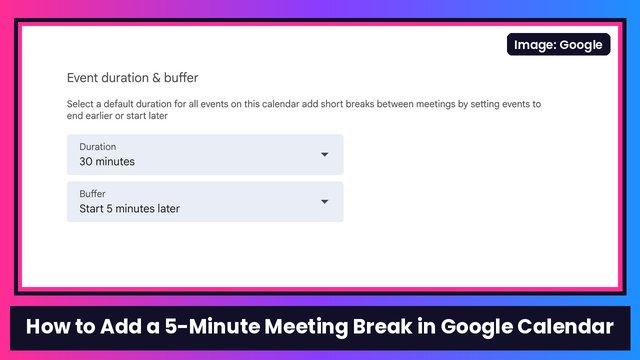
More Google how-tos: how to add a 5-minute meeting buffer in Google Calendar and how to check which GPU your Windows PC has.
Sources: Google Workspace Updates: Google Meet on the web now supports sending 1080p video for all users, Google Meet Help: Improve your video & audio experience, 9to5Google, Android Authority.
Subscribe to GregglesTV for daily tech news, reviews and walkthroughs.
See today’s GregglesTV Best Tech Deals or browse all deals posts.

Comments
Comments are moderated. Hate, slurs, spam and scam posts are blocked. Don’t include personal info you wouldn’t want public. See the privacy policy.
Loading comments…