How to Check Which GPU Your Windows PC or Laptop Has (and Make Games Use the Right One), Step by Step
Before you buy a game or upgrade this Black Friday, find out exactly which graphics card your Windows PC has. Here are three built-in ways to check, what the numbers mean, and how to point a game at your faster GPU.
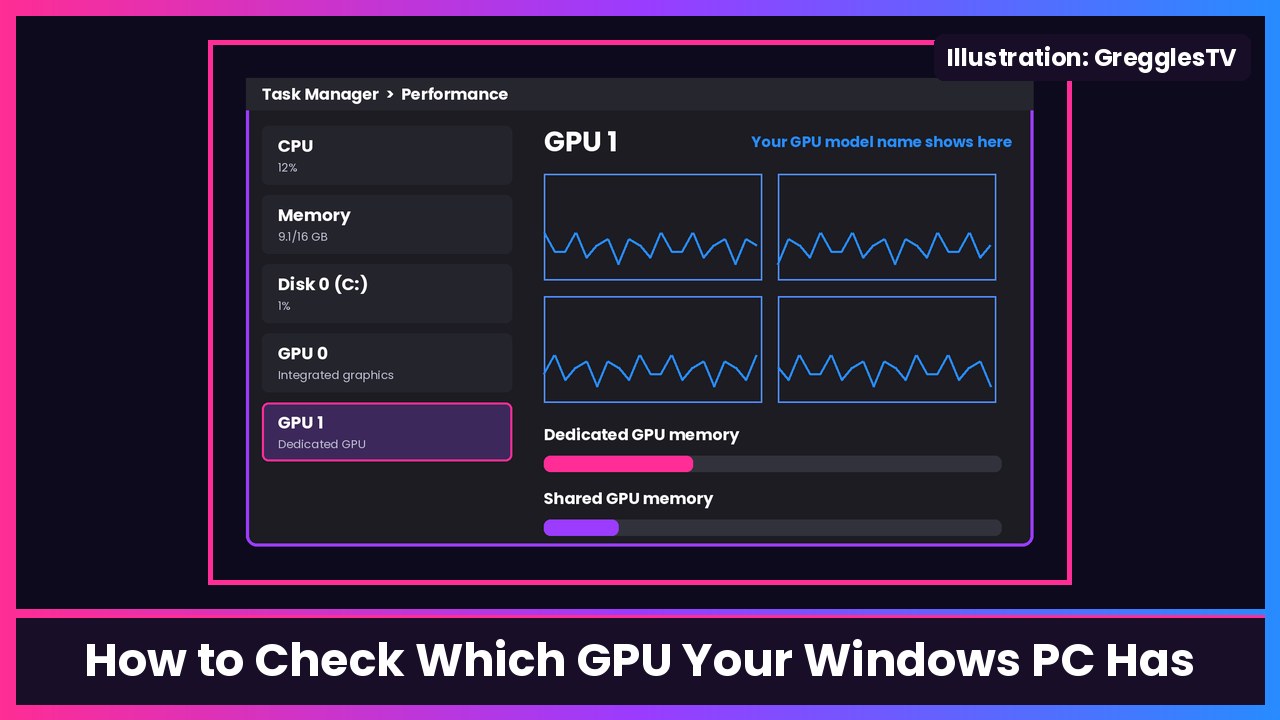
Quick summary: “Will this game run on my laptop?” starts with one question: which GPU do I actually have? Engadget ran a guide on this today, and it’s a good reminder with Black Friday PC and game deals everywhere. The sticker on your laptop doesn’t always tell the full story, and a lot of laptops have two GPUs. Here are three built-in ways to check in Windows 11 or Windows 10, no screwdriver or extra apps needed, plus how to make a game use your faster one.
Key takeaways
- Fastest way: Ctrl + Shift + Esc > Performance > GPU 0 (and GPU 1 if you see it).
- GPU 0 isn’t automatically the “good” one. Windows numbers GPUs by hardware location, not by power.
- Device Manager > Display adapters lists every GPU and lets you check the driver.
- dxdiag gives a full report you can save and send to support.
- On Windows 11, Settings > System > Display > Graphics lets you set a game to High performance so it runs on your dedicated GPU.
Method 1: Task Manager (the fastest)
- Press Ctrl + Shift + Esc to open Task Manager. If it opens in a small window, click More details.
- On Windows 11, choose Performance in the left sidebar. On Windows 10, click the Performance tab at the top.
- Click GPU 0. The model name of the graphics processor is in the upper-right corner.
- If you see GPU 1 (or more), click it too.
What you should see: something like an Intel, AMD or Qualcomm integrated GPU on one entry, and on gaming laptops, an NVIDIA or AMD dedicated GPU on another.
How to read it (per Engadget):
- Dedicated GPU memory is usually the VRAM on a dedicated graphics card.
- Shared GPU memory is regular system RAM the GPU can borrow when it needs it.
- Integrated GPUs mostly rely on system RAM, even if Windows shows a little “dedicated” memory reserved for graphics.
- Under the graphs you’ll also find the driver version, DirectX info and, if your hardware supports it, the GPU temperature.
Method 2: Device Manager (just the names)
- Right-click the Start button and choose Device Manager.
- Expand Display adapters. Every graphics device Windows knows about is listed here, so you can tell right away if you have both integrated and dedicated graphics.
- Double-click a GPU and open the Driver tab to see the driver version and date.
Seeing “Microsoft Basic Display Adapter” instead of a real GPU name? Engadget explains that means Windows is using a generic display driver. Update your graphics driver before you go deeper into troubleshooting.
Method 3: DirectX Diagnostic Tool (the full report)
- Press Windows + R, type dxdiag, and press Enter. (Or, per Microsoft Support, type dxdiag in the Start search box and press Enter.)
- If Windows asks whether to check if your drivers are digitally signed, choose Yes.
- Open the Display tab for your GPU and driver details. On a laptop with two GPUs you may see a second Display or Render tab.
- The System tab shows your installed DirectX version.
- Need to send this to a game’s support team? Click Save All Information… to save a text report.
Bonus: Make a game use your dedicated GPU (Windows 11)
If your laptop has integrated and dedicated graphics, you can tell Windows which one an app should use. On recent versions of Windows 11:
- Open Settings > System > Display > Graphics.
- Find the game under the app list. Not there? Use Add desktop app and pick the game’s .exe, or add a Microsoft Store app.
- Select the app and set its GPU preference to High performance (usually your dedicated GPU). Power saving usually means integrated graphics, and Let Windows decide is the default.
- Restart the game so the change kicks in.
Older Windows 11 builds show this as Options > Graphics preference > Save instead, so the wording on your screen may be slightly different. Microsoft’s DirectX team notes that if you have more than one dedicated or external GPU, the Default high performance GPU option on that same Graphics page decides which one “High performance” apps use.
What you should see: with the game running, open Task Manager’s Processes tab and check the GPU column to confirm it’s using the right one.
Tips
- Write the exact model down (for example, “GeForce RTX 5070 Laptop GPU”), not just “NVIDIA.” Laptop and desktop GPUs with similar names perform differently, and game requirement lists care about the exact one.
- Check the driver date in Device Manager before blaming a game for crashes.
- Don’t download a random “dxdiag.exe” from a website. It’s built into Windows.
Recap checklist
- Ctrl + Shift + Esc > Performance > GPU 0 / GPU 1 for the model name and memory
- Device Manager > Display adapters to see every GPU and the driver date
- Windows + R > dxdiag for a full report you can save
- Settings > System > Display > Graphics to set games to High performance
My take
This takes 30 seconds and saves a lot of “why does this game stutter” headaches. If you find out your laptop only has integrated graphics and you want to actually play games, look for a laptop with a dedicated GPU, like HP’s HyperX OMEN 16, which HP lists with an NVIDIA GeForce RTX 5070 Laptop GPU. If you’re mostly doing school, work and streaming, integrated graphics on something like the HP OmniBook 5 is totally fine.
Related: How to check your laptop’s battery health on Windows.
Sources: Engadget: Where you can find which GPU you have in your Windows PC (Nov 21), Microsoft Support: How to install the latest version of DirectX (dxdiag), Microsoft DirectX Developer Blog: Navigating the redesigned Graphics settings page, Pureinfotech: How to set default GPU for apps on Windows 11 (24H2/25H2 vs older menu wording), HP: HyperX OMEN 16 product page.
Subscribe to GregglesTV for daily tech news, reviews and walkthroughs.
See today’s GregglesTV Best Tech Deals or browse all deals posts.

Comments
Comments are moderated. Hate, slurs, spam and scam posts are blocked. Don’t include personal info you wouldn’t want public. See the privacy policy.
Loading comments…