How to Connect Galaxy Buds to a Windows 11 PC and Turn On Auto Switch
Step-by-step: use Samsung's free Galaxy Connect app to pair your Galaxy Buds to any Windows 11 laptop from a pop-up, then make them switch between your Galaxy phone and PC automatically. No Galaxy Book required.
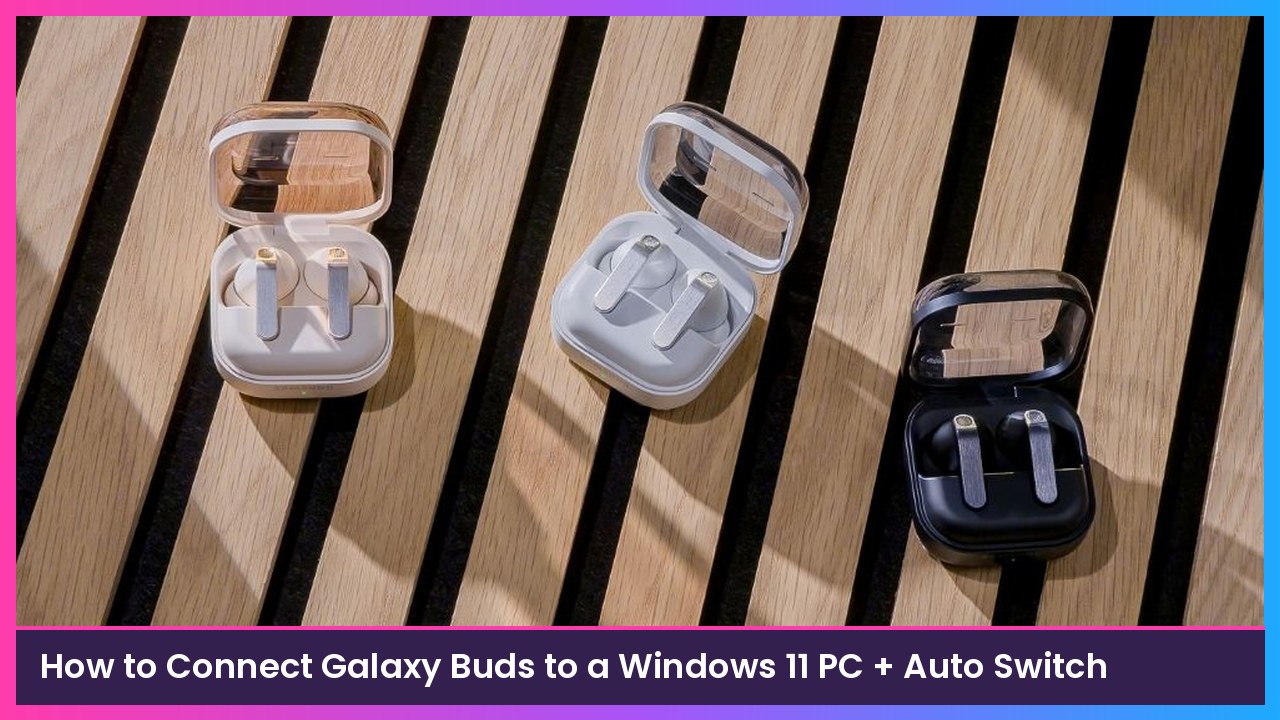
Quick summary: For years, the slick “open the case and it just connects” Galaxy Buds experience only really worked with Galaxy phones, tablets and Samsung’s own Galaxy Book laptops. Not anymore. Samsung’s free Galaxy Connect app for Windows now lets you pair your Buds to a regular Windows 11 PC from a pop-up notification, and it can automatically switch your Buds between your Galaxy phone and your computer. SammyGuru walked through the setup today, so here’s the full step-by-step.
Key takeaways
- You need the Galaxy Connect app from the Microsoft Store, version 4.6.13xx.0 or newer. Version 4.6.1327.0, released October 19, is the update that added “Auto Switch Buds.”
- Your PC must run Windows 11 on an Intel or AMD x64 processor. Arm-based Windows laptops aren’t on Samsung’s list.
- Your phone and PC have to be signed in to the same Samsung account and connected to the same Wi-Fi network, with Bluetooth and Wi-Fi turned on.
- The two settings you want are Easy Bluetooth connection (pop-up pairing) and Auto switch Buds (automatic switching).
Before you start: check your PC
Samsung’s Microsoft Store listing for Galaxy Connect spells out the requirements:
- Windows 11 or later on an Intel or AMD x64 PC.
- A Bluetooth 5.0 or later adapter that supports Extended BLE. Samsung lists built-in Intel, Realtek or MediaTek adapters, plus Intel or MediaTek USB or expansion-card adapters. (Realtek and MediaTek support arrived in the September update.)
- A Wi-Fi chipset.
- All devices signed in to the same Samsung account, with Bluetooth and Wi-Fi on and connected to the same Wi-Fi access point.
If you’re shopping for a laptop that checks those boxes, an Intel machine like the Lenovo Yoga 7i 2-in-1 (Core Ultra 5) fits the processor requirement. Always confirm the Bluetooth adapter in the spec sheet, though.
Step 1: Install or update Galaxy Connect
- On your PC, open the Microsoft Store.
- Search for Galaxy Connect (the developer is Samsung Electronics) and install it. If it’s already installed, open Library in the Store and install any updates.
- Make sure you’re on version 4.6.13xx.0 or newer. That’s the minimum Samsung lists for Auto Switch on a non-Samsung PC.
What you should see: Galaxy Connect opens on your PC and lists features like Copy/paste between devices, Storage share, Multi control and Auto switch Buds.
Step 2: Sign in with your Samsung account
- Open Galaxy Connect and follow the prompts to sign in.
- Use the same Samsung account that’s on your Galaxy phone. This is the step people skip, and nothing works without it.
- Turn on Bluetooth and Wi-Fi on both your PC and phone, and make sure both are on the same Wi-Fi network.
Step 3: Turn on Easy Bluetooth connection
- In Galaxy Connect, go to Easy Bluetooth connection and Auto switch Buds.
- Turn on Easy Bluetooth connection.
Step 4: Pair your Buds from the pop-up
- With your Buds in their case, open the lid next to your laptop.
- Wait for the connection notification to pop up in Windows.
- Click the notification to pair. You don’t have to dig through the Windows Bluetooth menu.
What you should see: Your Buds show as connected in Windows, and audio plays through them.
Step 5: Turn on Auto switch Buds
- Go back to the same Easy Bluetooth connection and Auto switch Buds screen in Galaxy Connect.
- In the Auto switch Buds section, look under Buds to switch to this computer and select your earbuds.
Now your Buds will hop over to the PC when you make or answer a call or play media on the computer, according to Samsung’s description. Samsung’s Korean Galaxy Buds On product page also describes the reverse: if a call comes in on your Galaxy phone while you’re listening on the PC, the Buds switch to the phone, then switch back to the PC when the call ends, per SammyGuru.
If the pop-up never shows up
- Check the version. Anything older than 4.6.13xx.0 won’t do Auto Switch on a non-Samsung PC.
- Check your Bluetooth adapter. Older adapters without Bluetooth 5.0 and Extended BLE aren’t supported.
- Same account, same Wi-Fi. Double-check both devices are on the same Samsung account and the same network.
- Pair the old-fashioned way. You can still pair Galaxy Buds through Windows itself: open Settings > Bluetooth & devices > Add device > Bluetooth with your Buds in pairing mode. I walk through that in my Galaxy Buds4 connection guide.
Which Galaxy Buds work?
Samsung refers to Galaxy Buds broadly, but it hasn’t published a full compatibility list for older models, so keep that in mind if you’re on an older pair. SammyGuru’s Chris Franklin says it works “flawlessly” with his Galaxy Buds4 Pro, a Galaxy S26 Ultra and a Windows laptop. The Galaxy Buds On product page is where Samsung first mentioned the non-Galaxy Book PC support.
Tips
- Keep both devices on the same network at home and work. Auto Switch leans on Wi-Fi as well as Bluetooth.
- Use the other Galaxy Connect features too. The same app does copy/paste between your phone and PC, Storage share (browse your phone’s files in File Explorer), and Multi control (use your PC’s mouse and keyboard on your Galaxy phone or tablet).
- If you also have a Galaxy tablet, Galaxy Connect’s Second screen feature can turn it into an extra monitor for your PC.
Recap checklist
- Windows 11 PC with Intel or AMD x64 and a supported Bluetooth 5.0+ adapter
- Galaxy Connect 4.6.13xx.0 or newer from the Microsoft Store
- Same Samsung account on phone and PC
- Same Wi-Fi network, Bluetooth and Wi-Fi on
- Easy Bluetooth connection turned on
- Opened the Buds case near the PC and clicked the pop-up
- Selected your Buds under “Buds to switch to this computer”
My take
This is one of those small ecosystem features that makes a huge difference day to day. I bounce between my phone and laptop constantly, and not having to manually reconnect my Buds every time is exactly what I wanted from Samsung without buying a Galaxy Book. If you want Buds that do all this, the Galaxy Buds4 Pro are also at Walmart.
Sources
Subscribe to GregglesTV for daily tech news, reviews and walkthroughs.
See today’s GregglesTV Best Tech Deals or browse all deals posts.
Comments
Comments are moderated. Hate, slurs, spam and scam posts are blocked. Don’t include personal info you wouldn’t want public. See the privacy policy.
Loading comments…