Galaxy Buds4: How to Connect to iPhone, Android and PC
Step by step: how to pair the Samsung Galaxy Buds4 with an iPhone, a Samsung Galaxy phone, any Android phone or tablet, and a Windows PC.
Quick summary: The Galaxy Buds4 pair with pretty much anything over Bluetooth. Samsung Galaxy phones get the full setup automatically, other Android devices need the Galaxy Wearable app, and on an iPhone or PC they work as regular Bluetooth earbuds. Here’s how to do each one.
Before you start: pairing mode
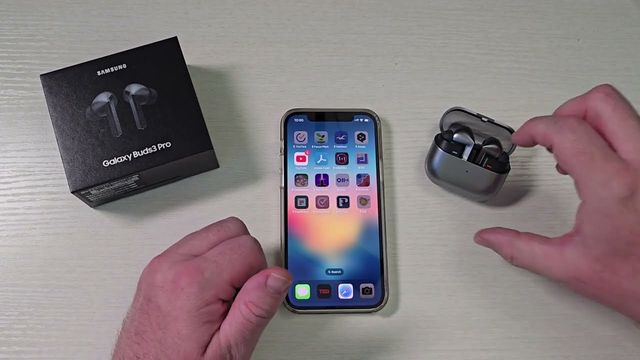
Make sure Bluetooth is on on whatever you’re connecting to. Then put the buds in the case, keep the lid open, and press and hold the button on the back of the case for about three seconds until the light starts blinking. The button is small and kind of hard to press, so use the tip of your finger.
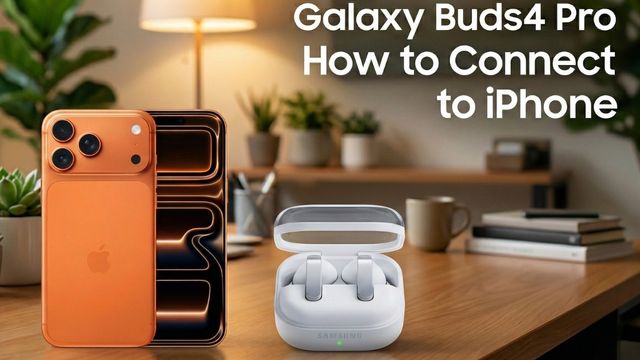
iPhone
- Put the Buds4 in pairing mode.
- On the iPhone, open Settings > Bluetooth.
- Tap Galaxy Buds4 under other devices. They connect in a few seconds and you can start using them.
There’s no Galaxy Wearable app on iPhone, so you can’t update the buds or change their settings from it. You control them only with the earbuds themselves. If you just want great Bluetooth earbuds, that’s all you need to do.
Samsung Galaxy phone
- Open the case near the phone. A pop-up often appears on its own, especially the first time. Tap Connect.
- If nothing shows up (for example, the buds were paired to another device), use the three-second button press to enter pairing mode.
- Go through the setup screens: I skip diagnostics, but I agree to automatic updates. Allow the app access to your Galaxy Buds4.
- Setup walks you through gestures, adaptive noise control and head gestures. Turn those on, and you’re set.
To change settings or update them later, go to Settings on your phone and tap Galaxy Buds4 near the top.
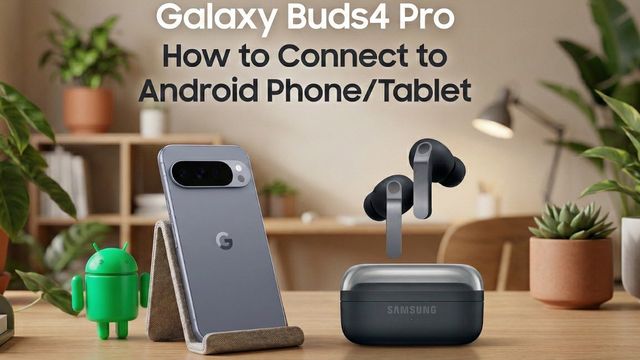
Any other Android phone or tablet
- Press and hold the Bluetooth tile to open Bluetooth settings and choose to pair a new device.
- Put the buds in pairing mode, then tap Galaxy Buds4 in the list.
- Allow access to calls and tap Pair.
- To control and update them, install the Galaxy Wearable app from the Play Store, open it, tap Start, and allow the permissions. It finds the already-paired buds.
Windows PC
- Close the case, then open it again and hold the case button for three seconds until it blinks.
- On the PC, open Bluetooth settings > Add a device > Bluetooth.
- Pick Galaxy Buds4. Windows may connect each earbud separately, so if a second entry appears, connect that one too.
Get them
Watch the full video on YouTube, and subscribe to GregglesTV for daily tech news, reviews and walkthroughs.
See today’s GregglesTV Best Tech Deals or browse all deals posts.
Comments
Comments are moderated. Hate, slurs, spam and scam posts are blocked. Don’t include personal info you wouldn’t want public. See the privacy policy.
Loading comments…