How to Sync Samsung Gallery With Google Storage on Your Galaxy
Step-by-step: turn on Samsung Gallery's new Google storage sync so your photos and videos back up and show up on your other Galaxy phone or tablet, pick which albums sync, and free up space safely.
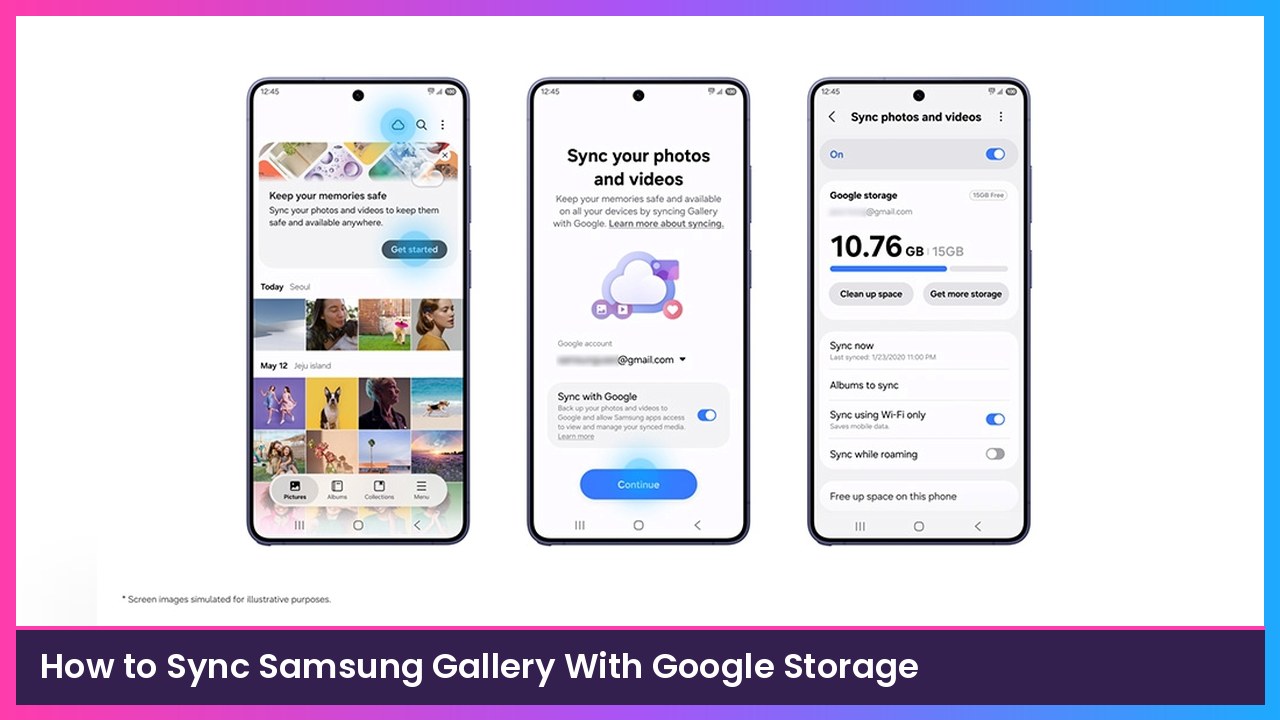
Quick summary: Samsung Gallery can now back up your photos and videos to Google storage (the same storage your Gmail, Drive and Google Photos use) and show them on your other Galaxy phones and tablets. It replaces the old OneDrive sync, which Samsung says ended on September 30, 2026. Samsung announced the feature this week and it’s rolling out in phases. Here’s how to turn it on, and the gotchas you should know before you do.
Key takeaways
- The switch lives in Gallery > Menu > Settings > Sync photos and videos. You can also tap the Cloud icon at the top of Gallery or Get started on the tip card.
- You need a Galaxy on One UI 9 that’s supported, plus a personal Google account. Google says Workspace accounts and supervised (child) accounts can’t use it.
- It uses your Google account storage. Free accounts get up to 15GB shared across Gmail, Drive and Google Photos.
- Deletes sync both ways. Delete a synced photo in Samsung Gallery and it’s gone from Google storage and your other Galaxy devices too.
Before you start
- Supported device: Samsung says it’s on “select Galaxy phones and tablets running One UI 9,” expanding in phases, and availability varies by market. Google’s help page lists Android 17.
- Accounts: Be signed in to your Samsung account and a personal Google account on the device.
- Storage: Check how much Google storage you have left. Photos and videos back up in original quality, per Google, so they count against your quota.
Step 1: Open the sync setting
Pick whichever of these is easiest:
- Open Gallery and tap the Cloud icon at the top of the screen, or
- Tap Get started on the “Keep your memories safe” tip card if you see it, or
- Tap Menu (bottom right) > Settings > Sync photos and videos.
Step 2: Choose your Google account and allow sync
- Pick the Google account you want to use. If you pay for Google One, Samsung says to choose the account that has the plan.
- Follow the on-screen prompts to give permission to sync with Google. In Samsung’s official screenshots, this screen has a Sync with Google toggle and a Continue button.
What you should see: A Sync photos and videos page that’s switched On, showing your Google storage use plus options like Sync now, Albums to sync, Sync using Wi-Fi only, Sync while roaming and Free up space on this phone (that’s how it appears in Samsung’s screenshots; Samsung notes they’re simulated).
Step 3: Pick which albums sync
- On the Sync photos and videos page, tap Albums to sync.
- Choose the folders you want backed up, like Camera, Screenshots or Downloads.
Google says you can even stop syncing your main camera roll and only sync certain folders. If you turn off every album but leave sync on, your Gallery becomes a view-only window into photos from your other devices.
Tip: Leave Sync using Wi-Fi only on if you’re on a limited data plan.
Step 4: Turn it on for your tablet or new phone
- On your other Galaxy device, sign in with the same Samsung account and the same Google account.
- Turn on Sync photos and videos in Gallery the same way.
What you should see: Previews of your synced photos show up in Gallery. The originals stay in the cloud, and you can download any one you need. So you can shoot on your Galaxy S26 Ultra and edit on a bigger screen like the Galaxy Tab S10 FE, as long as the tablet is a supported model on One UI 9.
Step 5 (optional): Free up space on your phone
Once your photos and videos have synced, use Free up space (shown as Free up space on this phone on the sync page) to delete the original files from the device. Samsung says the thumbnails stay visible in Gallery, and you can download the originals again later.
Important things to know first
- Deleting is permanent everywhere. Samsung says deleting a synced item in Gallery also removes it from Google storage and your other connected Galaxy devices. Google adds that trashing it in Google Photos trashes it in Samsung Gallery too.
- Private Album is a trap. Google says moving a backed-up photo to a Private Album on your Samsung permanently deletes the cloud copy in Google Photos, skipping the trash. You’ll get a confirmation prompt, so read it.
- Your old Google Photos library won’t show up. At launch, Samsung Gallery only shows media synced through Gallery after you turn this on.
- Some Google Photos features skip these photos. Google says Samsung-synced photos aren’t included in Memories, Live albums or Search unless you also back them up through Google Photos.
- OneDrive stuff stays in OneDrive. Anything you synced to OneDrive before is still in the OneDrive app or website.
How to turn it off
- Open Gallery, tap Menu > Settings.
- Turn off Sync photos and videos.
That stops new backups, but Google says it doesn’t remove the link. To fully disconnect, go to Linked apps in your Google Account settings in a browser, select Gallery Cloud Sync, then Delete all. Your previously backed-up photos stay in your Google account.
Recap checklist
- Supported Galaxy on One UI 9 with a personal Google account
- Checked your Google storage space
- Turned on Sync photos and videos (Cloud icon, Get started, or Menu > Settings)
- Picked your Google account and allowed sync
- Chose your Albums to sync
- Turned it on with the same accounts on your tablet or new phone
- Remembered: deletes sync everywhere, and Private Album deletes the cloud copy
My take
This is a big upgrade for anyone with a Galaxy phone and a Galaxy tablet. Photos you shoot just show up on the tablet without emailing them to yourself. Just be careful with that 15GB free tier, because original-quality video eats it fast, and be very careful with deletes now that they sync everywhere.
Sources
Subscribe to GregglesTV for daily tech news, reviews and walkthroughs.
See today’s GregglesTV Best Tech Deals or browse all deals posts.
Comments
Comments are moderated. Hate, slurs, spam and scam posts are blocked. Don’t include personal info you wouldn’t want public. See the privacy policy.
Loading comments…