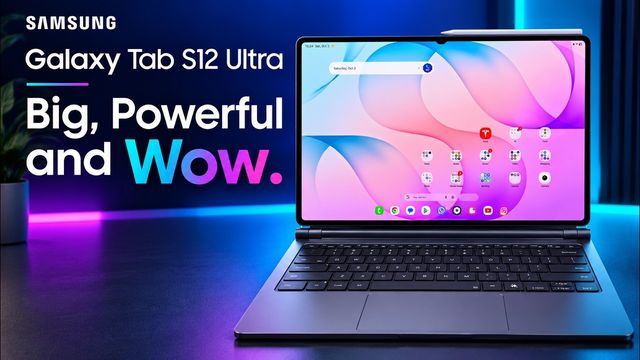
Galaxy Tab S12 Ultra: First 20 Things to Do
Galaxy Tab S12 Ultra and S12+ setup tips: 4K camera settings, home screen, quick panel, Wi-Fi, Quick Share, Galaxy AI, Dolby Atmos, taskbar and Good Lock.
Quick summary: Just got a Galaxy Tab S12 Ultra or S12+? Here are the first 20-plus things I’d do: camera settings, home screen tweaks, quick settings, Wi-Fi, Quick Share, Galaxy AI, sound, display, the taskbar and more.
Key takeaways
- Set video to UHD (4K): 60fps on the rear camera, 30fps on the front.
- Turn on show palm for selfies, and turn off the shutter sound.
- Set the notification and quick-settings panels to “together.”
- Turn off Wi-Fi network notifications.
- Turn on Galaxy AI features, and don’t restrict them to on-device only.
- Turn on Dolby Atmos, and keep screen on while viewing.
Camera
- In Video, set resolution to UHD and 60fps on the rear camera (30 if you prefer).
- Flip to the front camera and set UHD 30.
- In camera settings, turn on location tags if you want photos on a map.
- Under shooting methods, turn on show palm.
- Turn shutter sound off.
Home screen
- Long-press the home screen, open Settings and pick a grid size, like 8x6 or 10x6.
- Keep or turn off the Google media page to the left of your home screen.
- Keep the search and finder bar at the bottom. I use local file search a lot.
Quick settings and notifications
- Swipe down twice, tap the pencil, and open panel settings. I set it to together, so swiping anywhere shows the same panel. Choose separate if you like the iPhone style.
- Edit your quick toggles: resize, rearrange, remove, or add new ones.
Connections
- Wi-Fi > Advanced settings: turn off Wi-Fi network notifications so you’re not nagged about sketchy open networks.
- Quick Share: set who can share with you to contacts (everyone only lasts 10 minutes), and turn on share with Apple devices.
Galaxy AI
- Go through Galaxy AI and turn features on, like Note Assist summaries. Don’t choose on-device only, which blocks many features.
Sound
- Change ringtones and notification sounds, and turn off system sounds you don’t need.
- Under Sound quality and effects, turn on Dolby Atmos. There are also advanced sound settings worth a look.
Display
- Turn on dark mode, all the time or sunset to sunrise.
- Set screen timeout to two minutes, and turn on keep screen on while viewing.
Big-screen tweaks
- Set up edge panels. Press and hold the handle to move it.
- Tweak the taskbar: show recent apps, and I like auto-hide.
- Change your wallpaper and theme, including colors based on your wallpaper.
Bonus tweaks
- Customize the side button.
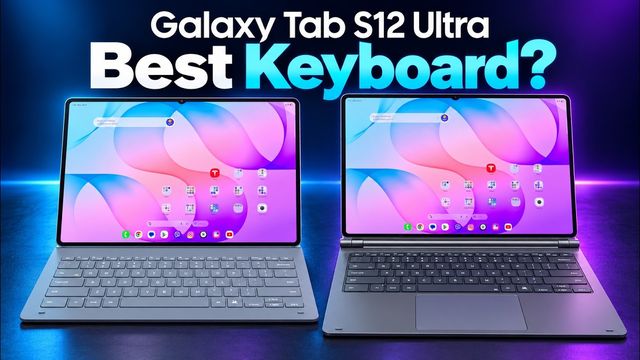
- If you use a keyboard with a trackpad, adjust keyboard, touchpad and mouse settings.
- Check for a software update.
- Install Good Lock for deep customization with tons of modules.
Final thoughts
It’s a fantastic, powerful tablet.
Watch the full video on YouTube, and subscribe to GregglesTV for daily tech news, reviews and walkthroughs.
See today’s GregglesTV Best Tech Deals or browse all deals posts.
Comments
Comments are moderated. Hate, slurs, spam and scam posts are blocked. Don’t include personal info you wouldn’t want public. See the privacy policy.
Loading comments…