How to Block X Posts (and Any Site) From Your Google Discover Feed, Step by Step
Google Discover is showing a new "Don't show content from X" option. Here's how to use it on your Pixel, Galaxy or iPhone, block any other source, undo it later, and follow the sites you actually want.
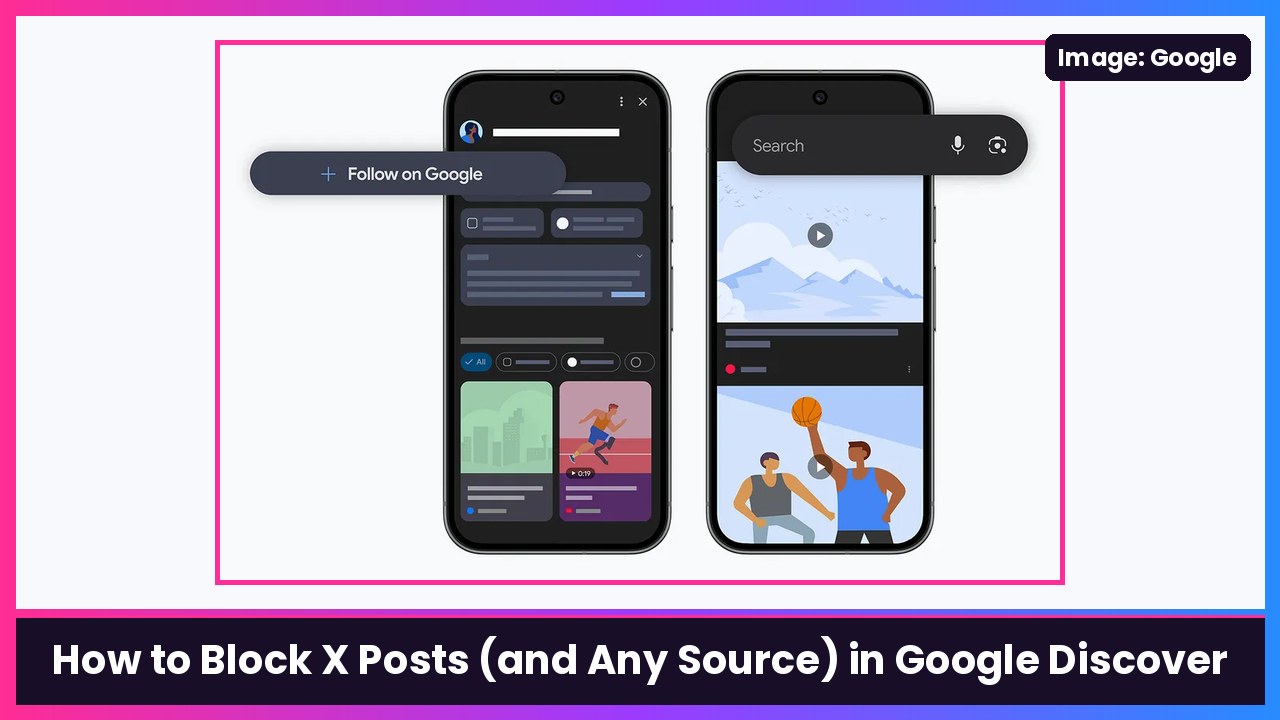
Quick summary: If your Google Discover feed has been full of X (Twitter) posts instead of actual articles, there’s finally a fix. Droid Life spotted this weekend that the three-dot menu on a Discover card now offers “Don’t show content from X”, which blocks the whole platform, not just one account. Below: how to use it, how to block any site the same way (that part is in Google’s own Discover help page), how to undo it, and how to tell Discover what you do want.
Key takeaways
- Tap the three dots on an X post in Discover, then Don’t show content from X.
- Same trick works for any site: Don’t show content from [Source].
- Undo it in the Google app: profile picture > Settings > Interests > Not interested > Unhide.
- Follow and Like the sources you want so Discover shows more of them.
- It’s a new option, so if you don’t see it yet, update the Google app and check again later.
Why X posts showed up in the first place
Back in September 2025, Google announced Discover would start showing posts from X and Instagram and YouTube Shorts alongside articles. As Droid Life explains, that often meant Discover linked to a publication’s X post about a story instead of the story itself, so you had to click through X to read it.
Step 1: Open Discover
Google lists three ways to get there:
- Open the Google app (Discover is the feed under the search bar). This works on iPhone too.
- On many Android phones, including Pixels, swipe right from your home screen.
- Or open google.com in your phone’s browser.
What you should see: A scrolling feed of cards with headlines, videos and social posts.
Step 2: Find an X post and open its menu
- Scroll until you see a card that’s an X post (it’ll show the account name and X branding).
- Tap the three-dot More button on the card. Google’s help page says it’s at the bottom right of the card.
What you should see: A menu with options like Not interested in [topic], a Don’t show content from [account] on X option, and the new Don’t show content from X.
Step 3: Tap “Don’t show content from X”
- Tap Don’t show content from X (the platform-wide option, not the one with a single account’s name).
- Pull down to refresh your feed.
What you should see: The card disappears, and after a refresh your feed should be articles linking straight to publications. That’s what Droid Life saw after doing it.
Don’t see the option? It just started showing up this weekend. Update the Google app from the Play Store or App Store, and if it’s still missing, use Don’t show content from [account] on X on each one for now.
Threads too: Droid Life says this should also work for Threads posts. If you see one, open its menu and look for the same option.
Step 4: Block any other site the same way
This one is straight from Google’s Discover help:
- On any card from a site you’re tired of (say a clickbait recipe site that keeps showing up when you only care about your favorite bakery’s blog), tap More at the bottom right.
- Tap Don’t show content from [Source].
- Or, if it’s the topic you’re sick of, tap Not interested in [Topic].
What you should see: That site or topic stops appearing in your feed.
Step 5: Undo a block
Changed your mind? Google’s help page has the path:
- Open the Google app.
- Tap your profile picture (or initial) at the top right.
- Tap Settings > Interests > Not interested.
- Next to the source or topic you want back, tap Unhide.
Using google.com in a browser instead? Tap your profile picture > Settings, then under Discover tap Manage interests > Not interested, and tap Unhide.
What you should see: The source drops off your Not interested list.
Step 6: Tell Discover what you DO want
Blocking is half of it. Google’s help page and its 2025 Discover update give you two ways to steer the feed:
- Like cards you enjoy: tap Like at the bottom right of the card. You can find them later under Discover > Likes.
- Follow sites and creators: tap Follow at the top right of a card, or tap the source’s name to preview its page and follow from there (you need to be signed in).
- Manage what you follow in the Google app under profile picture > Settings > Personalization > Manage your interests > Following.
What you should see: Over the next few days, more cards from the sources you liked and followed.
Tips
- Personalization has to be on. Google says Discover’s recommendations use Search Services History and Personalized recommendations. If your feed feels random, check both in the Google app under your profile picture.
- Galaxy owners: If you’re moving off Samsung News, my switch to Google Discover on Galaxy guide covers setting it up.
- Give it a refresh. Droid Life says their feed went back to direct links to publications right after blocking X and refreshing.
Recap checklist
- Open Discover (Google app or swipe right on your home screen)
- On an X post, tap More > Don’t show content from X
- Refresh the feed
- Try the same on Threads posts
- Block other sites with Don’t show content from [Source]
- Undo anything in Settings > Interests > Not interested > Unhide
- Like and Follow the sources you want
My take
This is one of those tiny changes that makes your phone feel better every single day. If you swipe over to Discover on a Pixel or Galaxy every day, getting straight links to articles instead of a detour through X is a big win. While you’re in there, follow the sites you actually like reading (hey, I know one).
Sources: Droid Life: Google Discover Lets You Fully Remove X Posts, Google Search Help: Customize what you find in Discover, Google: Updates to Discover in Search (Sept 2025), 9to5Google: Google Discover getting more customization with ability to ‘Follow’ sites.
Subscribe to GregglesTV for daily tech news, reviews and walkthroughs.
See today’s GregglesTV Best Tech Deals or browse all deals posts.
Comments
Comments are moderated. Hate, slurs, spam and scam posts are blocked. Don’t include personal info you wouldn’t want public. See the privacy policy.
Loading comments…