Gemini's Slick New Camera Is Rolling Out on Android: Here's What Changed
Google redesigned the camera inside the Gemini app on Android. It now opens as a drag-up sheet right in your chat instead of a generic full-screen viewfinder. Here's how it works and how to get it.
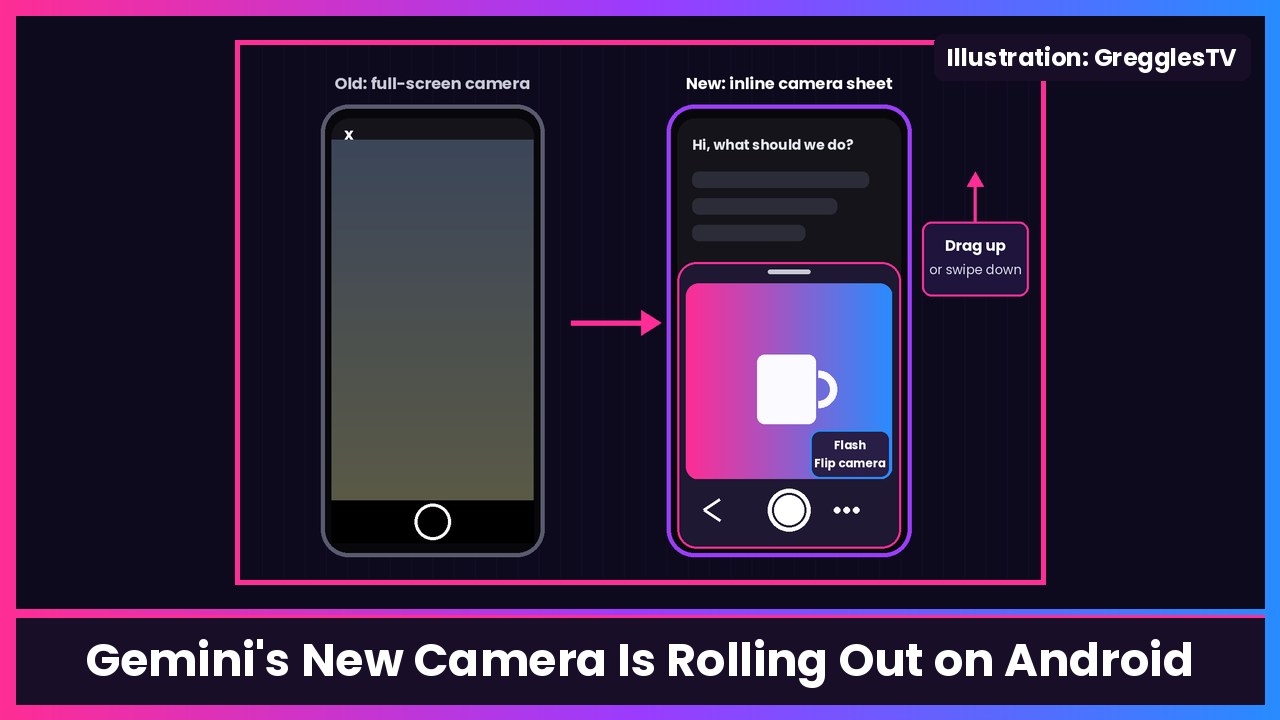
Quick summary: If you snap a lot of photos straight into Gemini to ask “what is this?” or “how do I fix this?”, that just got a lot nicer on Android. 9to5Google reports Google has thoroughly redesigned the in-app camera in the Gemini app for Android. Instead of jumping to a plain full-screen viewfinder, the camera now opens right inside your chat as a sheet you can drag up, and it’s rolling out widely now.
What changed
Here’s the before and after, per 9to5Google’s Abner Li:
- Before: tapping the camera from the plus (+) menu in the prompt box launched a full-screen viewfinder that 9to5Google called “quite generic.”
- Now: the camera appears inline, on the Gemini home screen or inside a conversation, as a bottom sheet. You can drag it up with a smooth animation so it takes up most of the screen.
- The new viewfinder runs nearly edge to edge, even extending behind the system navigation bar.
- To the right of the shutter button is a three-dot button that opens controls for the flash and switching to the front camera.
- There’s a back button on the left, or you can just swipe the sheet down to close it.
One thing that hasn’t changed: if you open the camera from the Gemini overlay (the pop-up you get when you summon Gemini over another app), you still get the old full-screen camera for now.
How to get it
9to5Google says the redesign first showed up in Gemini for iPhone and has now widely rolled out on Android in both the beta and stable channels, on version 17.76 and up. If you don’t see it yet:
- Update the Google app and Gemini in the Play Store.
- Force stop the Google app (9to5Google’s tip): long-press the Google app icon, tap App info, then Force stop.
- Open Gemini, tap + in the prompt box and pick the camera.
What you should see: the camera slides up from the bottom of your chat instead of taking over the whole screen.
Why it matters
Pointing your phone at something and asking Gemini about it is one of the most useful AI tricks on a phone, whether it’s a confusing error message, a plant, a recipe card or a product label. Keeping the camera inside the conversation means you don’t lose your place, and the flash and selfie camera are one tap away instead of buried. It’s a small change, but it makes Gemini feel a lot more like a real camera app.
It also lands a day after Google added GIF creation to Gemini. If you missed that, here’s my step-by-step on how to make your own GIFs with Gemini.
My take
Google has been on a roll making the Gemini app feel less like a chatbot and more like a phone feature. If you’re on a Pixel 10 Pro, Galaxy S26 Ultra or Pixel 11 Pro Fold, go check your Gemini app. The new camera should already be there.
Sources: 9to5Google: Gemini app rolls out very slick camera redesign on Android (Abner Li, Nov 21), Android Authority: Gemini can now be your go-to source for making GIFs (Nov 20). Hero image is an original GregglesTV illustration of the old vs. new camera layout, not a Google screenshot.
Subscribe to GregglesTV for daily tech news, reviews and walkthroughs.
See today’s GregglesTV Best Tech Deals or browse all deals posts.
Comments
Comments are moderated. Hate, slurs, spam and scam posts are blocked. Don’t include personal info you wouldn’t want public. See the privacy policy.
Loading comments…