How to Tell the Time on Apple Watch Without Looking: Taptic Time, Speak Time and Chimes, Step by Step
Your Apple Watch can tap the time onto your wrist, say it out loud or chime on a schedule, so you never have to glance down. Here's how to set up Taptic Time, Speak Time and Chimes, step by step.
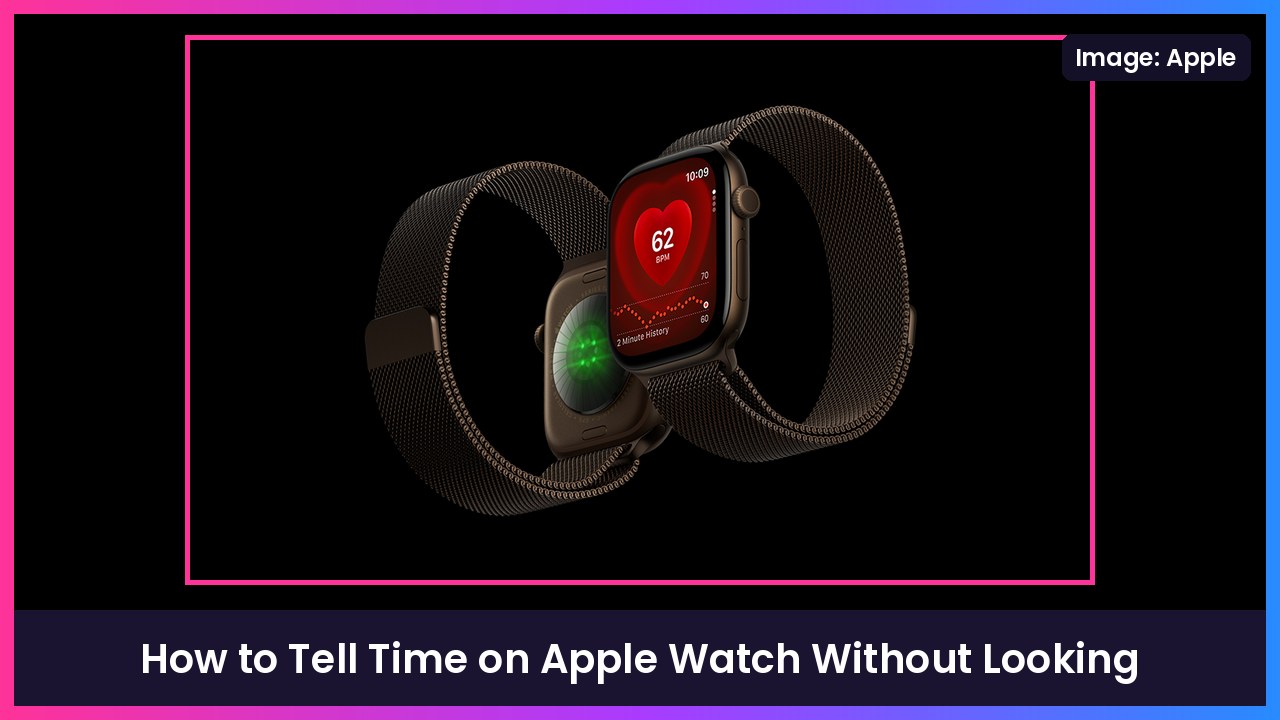
Quick summary: Checking your watch in the middle of a meeting, a dinner or (let’s be real) Thanksgiving with the family can look a little rude. Your Apple Watch has a hidden fix called Taptic Time: hold two fingers on the watch face and it taps the time onto your wrist, so nobody sees or hears a thing. Engadget highlighted it this week, and I’m adding the other two no-look options too: Speak Time (it says the time out loud) and Chimes (it plays a sound on a schedule). Every step below is checked against Apple’s own Apple Watch User Guide. Each one takes under a minute.
What you need
- An Apple Watch, like the Series 12 or SE 3, paired with your iPhone.
- About 2 minutes, plus a little practice to learn the tap patterns.
Option 1: Taptic Time (feel the time as taps)
Step 1: Turn on Taptic Time
- On your Apple Watch, open the Settings app.
- Tap Clock, scroll down, then tap Taptic Time.
- Turn on Taptic Time.
Rather do it from your phone? Open the Apple Watch app on your iPhone, tap My Watch, then go to Clock > Taptic Time and turn it on.
What you should see: Three pattern choices show up under the toggle: Digits, Terse and Morse Code.
Step 2: Pick a tap pattern
Here’s how Apple describes each one:
- Digits (my pick): Exact hours and minutes. Long taps are tens, short taps are ones. Apple’s example: 2 long + 3 short, then 3 long + 4 short = 23:34, or 11:34 PM. Heads up, Apple’s examples use 24-hour time, so expect afternoon hours to come through as 13 through 23.
- Terse: Only accurate to a 15-minute window. Long taps for every 5 hours since midnight, short taps for the remaining hours, then long taps for each quarter hour. Apple’s example: 3 long + 4 short + 2 long = somewhere between 7:30 and 7:44 PM (3 × 5 hours + 4 = 19, then two quarter hours).
- Morse Code: Taps each digit of the time in Morse code. Really only useful if you already know Morse.
If you just want to know the exact time, go with Digits. If you only need a rough idea and want fewer taps, try Terse.
Step 3: Feel the time
- Look anywhere but your watch.
- Touch and hold two fingers on the watch face.
What you should see (well, feel): A series of long and short taps on your wrist. Try it a few times while looking at a clock until the pattern clicks.
Taptic Time not working? Check Speak Time
Apple says Taptic Time is disabled if your watch is set to always speak the time. To fix it:
- Open Settings > Clock on the watch.
- Under Speak Time, turn on Control With Silent Mode.
If VoiceOver is on, Apple says you can also trigger Taptic Time by double-tapping the watch face while the display is off.
Option 2: Speak Time (hear the time)
Great when you’re cooking, driving or have earbuds in.
- On your Apple Watch, open Settings.
- Tap Clock, then turn on Speak Time.
- Hold two fingers on the watch face to hear the time.
What you should see: Your watch says the time out loud. Want it quiet when you’re in public? That’s what the Control With Silent Mode switch from the section above is for.
You can also just ask. If Raise to Speak is on, raise your wrist and say “What time is it?”, per Apple’s Tell time on Apple Watch page.
Option 3: Chimes (a sound and tap on a schedule)
This one’s awesome for keeping track of time while you work out or study.
- On your Apple Watch, open Settings.
- Tap Accessibility, then tap Chimes.
- Turn on Chimes, then set:
- Schedule: Hourly, 30 minutes or 15 minutes.
- Sounds: Bells or Birds.
On your iPhone, it’s Apple Watch app > My Watch > Accessibility > Chimes. Apple’s guide also lists hourly Chimes (with the Bells or Birds sound) under Settings > Clock, so check there if you don’t see it under Accessibility.
What you should see: At each interval, the watch plays your sound with a haptic tap.
Tips
- Learn Digits with a test run. Set a watch face with big numbers, hold two fingers on it and match the taps to what you see. After a day or two you won’t need to look.
- Two fingers, not one. Taptic Time and Speak Time both use a two-finger hold on the watch face, not a single tap.
- Practice with 24-hour time. Apple’s tap examples are written in 24-hour time. If you want your screen to match while you learn, turn it on in the Watch app on iPhone: My Watch > Clock > 24-Hour Time.
- This is a big accessibility feature. Engadget points out Taptic Time is most helpful for people who are blind or have low vision, and it works with VoiceOver.
- Battery worried? Chimes every 15 minutes means a lot of extra haptics. Here’s how to make your Apple Watch battery last longer.
Recap checklist
- Settings > Clock > Taptic Time on, pattern set to Digits
- Hold two fingers on the watch face to feel the time
- If Taptic Time won’t work: Settings > Clock > Speak Time > Control With Silent Mode on
- Optional: Settings > Clock > Speak Time on to hear the time
- Optional: Settings > Accessibility > Chimes on, schedule and sound picked
- Optional: Watch app > My Watch > Clock > 24-Hour Time while you learn the patterns
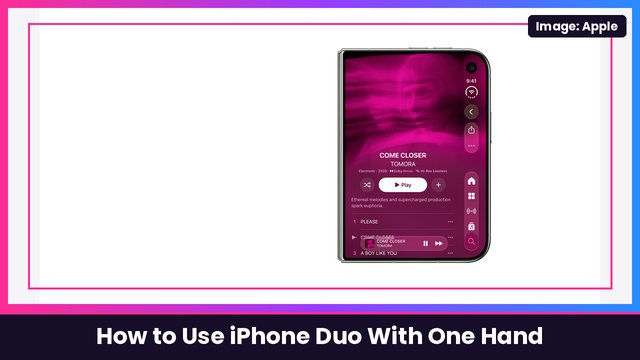
While you’re in Apple Watch settings, did you know your watch can unlock your iPhone Duo too?
Sources: Apple Support: Tell time with haptic feedback on Apple Watch, Apple Support: Tell time on Apple Watch, Engadget. Lead image: Apple.
Thanks for reading. Have a great day.
Subscribe to GregglesTV for daily tech news, reviews and walkthroughs.
See today’s GregglesTV Best Tech Deals or browse all deals posts.
Comments
Comments are moderated. Hate, slurs, spam and scam posts are blocked. Don’t include personal info you wouldn’t want public. See the privacy policy.
Loading comments…