How to Make Your Apple Watch Battery Last Longer: 8 Settings That Actually Help, Step by Step
Low Power Mode, Always On, Extended Workouts, the new watchOS 27 Extending Battery feature and more. Here's every Apple Watch battery setting worth changing, with the exact menus from Apple's own support docs.
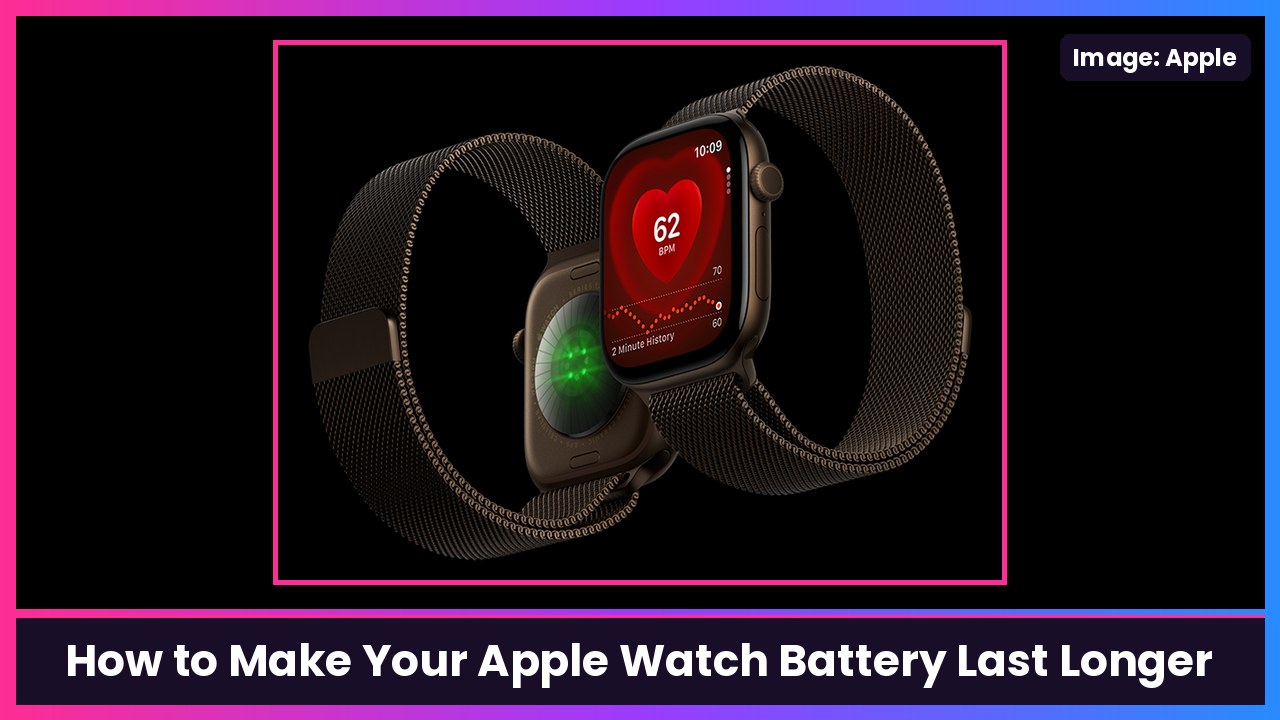
Quick summary: Just grabbed an Apple Watch SE 3 on Black Friday (it’s $179 right now) or have an older watch that dies before bedtime? These eight steps come straight from Apple’s own support docs, plus a couple of extras from Engadget’s battery guide published today. Start with Step 1, because it tells you whether the problem is settings or an aging battery.
Key takeaways
- Check Battery Health first: Settings > Battery > Battery Health > Maximum Capacity.
- Low Power Mode is the biggest single switch, and you can set it for 1, 2 or 3 days.
- Turning off Always On saves a lot without giving up heart rate tracking.
- Extended Workout (new in watchOS 27) turns on Low Power Mode just for a workout.
- Keep your iPhone nearby and use Wi-Fi over cellular. Apple says the watch is most efficient connected to your iPhone over Bluetooth.
Step 1: Check your battery health
Apple’s battery drain support article says how long your watch lasts depends on how you use it and your battery’s capacity.
- Open the Settings app on your watch.
- Tap Battery, then tap Battery Health.
- Scroll down to Maximum Capacity.
What you should see: A percentage compared with when the battery was new. If you see Battery Needs Service, Apple says to contact Apple Support. No settings change will fix a worn-out battery.
Just updated watchOS? Apple says some update tasks keep running in the background, so wait a few days before judging battery life.
Step 2: Let watchOS 27 pause features you don’t use
With watchOS 27, Apple says your watch can extend battery life on its own by pausing features you don’t use often.
- When it happens, you’ll get an Extending Battery notification saying which feature was paused.
- Want it back? Tap Settings in that notification and turn the feature back on. You can also re-enable it anytime in Settings on the watch or in the Apple Watch app on your iPhone.
What you should see: Nothing to set up. Just don’t swipe the notification away without reading it, so you know what got paused.
Step 3: Turn on Low Power Mode (for a day or a whole trip)
From Apple’s Low Power Mode guide:
- Press the side button to open Control Center.
- Tap the battery percentage button.
- Turn on Low Power Mode. (Or go to Settings > Battery > Low Power Mode.)
- On the info screen, scroll to the bottom and tap Turn On, or tap Turn On For and pick 1 Day, 2 Days or 3 Days.
What you should see: A yellow circle at the top of the watch face, and the battery button in Control Center turns yellow.
What you give up: Apple lists Always On, double tap and wrist flick gestures, background heart rate and blood oxygen readings, and irregular/high/low heart rate notifications. Without your iPhone nearby, calls and notifications are only fetched about once an hour. Low Power Mode turns off on its own when you charge past 80%, unless you picked a number of days. Apple also says your watch will offer it when you hit 10%.
Step 4: Turn off Always On (and keep your health features)
If Low Power Mode feels like too much, Apple suggests just killing Always On:
- Open Settings on your watch.
- Tap Display & Brightness.
- Scroll down and tap Always On, then turn Always On off.
What you should see: The screen goes fully dark when you lower your wrist and lights up when you raise it. Engadget cites Macworld’s testing that turning off Always On added 10 to 12 hours of battery.
Extra credit: Engadget also points out the Wake on Wrist Raise toggle in the same menu if your screen lights up by accident a lot, and that you can cover the screen with your palm to turn it off when you’re done.
Step 5: Use Extended Workout for long workouts
New in watchOS 27, from Apple’s workout guide:
- Open the Workout app.
- Turn the Digital Crown to the workout you want.
- Tap the More button on that workout (Engadget describes it as the Goals and Targets button in the top-right corner), tap Extended, then tap Extended Workout or Max Extended Workout (available for Outdoor Walk, Outdoor Run and Hiking).
What you should see: Your workout starts with Low Power Mode on. Apple says some metrics aren’t available, and Max Extended also drops some metrics and splits. Low Power Mode turns off when the workout ends.
Want it every time? Go to Settings > Workout and turn on Low Power Mode. Apple also has Settings > Workout > Fewer GPS and Heart Rate Readings for outdoor walks, runs and hikes in Low Power Mode (Series 8 and later, SE 2nd gen and later, and Ultra).
Step 6: Stay close to your iPhone, and pick Wi-Fi over cellular
Apple says your watch is most efficient when it’s connected to your paired iPhone over Bluetooth.
- When battery matters, keep your watch and iPhone within range.
- Away from your phone? Use Wi-Fi instead of cellular when you can. Join a network in Settings > Wi-Fi.
- Press the side button to check signal strength in Control Center (a blue Wi-Fi icon or green cellular icon with bars).
- Going somewhere with weak or no signal for a while? Turn on Airplane Mode.
What you should see: Apple says weak signals use more power, so strong-signal Wi-Fi beats a one-bar cellular connection every time.
Step 7: Trim background refresh and notifications
From Engadget’s guide:
- On the watch, go to Settings > General > Background App Refresh and turn it off for apps you don’t need updating constantly.
- Delete watch apps you never use (it doesn’t remove them from your iPhone).
- On your iPhone, open the Watch app, tap Notifications, scroll to Mirror iPhone Alerts From, and turn off apps you don’t need buzzing your wrist.
What you should see: Fewer taps on your wrist, which means fewer screen wake-ups through the day.
Step 8: Use headphones instead of the watch speaker
Apple says playing audio through the watch’s built-in speaker drains the battery faster. For the best efficiency, connect AirPods or another Bluetooth headset.
Tips
- Need every last hour for a trip? Apple says you can temporarily turn off Optimized Battery Charging or Optimized Charge Limit in Settings > Battery > Battery Health and choose Turn Off Until Tomorrow. Apple warns turning off the charge limit can add wear, so turn it back on after.
- Know the sleep trade-off. Apple says Low Power Mode turns off background heart rate and blood oxygen measurements including during sleep, so skip it overnight if you care about those stats.
- Low Power Mode isn’t a phone replacement mode. Opening an app that needs data without your iPhone nearby turns Wi-Fi or cellular back on, which Apple says can use significant battery.
- Buying new? Engadget notes Apple rates the Series 12 at 24 hours, and suggests heavy users look at the Apple Watch Ultra 4 for its bigger battery. Today’s deals: SE 3 at $179 and Series 12.
Recap checklist
- Check Settings > Battery > Battery Health
- Leave watchOS 27’s Extending Battery on and read the notifications
- Use Low Power Mode (1–3 days for trips)
- Turn off Always On in Settings > Display & Brightness
- Start long workouts as Extended Workout
- Keep your iPhone nearby, prefer Wi-Fi, use Airplane Mode in dead zones
- Trim Background App Refresh and Mirror iPhone Alerts
- Use headphones instead of the watch speaker
My take
If you only change one thing, turn off Always On. You keep all the health tracking and get a big chunk of battery back. Low Power Mode is great for travel days, and the 1-to-3-day option is perfect for a weekend away from your charger. And if your Maximum Capacity is way down, that’s the real problem. A new SE 3 at Black Friday pricing is honestly cheaper than you’d think.
More Apple how-tos: unlock your iPhone Duo with Apple Watch, make iPhone Duo’s battery last longer, and add a car key to Apple Wallet.
Sources: Apple Support: If the battery in your Apple Watch drains too quickly, Apple Support: Use Low Power Mode on your Apple Watch, Apple Watch User Guide: Start a workout (Conserve power during workouts), Apple Support: What’s new in watchOS 27, Engadget: 5 Apple Watch settings that can help you save its battery life.
Subscribe to GregglesTV for daily tech news, reviews and walkthroughs.
See today’s GregglesTV Best Tech Deals or browse all deals posts.


Comments
Comments are moderated. Hate, slurs, spam and scam posts are blocked. Don’t include personal info you wouldn’t want public. See the privacy policy.
Loading comments…