How to Add Your Car Key to Apple Wallet on iPhone and Apple Watch, Step by Step (GM Support Is Expanding)
Chevy, GMC and Cadillac are rolling out Apple Wallet car keys to more vehicles in December. Here's how to add a car key to Apple Wallet, use it to lock, unlock and start your car, share it with family and move it to a new iPhone.
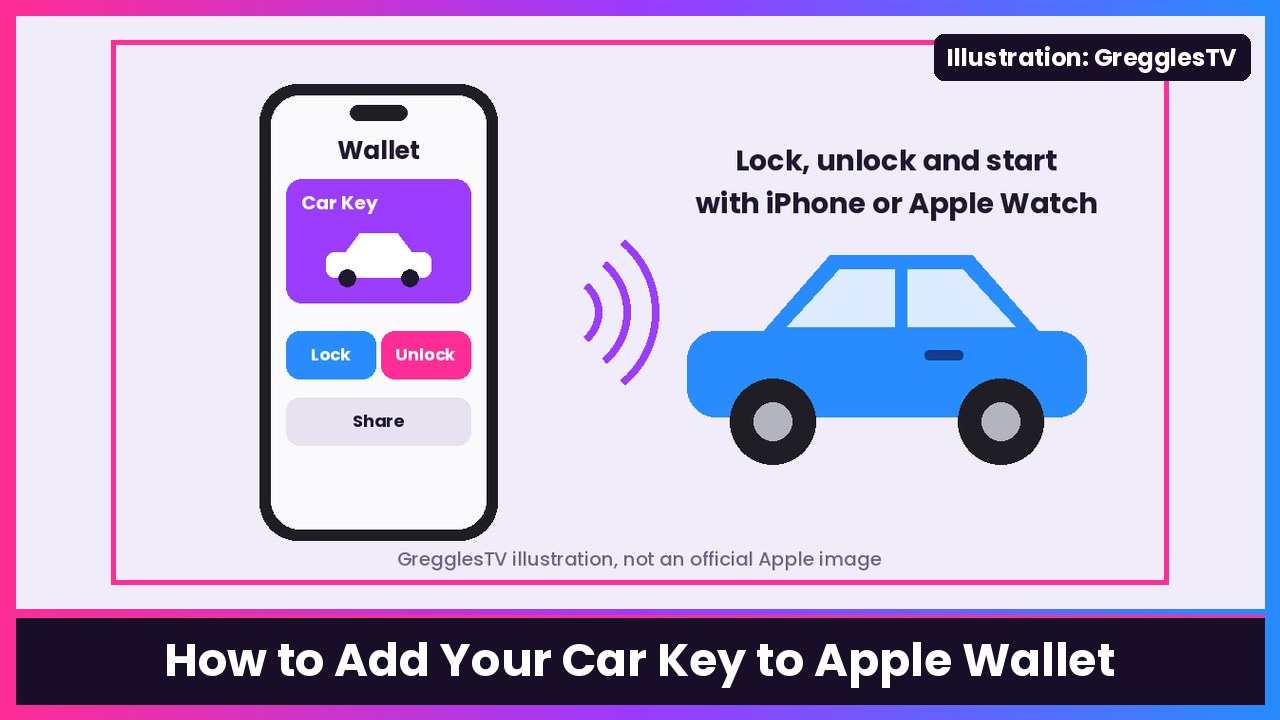
Quick summary: Your iPhone can be your car key. 9to5Mac reports that GM is expanding Apple Wallet car keys to a bunch of Cadillac, Chevrolet and GMC models in December, so a lot more people are about to get this option. Setup always starts in your car maker’s app (or the car’s screen), which hands you off to Wallet, where you tap Continue and pair. Here’s how it works, step by step, straight from Apple’s support page.
What you need
- A compatible car. Apple says to check with your automaker or dealership.
- iPhone XS or later, or iPhone SE (2nd generation), on the latest iOS. Or Apple Watch Series 5 or later, or Apple Watch SE, on the latest watchOS.
- Signed in with your Apple Account.
Which GM vehicles are getting it? Per 9to5Mac, GM’s list includes the Cadillac Vistiq (2027), Optiq (2026-2027), Lyriq (2025-2027), Escalade (2027) and Escalade IQ/IQL (2027), the Chevrolet Suburban and Tahoe (2026-2027), and the GMC Yukon and Yukon XL (2026-2027). GM says owners will be notified in the What’s New section of their vehicle’s app when their car gets support.
How to add your car key to Apple Wallet on iPhone
- Open your car manufacturer’s app, or the setup email or text they sent you, or use your car’s display, and follow the instructions to set up a key. You might need to create an account with your automaker and link it to your vehicle first.
- When you’re sent to the Wallet app, tap Continue.
- If the onscreen instructions ask you to, place the top center of your iPhone on the car’s key reader while your iPhone and car pair.
- When it’s done, your car key shows up in Wallet.
Add it to your Apple Watch
Apple says the key might be added to your paired Apple Watch automatically, or you’ll see an option to add it. To do it manually:
- Open the Apple Watch app on your iPhone.
- Tap Wallet & Apple Pay.
- Tap the Add button next to your car key.
How to use your car key
Express Mode turns on automatically when you add a car key, so you don’t have to unlock your phone or use Face ID, Touch ID or a passcode. What you can do depends on your car:
- Passive entry (some cars): The car unlocks as you walk up with your phone in your pocket or bag, or when you pull the handle. Once inside, you can start the car, and some cars lock automatically when you walk away. Apple says this needs an iPhone 11 or later (not iPhone SE 2nd/3rd gen or iPhone 16e) or Apple Watch Series 6 or later.
- Proximity (some cars): Hold your iPhone or Watch near the door handle to lock or unlock. To start the car, place your iPhone in the key reader (or hold your Watch near it), then press the start button.
- Remote (some cars): Open Wallet, tap your car key and you’ll see controls like lock and unlock. You need to be within Bluetooth range.
How to share your car key with family
If your car supports it, you can share a key over AirDrop, Messages, Mail, WhatsApp and more:
- Open Wallet and select your car key.
- Tap the Share button.
- Name the shared key (or pick a recent contact), set permissions, and choose whether to require an activation code. Some keys require one by default.
- Choose your recipient.
- Tap Continue, authenticate with Face ID, and follow the onscreen steps.
- If there’s an activation code, send it to them. Apple recommends sharing it in person or over the phone for the best security.
To stop sharing: open Wallet, tap your car key, tap the People button, pick the person and tap Stop Sharing.
Moving to a new iPhone
- In Setup Assistant on the new iPhone, tap Wallet.
- Select the car key you want to move.
- Tap Continue to confirm.
Your old iPhone has to be nearby and connected to the internet for this to work.
Good to know
- Low battery: Depending on your iPhone model, Apple says power reserve can let you use your car key even when your iPhone needs to be charged.
- Lost your phone? Mark it as lost in Find My. That turns off your car key and all your Wallet cards and passes. Shared keys are not turned off, though.
- Signing out of your Apple Account removes your car key.
My take
I love this feature. Once you’ve walked up to your car with your phone in your pocket and it just unlocks, it’s really hard to go back to digging for a fob. The Apple Watch part is my favorite: if your phone is dead or in another room, your wrist still works. If you’re going this route, a MagSafe power bank like Anker’s 10000mAh in the glovebox is cheap insurance, and I’d still toss an AirTag on the physical key so you can find it. Any recent iPhone works, including the iPhone Duo, and the Apple Watch Series 12 easily covers Apple’s Series 6 or later requirement for passive entry.
More Apple how-tos: unlock iPhone Duo with your Apple Watch and get speed camera alerts in CarPlay.
Sources: Apple Support: Add your car key to Apple Wallet on your iPhone or Apple Watch, Apple iPhone User Guide: Use digital keys in Wallet, 9to5Mac (Nov 20).
Subscribe to GregglesTV for daily tech news, reviews and walkthroughs.
See today’s GregglesTV Best Tech Deals or browse all deals posts.


Comments
Comments are moderated. Hate, slurs, spam and scam posts are blocked. Don’t include personal info you wouldn’t want public. See the privacy policy.
Loading comments…