How to Get Speed Camera Alerts in Apple CarPlay (Apple Maps, Google Maps and Waze)
CarPlay doesn't warn you about speed cameras by itself. Your navigation app does. Here's how to set up speed camera alerts and speed limits in Apple Maps, Google Maps and Waze, step by step.
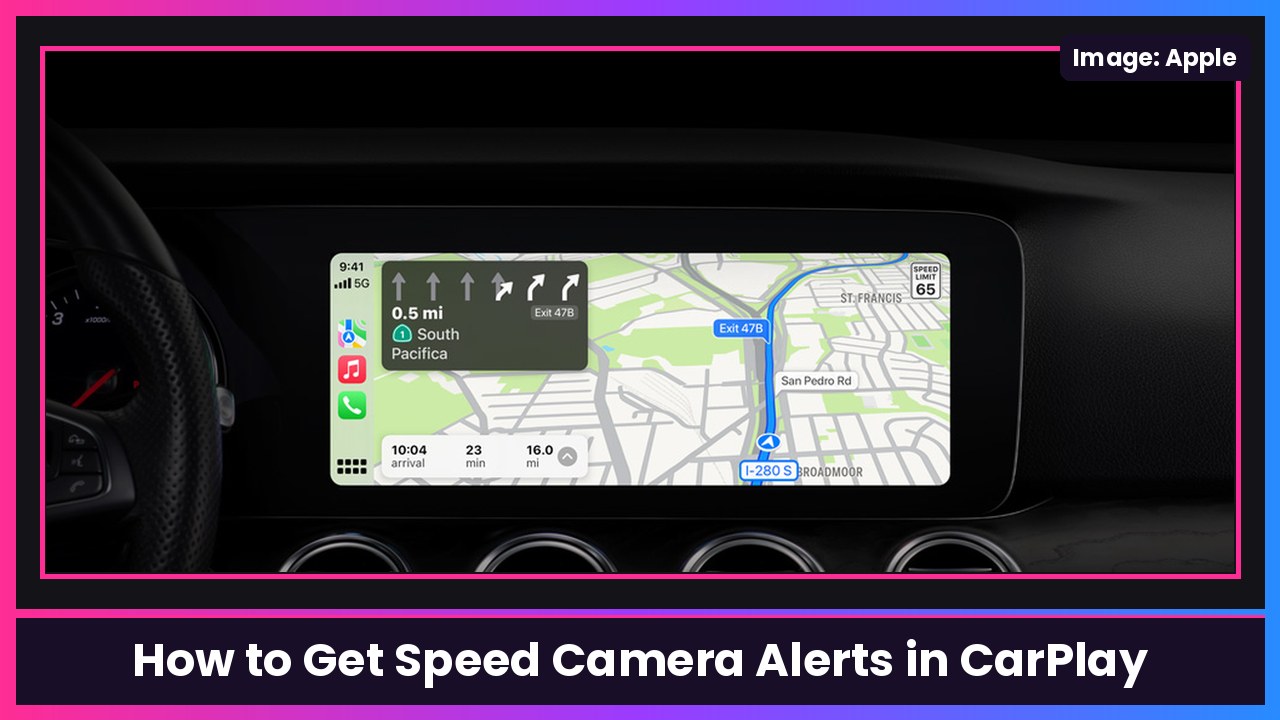
Quick summary: Here’s the thing a lot of people don’t realize: CarPlay itself doesn’t send speed camera warnings. The navigation app you’re running does. As Engadget pointed out today, the alerts come from Apple Maps, Google Maps or Waze, and each one handles it a little differently. Below is how to set up each app on your iPhone Duo or any iPhone, checked against Apple’s, Google’s and Waze’s own help pages.
Key takeaways
- Apple Maps: camera alerts are automatic. There’s no camera switch. Apple says Maps gives “alerts for speed and red-light cameras along your route,” and the US is on Apple’s supported list.
- Google Maps: alerts come from reports by other drivers (like “Mobile speed camera”). One switch, Alert options, turns them on or off.
- Waze: camera alerts are on by default, and you can fine-tune each camera type.
- Change Google Maps and Waze settings on your phone before you connect to CarPlay. Waze says to disconnect from CarPlay first.
- No app knows about every camera. Mobile speed traps only show up if someone reports them. Always follow posted limits.
Before you start
- Make sure your iPhone and the navigation apps are updated.
- Do all of this while parked. Never fiddle with settings while driving.
Part 1: Apple Maps
Step 1: Turn on the speed limit sign
- Open the Settings app on your iPhone.
- Tap Apps, then tap Maps.
- Below Directions, tap Driving.
- Turn on Speed Limit. (You can turn on Compass here too.)
What you should see: The next time you navigate, the posted speed limit sign appears on your iPhone and on the CarPlay screen, like the “Speed Limit 65” sign in Apple’s photo above.
Step 2: Start directions so camera alerts can work
- Plug in or connect to CarPlay wirelessly.
- Open Maps on the CarPlay screen and start turn-by-turn directions to where you’re going.
There’s no camera toggle to find. Apple’s App Store listing for Maps says you can “view speed limits and get alerts for speed and red-light cameras along your route,” and Apple’s iOS feature availability page lists the United States (plus the UK, Canada, Australia, Mexico and many more) for Maps: Speed Cameras.
What you should see: Camera icons along your route, with an alert as you get close.
Step 3: Report a speed check (optional)
Apple Maps also lets drivers report speed checks, which is how mobile traps get on the map.
- With turn-by-turn directions showing in CarPlay, select the Report button.
- Choose one of the options, like Speed Check (options vary by country).
Apple says it reviews incoming reports. Speed checks don’t get a map marker; they show up as notifications for other drivers following directions. You also can’t clear a speed check report. Prefer your voice? Apple’s support page says Siri can take reports too, with something like “Report an accident.”
Part 2: Google Maps
Step 1: Turn on alerts on your iPhone
- Open the Google Maps app.
- Tap your profile picture or initial, then tap Settings, then Navigation.
- Under Alert options, turn on Get alerts for reported incidents and other conditions that may impact your drive.
That one switch covers all reported incidents, including mobile speed cameras other drivers report.
Step 2: Turn on the speedometer (optional)
- On the same Navigation screen, under Driving Options, turn on Show speedometer.
Google says if Speed Limits are available where you are, the speedometer changes color when you go over the limit. Google also says it’s for informational use only, so trust your car’s speedometer.
Step 3: Check alerts on the CarPlay screen
- Open Google Maps on CarPlay.
- Tap Settings, then Alert options.
- Tap All alerts. (Tap None to turn them off.)
What you should see: When someone has reported a mobile speed camera ahead, it shows on the map as you get closer, and you might hear an alert. Near the spot, Google Maps asks “Is this still here?” Tap Yes or No to help other drivers.
To report one yourself, tap Report on the side of the CarPlay screen and pick Mobile speed camera (some report types are only in certain countries).
Part 3: Waze
Step 1: Disconnect from CarPlay
Waze says to customize alerts on your phone, and if you use CarPlay, disconnect your phone first. Your changes apply the next time you drive with Waze in your car.
Step 2: Turn on camera alerts
- Open Waze.
- Tap the menu, then tap Settings.
- Tap Alerts and reports, then tap Reports.
- Tap Cameras and pick a camera type (like speed cameras or red light cameras).
- Turn on Show on map and Alert while driving.
What you should see: With Alert while driving on, Waze gives you a voice alert plus a pop-up on screen. Waze notes that it limits how many alerts you get on one route to cut down distractions, so you might not hear about everything.
Tips
- Pick one app per drive. Running two navigation apps at once just doubles the noise.
- Keep your phone charged. Navigation plus CarPlay drains battery, especially on wireless CarPlay. A MagSafe power bank helps on road trips.
- Silence isn’t an all-clear. None of these apps know about every camera, and Waze says it limits how many alerts you get on a route. A quiet drive doesn’t mean there’s no camera.
- Some places restrict camera alerts. Features vary by country and region.
Recap checklist
- Apple Maps: Settings > Apps > Maps > Driving > Speed Limit on
- Apple Maps: start turn-by-turn directions (camera alerts are automatic)
- Google Maps: Settings > Navigation > Alert options switch on
- Google Maps on CarPlay: Settings > Alert options > All alerts
- Waze: disconnect from CarPlay, then Settings > Alerts and reports > Reports > Cameras > Alert while driving
- Do it all while parked
Whatever app you use, set it up once in the driveway and you’re good. Just remember these are helpers, not a free pass. Watch the signs and drive safe out there.
Sources: Engadget: How to get warnings about speed cameras in Apple CarPlay, Apple Support: Get driving directions in Maps on iPhone, Apple Support: Report traffic incidents in CarPlay, Apple Support: Check traffic conditions and report incidents in Maps, Apple iOS Feature Availability, Google Maps Help: Use Google Maps on CarPlay, Google Maps Help: Use navigation (iPhone), Google Maps Help: Check your speed, Waze Help: Customize your alerts.
Subscribe to GregglesTV for daily tech news, reviews and walkthroughs.
See today’s GregglesTV Best Tech Deals or browse all deals posts.


Comments
Comments are moderated. Hate, slurs, spam and scam posts are blocked. Don’t include personal info you wouldn’t want public. See the privacy policy.
Loading comments…