How to Find a Lost Apple TV Siri Remote With Your iPhone (Find My, Control Center and Siri)
Lost your Apple TV remote in the couch again? Here's how to find any Siri Remote (2nd generation or later) with your iPhone, plus how to make the new 4th-gen remote play a sound or use Precision Finding, step by step.
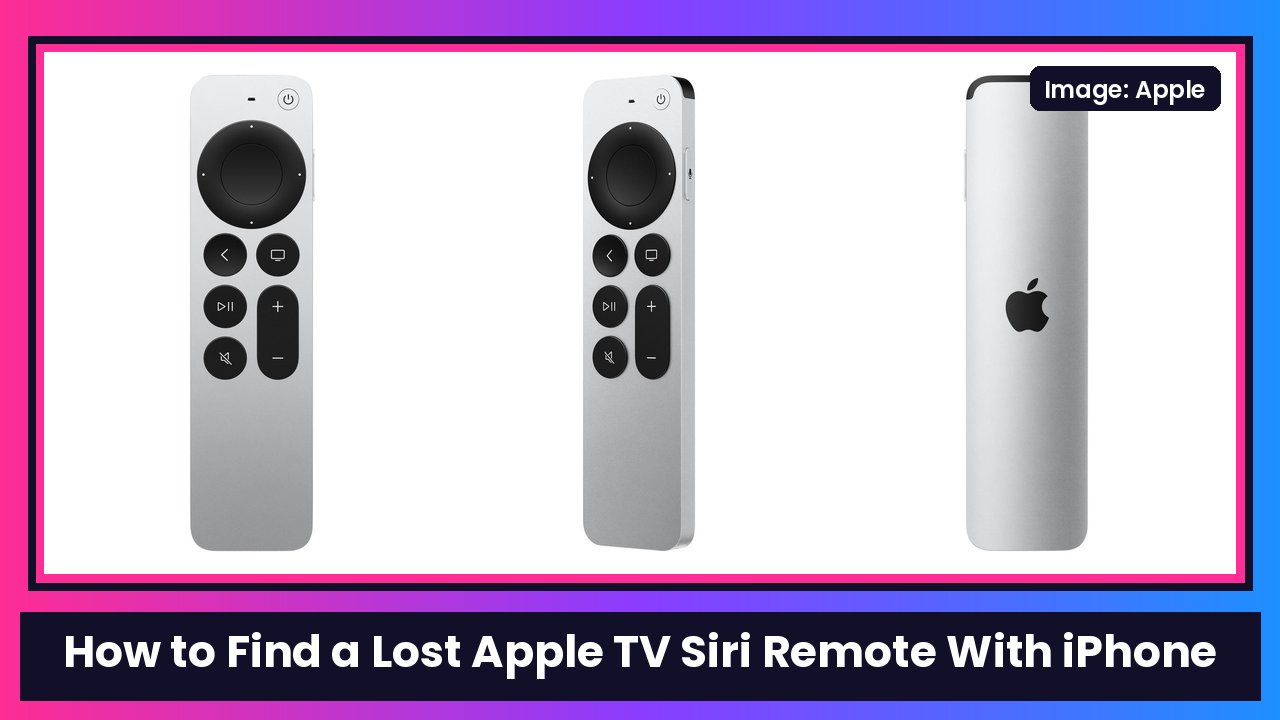
Quick summary: We’ve all been there. The show’s about to start and the remote is gone. Good news: your iPhone can find it. Engadget ran a guide on this today, and I checked every step against Apple’s own support pages. Any Siri Remote or Apple TV Remote (2nd generation or later) can be found with your iPhone. And if you have the new Siri Remote (4th generation) that comes with the new Apple TV 4K, it can play a sound, and on newer iPhones it gets Precision Finding with arrows that point right to it.
Key takeaways
- Works with: Siri Remote or Apple TV Remote 2nd generation or later.
- Find My method: your iPhone needs iOS 27.2 or later, and you need to be signed in as the default profile on the Apple TV 4K (or be in a family group connected to it).
- Control Center method: Apple’s lost-remote page says this works with iOS 17 or later on the iPhone and tvOS 17 or later on the Apple TV.
- Older remotes (2nd and 3rd gen) show “far,” “near” or “here.”
- 4th-gen remote + iPhone 17 or later (not 17e), iPhone Air or iPhone Duo: you get direction and distance, a flashlight option in the dark, and a Play button for a sound.
- 4th-gen remote + iPhone 17e or iPhone 16 and earlier: you get “far/near/here,” but Apple’s support page says you can still play a sound from Find My.
Which remote do you have?
- Siri Remote (4th generation): the new one with Find My and a USB-C port. Apple sells it on its own for $59, and it works with every Apple TV 4K and the Apple TV HD.
- Siri Remote (2nd or 3rd generation): the silver remote with the clickpad ring, from 2021 on.
Not sure? It doesn’t matter much. Steps 1 and 2 below work on all of them.
Method 1: Find it with the Find My app
Step 1: Open Find My
- On your iPhone, open the Find My app.
- Tap Devices.
- Tap your remote in the list of devices.
- Tap Find.
Apple notes you may need to move around to establish a connection with the remote. Walk toward the couch, the kitchen, wherever it was last.
Shortcut: If you have Siri AI turned on, just say something like “Where’s my remote?” to your iPhone and skip to Step 2.
Step 2: Follow the guidance
What you see depends on your remote and iPhone, per Apple’s support guide:
- 2nd or 3rd gen remote: an indicator shows “far,” “near” or “here.” Keep walking until it says “here.”
- 4th gen remote with iPhone 17e, or iPhone 16 and earlier: same “far/near/here” indicator.
- 4th gen remote with iPhone 17 or later (except 17e), iPhone Air or iPhone Duo: you get Precision Finding, an indicator showing the direction of the remote and about how far away it is. If the room is dark, a flashlight option shows up. You can also tap Play to make the remote play a sound.
Step 3: Close it out
When you’ve got it, tap the X to finish.
Method 2: Use Apple TV Remote in Control Center
This is the classic method from Apple’s “If you lost your Apple TV remote” page. It works with 2nd-gen and later remotes.
- Open Control Center on your iPhone. On iPhone X and later, swipe down from the top-right corner of the screen.
- Tap the Apple TV Remote control.
- Tap the device list at the top, then tap Find next to your lost remote.
- Follow the prompts. The onscreen circle grows and the text changes from far, to near, to here as you get closer.
Method 3: Ask Siri on the Apple TV (4th-gen remote only)
If you have the Siri Remote (4th generation) paired with an Apple TV 4K (3rd or 4th generation) and Siri AI turned on, Apple says you can ask Siri on the Apple TV itself to play a sound on the remote:
- Activate Siri on the Apple TV. (If the remote is the thing that’s missing, that’s easier said than done, so just ask Siri on your iPhone instead, like in Method 1.)
- Say something like “Where’s my remote?”
The remote plays a sound so you can hear where it’s hiding.
Still can’t find it?
- Use your iPhone as the remote for now. The Apple TV Remote in Control Center does volume, playback, app switching and more. You might need to enter a four-digit code the first time.
- Android user? There’s no Apple-made remote app for Android. Engadget mentions third-party apps on Google Play as a workaround.
- Replace it. Apple says Apple TV 4K and Apple TV HD work with a Siri Remote (1st generation or later), an Apple TV Remote (1st generation or later) or an Apple Remote. If you’re buying one anyway, get the 4th-gen Siri Remote so this never happens again. It even works with older Apple TV boxes.
Recap checklist
- iPhone on iOS 27.2 or later for Find My (iOS 17+ for Control Center)
- Find My > Devices > your remote > Find
- Or Control Center > Apple TV Remote > device list > Find
- Walk around until it says “here” (or follow the arrow on Precision Finding)
- 4th-gen remote: tap Play for a sound
- Tap X when you’re done
This is honestly one of my favorite little upgrades on the new Apple TV. Pair it with a big OLED like the LG B6E and you’ve got a great setup that won’t lose its remote. Need help setting up the new box? Here’s my new Apple TV 4K setup guide.
Sources: Apple Support: Locate the Apple TV 4K remote, Apple Support: If you lost your Apple TV remote, Apple: Siri Remote (4th generation), Engadget: How to use your phone to find an Apple TV remote, 9to5Mac: New Apple TV 4K remote’s best feature requires a newer iPhone model.
Subscribe to GregglesTV for daily tech news, reviews and walkthroughs.
See today’s GregglesTV Best Tech Deals or browse all deals posts.
Comments
Comments are moderated. Hate, slurs, spam and scam posts are blocked. Don’t include personal info you wouldn’t want public. See the privacy policy.
Loading comments…