How to Schedule Posts on X From Your Android Phone (and the Web): Pick a Day, Pick a Time, Edit It Later, Step by Step
X finally added post scheduling to its Android app, up to 18 months ahead. Here's exactly how to schedule a post, find it in Drafts, change the time or cancel it, plus how to do the same thing on x.com.
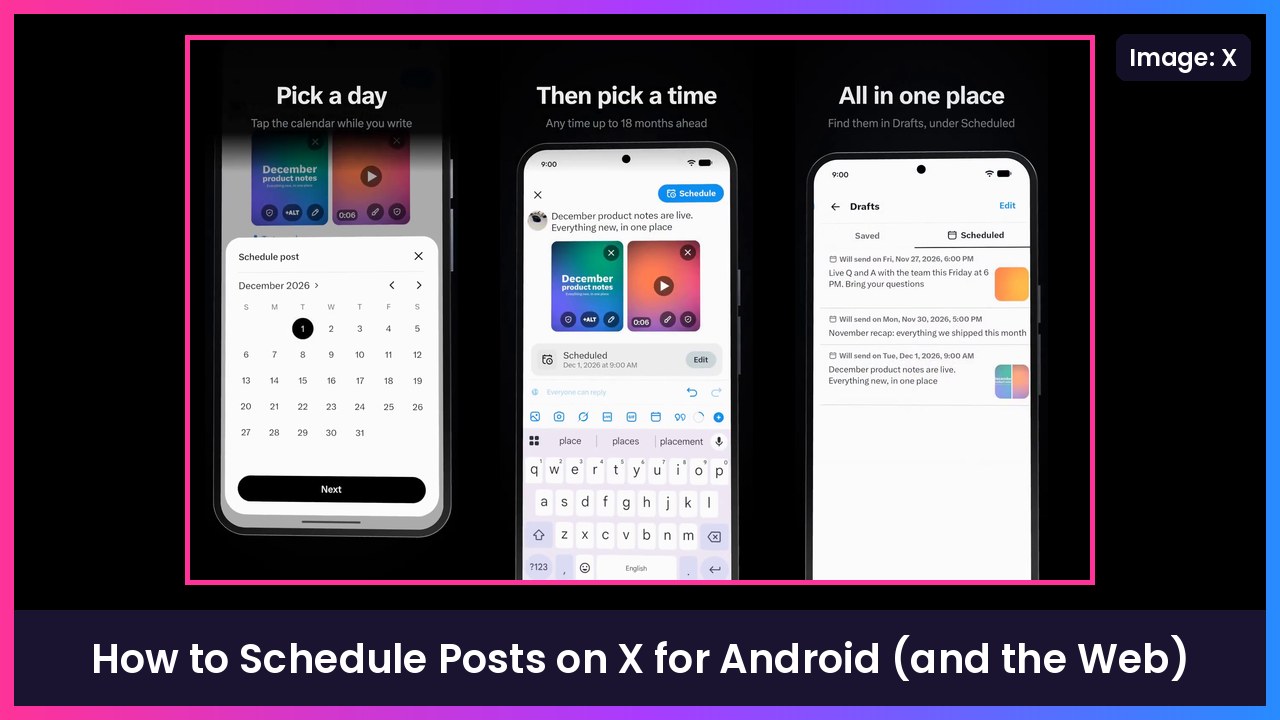
Quick summary: All right, guys, this one’s for every creator and Android user who’s been waiting forever. X now lets you schedule posts right inside the Android app, with photos and videos, up to 18 months ahead. X staff software engineer Evgenii Matsiuk announced it on November 26 with a demo video (“Post scheduling on Android! Finally!”), and that video shows every screen. Here’s exactly how it works, step by step, plus the official way to do it on x.com.
Key takeaways
- Where: The X app for Android (web has had it since 2020, and the iPhone app got it earlier this year, per Digital Trends).
- How far ahead: Any time up to 18 months out, according to X’s demo.
- Media is fine: Scheduled posts keep their photos and videos.
- Where they live: Drafts, under the Scheduled tab.
- You can change your mind: Edit the post, move the time, or Clear schedule before it goes out.
Before you start
- Update the X app from the Google Play Store. The feature just started rolling out, so if you don’t see the calendar icon described below, give it a few days and check for updates again.
- Know the time zone X is using. In X’s demo, the time picker shows the time zone right under the time, so double-check it before you confirm, especially if you’re traveling.
Step 1: Write your post (Android)
- Open the X app and tap the post compose button.
- Type your post, and add photos or videos like you normally would.
What you should see: The normal compose screen with a calendar icon in the toolbar above the keyboard. In X’s demo, a “Schedule your post for later” tip points right at it. (Before you type anything, there’s also a calendar icon at the top, next to Drafts and Post.)
Step 2: Pick a day
- Tap the calendar icon in the toolbar.
- A Schedule post panel opens with a monthly calendar. Use the arrows to move between months.
- Tap the day you want, then tap Next.
What you should see: Your chosen day highlighted, then a Pick a time screen.
Step 3: Pick a time and set it
- Scroll the hour, minutes and AM/PM to the time you want.
- Check the line at the top that says “Your post will be sent on…” plus the date and time, and the time zone under the picker.
- Tap Set schedule.
What you should see: Back in the compose screen, a Scheduled row with your date and time and an Edit button, and the blue button at the top now says Schedule instead of Post.
Step 4: Schedule it
- Tap Schedule.
- Keep using X. Per the demo, the post is scheduled in the background while it uploads.
What you should see: A pop-up that says “Your post will be sent on” followed by the day, date and time, with a View button.
Step 5: Find your scheduled posts
- Open the compose screen and tap Drafts at the top.
- Switch to the Scheduled tab (the other tab is Saved, for regular drafts).
What you should see: Each scheduled post with a line like “Will send on Tue, Dec 1, 2026, 9:00 AM” above it.
Step 6: Change the time, or cancel the schedule
- In Drafts > Scheduled, tap the post you want to change.
- Tap Edit on the Scheduled row.
- Pick a new day and tap Next, then pick a new time and tap Update schedule.
- Want it to stop being scheduled? Tap Clear schedule on the calendar screen instead.
- If you back out after making changes, X asks Save changes? Tap Update schedule to keep them, or Discard changes to leave the post as it was.
What you should see: The Scheduled row shows your new date and time.
How to schedule a post on x.com (desktop)
This part comes straight from X’s Help Center:
- Type your post into the compose box at the top of your Home timeline, or select the Post button in the navigation bar.
- Select the calendar icon at the bottom of the compose box.
- Make your date and time selections, then select Confirm.
- To find your drafts and scheduled posts later, select Unsent posts from the post compose box.
Tips
- Batch your week. Write a few posts on Sunday night and spread them across the week. That’s literally how I’d use this.
- Check the time zone every time. The demo shows it right under the time picker, and it’s an easy thing to miss.
- Schedule the big stuff, not the replies. Scheduling is great for announcements, video drops and deals posts. Replies and conversations still work best live.
- Don’t forget your scheduled posts exist. If plans change, jump into Drafts > Scheduled and Clear schedule so an old post doesn’t go out at a weird time.
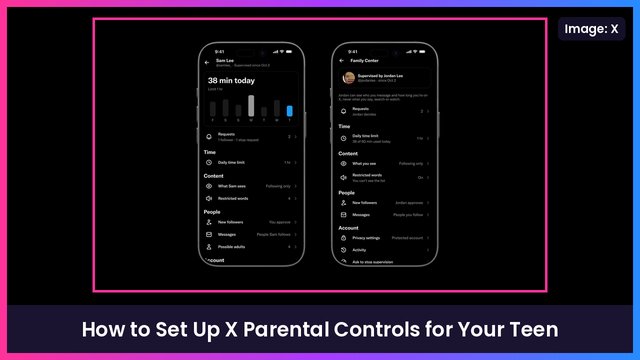
- Running a teen’s account too? Check out my guide to X’s new Parental Controls. And if you schedule texts as well, here’s how to schedule a text in Google Messages.
Recap checklist
- X app updated on your Android phone
- Post written, photos or videos added
- Calendar icon > day > Next
- Time set, time zone checked > Set schedule
- Schedule tapped, “Your post will be sent on…” pop-up seen
- Post listed in Drafts > Scheduled
- Know how to Edit, Update schedule or Clear schedule
- On desktop: calendar icon > Confirm, and Unsent posts to manage
My take
I’ll be honest with you, this should’ve been on Android years ago, but I’m really glad it’s finally here. As someone who posts deals and video drops every single day, being able to line things up from my phone instead of hopping on a laptop is awesome. Love it. If you’re on a Galaxy S26 Ultra, a Galaxy A37 5G or a Pixel 10 Pro, update the X app and give it a shot. Got questions? Drop them in the comments. Thanks for reading, and have a great day.
Sources: Evgenii Matsiuk on X: Post scheduling on Android (Nov 26, 2026, demo video) (screens described above and the lead image), X Help Center: How to Post, Digital Trends: X is finally letting Android users schedule posts up to 18 months ahead, Android Headlines: The X app on Android gets native post scheduling, finally, Gadgets 360: X Rolls Out Post Scheduling Feature on Android.
Subscribe to GregglesTV for daily tech news, reviews and walkthroughs.
See today’s GregglesTV Best Tech Deals or browse all deals posts.

Comments
Comments are moderated. Hate, slurs, spam and scam posts are blocked. Don’t include personal info you wouldn’t want public. See the privacy policy.
Loading comments…