How to Turn On Dark Mode in Google Maps on Android and iPhone (Including Night Mode for Navigation), Step by Step
Google Maps has two separate dark settings: one for browsing the map and one for turn-by-turn navigation. Here's exactly where both live on Android and iPhone, plus what we know about Google's new High-visibility map style.
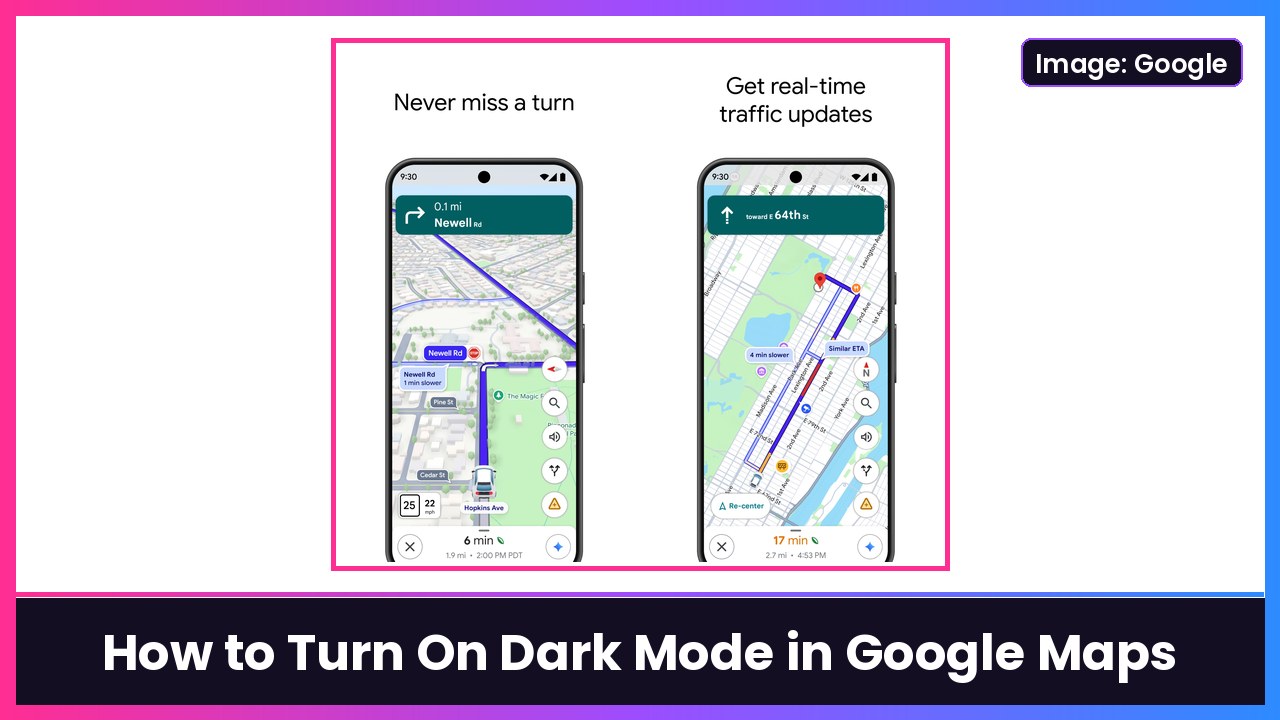
Quick summary: Google Maps is in the news today because Google is testing a new, darker “High-visibility” map style, spotted by Android Authority and reported by 9to5Google and Engadget. That’s not out yet. But a lot of you don’t know Maps already has a dark mode, and it actually has two separate dark settings: one for browsing the map and one for turn-by-turn navigation. If you’ve ever turned on dark mode and the map still lit up your car at night, that’s why. Here’s how to set both on Android and iPhone, straight from Google Maps Help.
Key takeaways
- Browsing the map (Android): profile picture > Settings > App & display > Theme > Always in dark theme > Save.
- Browsing the map (iPhone): profile picture > Settings > App & display > Dark mode > On.
- Navigation is separate: profile picture > Settings > Navigation > Map display > Color scheme > Night.
- On Android, Google says the dark theme steps need Android 10 or newer.
- The new High-visibility style is still being tested. You can’t turn it on yet.
Before you start
- Update Google Maps from the Play Store or App Store so your menus match.
- Sign in or not, it doesn’t matter. Tap your profile picture or initial in the top-right corner of the search bar. That’s where every setting below starts.
- Android users: Google says these dark theme steps are only available on Android 10 and up. Any recent Galaxy S26 Ultra or Pixel 10 Pro is way past that.
Step 1 (Android): Turn on dark theme for browsing the map
This is for Galaxy, Pixel and other Android phones.
- Open the Google Maps app.
- Tap your profile picture or initial.
- Tap Settings.
- Tap App & display.
- Tap Theme.
- Pick one:
- Always in dark theme: Maps stays dark no matter what your phone is set to.
- Always in light theme: Maps stays light no matter what.
- Same as device theme: Maps follows your phone’s dark theme setting.
- Tap Save.
What you should see: Back on the map, the background turns dark gray and the roads, labels and buttons switch to dark-friendly colors.
Step 2 (iPhone): Turn on dark mode for browsing the map
Works on any iPhone, including the iPhone Duo, and on iPad.
- Open the Google Maps app.
- Tap your profile picture or initial.
- Tap Settings.
- Tap App & display.
- Tap Dark mode.
- Pick one:
- On: Maps is always dark.
- Off: Maps is always light.
- Same as device setting: Maps follows your iPhone’s Light or Dark appearance.
Notice the names are a little different: on Android it’s Theme, on iPhone it’s Dark mode.
What you should see: The map switches to the dark style right away.
Step 3 (Android and iPhone): Turn on Night colors for navigation
Here’s the part most people miss. Google says there are separate settings for dark theme when you explore and when you navigate. So even with Step 1 or 2 done, directions can still show up bright.
- In Google Maps, tap your profile picture or initial.
- Tap Settings.
- Tap Navigation.
- Scroll down to Map display.
- Under Color scheme, pick one:
- Night: navigation is always dark.
- Day: navigation is always light.
- Automatic: navigation follows your phone’s system theme, per Google’s help page.
What you should see: Start directions to anywhere. The navigation map should now be dark, with your route line standing out.
Step 4 (optional): Make Maps follow your phone automatically
If you like your phone switching between light and dark on its own (say, dark at sunset), set Maps to follow it:
- Use Same as device theme (Android) or Same as device setting (iPhone) from Step 1 or 2.
- Set navigation’s Color scheme to Automatic from Step 3.
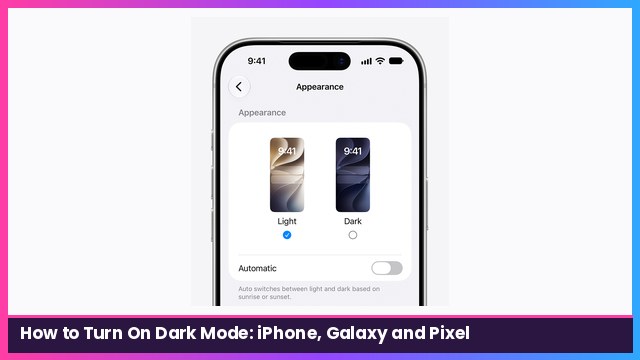
- Then turn on or schedule dark mode for your whole phone. I walk through that on iPhone, Galaxy and Pixel in my how to turn on dark mode (and schedule it) guide.
What you should see: When your phone flips to dark mode, Maps flips with it, both while browsing and during navigation.
What about the new “High-visibility” map style?
According to 9to5Google, Android Authority found a hidden “Map style” setting in the latest Google Maps for Android with two choices: Standard and High-visibility. The High-visibility style uses darker colors in both light and dark mode and a purple route line instead of blue. Engadget says the dark version has blacker backgrounds, and water and green spaces are darker so they’re easier to pick out at a glance.
The good news is it looks optional, so if you like Maps the way it is, you’d keep Standard. Google hasn’t announced it, so there’s no date yet. When it shows up, I’ll update this guide with the exact steps.
Tips
- Using Android Auto in the car? If your car only does wired Android Auto, a wireless adapter like the AAWireless TWO+ makes hopping in the car a lot easier. New to it? Here’s how to set up Android Auto for the first time.
- Changed the theme and nothing happened? Make sure you tapped Save on Android. Then close Maps completely and open it again.
- Don’t see Theme on Android? Google says it needs Android 10 or newer. Check for a Maps update, too.
- Google says dark theme can help reduce battery use and makes the screen easier to read, so it’s worth leaving on at night either way.
Recap checklist
- Updated Google Maps
- Android: profile picture > Settings > App & display > Theme > Always in dark theme > Save
- iPhone: profile picture > Settings > App & display > Dark mode > On
- Navigation: profile picture > Settings > Navigation > Map display > Color scheme > Night
- Optional: set both to follow your phone, then schedule dark mode for the whole phone
- Watch for the new High-visibility map style in a future update
Sources: Google Maps Help: Use Google Maps in dark theme (Android), Google Maps Help: Use Google Maps in dark theme (iPhone & iPad), 9to5Google: Google Maps might change its colors again, but it’s optional this time, Engadget: Google Maps’ Dark Mode is getting even darker.
Subscribe to GregglesTV for daily tech news, reviews and walkthroughs.
See today’s GregglesTV Best Tech Deals or browse all deals posts.

Comments
Comments are moderated. Hate, slurs, spam and scam posts are blocked. Don’t include personal info you wouldn’t want public. See the privacy policy.
Loading comments…