How to Set Up Android Auto for the First Time (Wired and Wireless, Step by Step)
Setting up Android Auto in your car for the first time? Here's what you need, how to connect with a USB cable, how to pair wirelessly over Bluetooth, and what to do if your car only supports wired Android Auto.
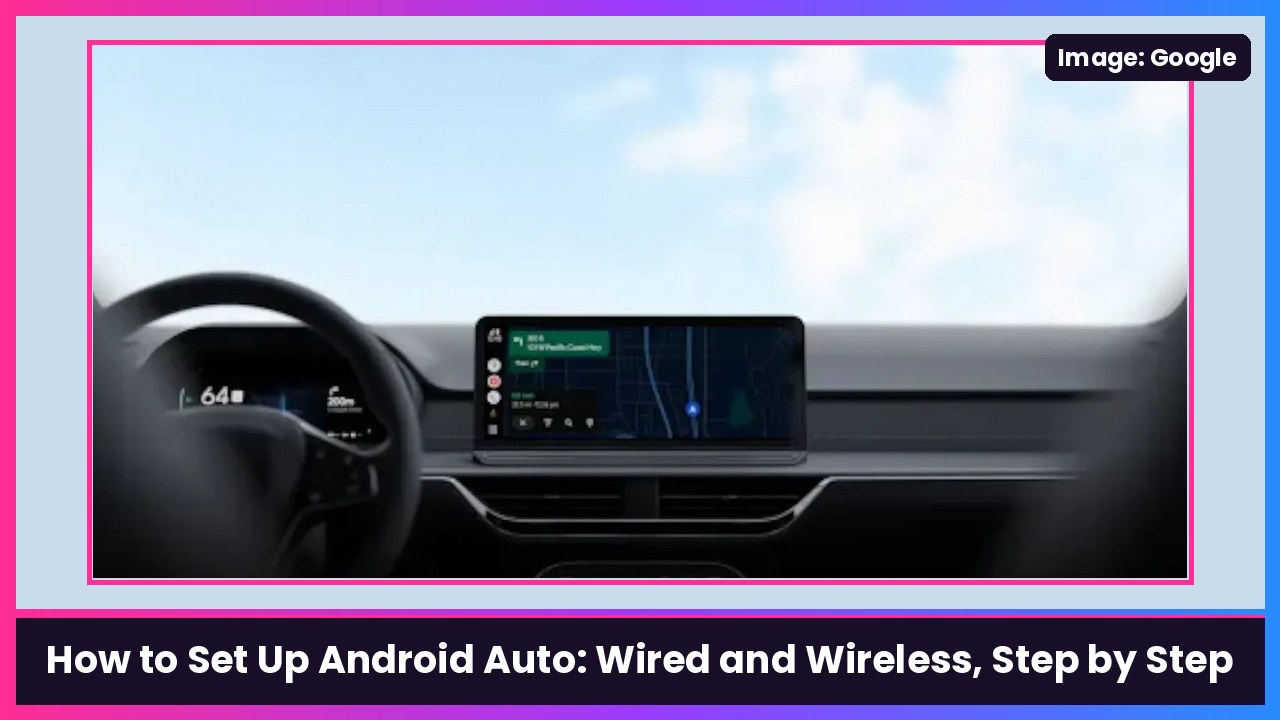
Quick summary: Android Auto puts Google Maps, calls, texts and music on your car’s screen. The good news: there’s nothing to download. Google says Android Auto is built into your phone. You just need a compatible car, and either a USB cable or a car that supports wireless Android Auto. Here’s how to set it up both ways, straight from Google’s Android Auto Help. And if your car is wired-only, I’ll show you the easy fix, which is in the news today with AAWireless’s new NEXUS and NANO adapters.
What you need
From Google’s Get started with Android Auto page:
For wired (USB cable):
- An Android phone on Android 11 or higher with an active data plan.
- A compatible car (check with your car maker or dealer if you’re not sure).
- A high-quality USB cable.
For wireless:
- A compatible Android phone with an active data plan and 5 GHz Wi-Fi support. Google says wireless projection works with any phone on Android 11.
- A car or stereo that supports wireless Android Auto.
Google also notes Android Auto isn’t available on Android (Go edition) phones. Any recent phone, like a Galaxy S26 Ultra or Pixel 11 Pro Fold, is good to go.
Before you start: Google says to have your car in Park (P) with the infotainment system on, make sure your phone has cell service, and give yourself a few minutes before you head out.
Option 1: Set up Android Auto with a USB cable
- Put the car in Park and turn on the infotainment screen.
- Plug a USB cable into your car’s USB port, then plug the other end into your phone.
- Follow the on-screen instructions on your phone and car screen to set up Android Auto. Google says your phone might ask you to update Android Auto before you continue, so let it.
That’s it. Next time, just plug in and Android Auto starts.
Tip: if nothing happens, try a different cable first. Google specifically says to use a “high-quality” USB cable, so a worn-out one is an easy thing to rule out. Some cars also have more than one USB port and only one of them does Android Auto, so check your manual.
Option 2: Set up wireless Android Auto
The first time you connect wirelessly, you have to pair your phone and car over Bluetooth. Google recommends keeping Bluetooth, Wi-Fi and Location turned on during setup.
- Put the car in Park and turn on the infotainment screen.
- On your phone, open Settings and go to the Bluetooth menu.
- On your steering wheel, press and hold the voice command button to open the menu to pair a new phone. (If that doesn’t bring up the menu, Google says to check your car maker’s instructions.)
- Follow the on-screen instructions to pair your phone and car over Bluetooth. Again, your phone may ask you to update Android Auto first.
- Once paired, Google says Android Auto should start within a few seconds. If it doesn’t, follow the on-screen prompts, or tap Android Auto on your car’s display.
After that first setup, your phone should connect automatically when you get in the car.
My car only does wired Android Auto. Now what?
This is where a wireless adapter comes in. Adapters like the AAWireless TWO+ plug into the USB port your car uses for wired Android Auto and turn it wireless. AAWireless’s own compatibility tip is simple: plug your phone into the car with a cable. If Android Auto starts, your car supports wired Android Auto and the adapter should work.
AAWireless just announced its smaller NEXUS and NANO adapters with Wi-Fi 6 for December 8, so if you’re not in a rush, read my breakdown first. If you want wireless this week, the TWO+ is available now.
If it still won’t connect
Google’s setup page says to check for compatibility and connection issues or contact your car manufacturer. A few quick things to try:
- Make sure the car is actually on the Android Auto compatible list for your model and year (Google points you to your car maker for this).
- Update Android Auto when your phone asks.
- For wireless, double-check that Bluetooth, Wi-Fi and Location are all on.
Got an iPhone? Here’s my guide to setting up Apple CarPlay, wired and wireless.
Drive safe. Google’s own reminder is a good one: pay attention to the road and always follow local laws. Set up your music and destination before you pull out.
Sources: Android Auto Help: Set up Android Auto, Android Auto Help: Get started with Android Auto, AAWireless TWO+ product page.
Subscribe to GregglesTV for daily tech news, reviews and walkthroughs.
See today’s GregglesTV Best Tech Deals or browse all deals posts.
Comments
Comments are moderated. Hate, slurs, spam and scam posts are blocked. Don’t include personal info you wouldn’t want public. See the privacy policy.
Loading comments…