How to Set Up Apple CarPlay for the First Time (Wired or Wireless) and Fix It When It Won't Connect
Got a new car or a new iPhone for the holidays? Here's how to set up CarPlay with a cable or wirelessly, customize your apps, and fix the most common connection problems, step by step from Apple's own instructions.
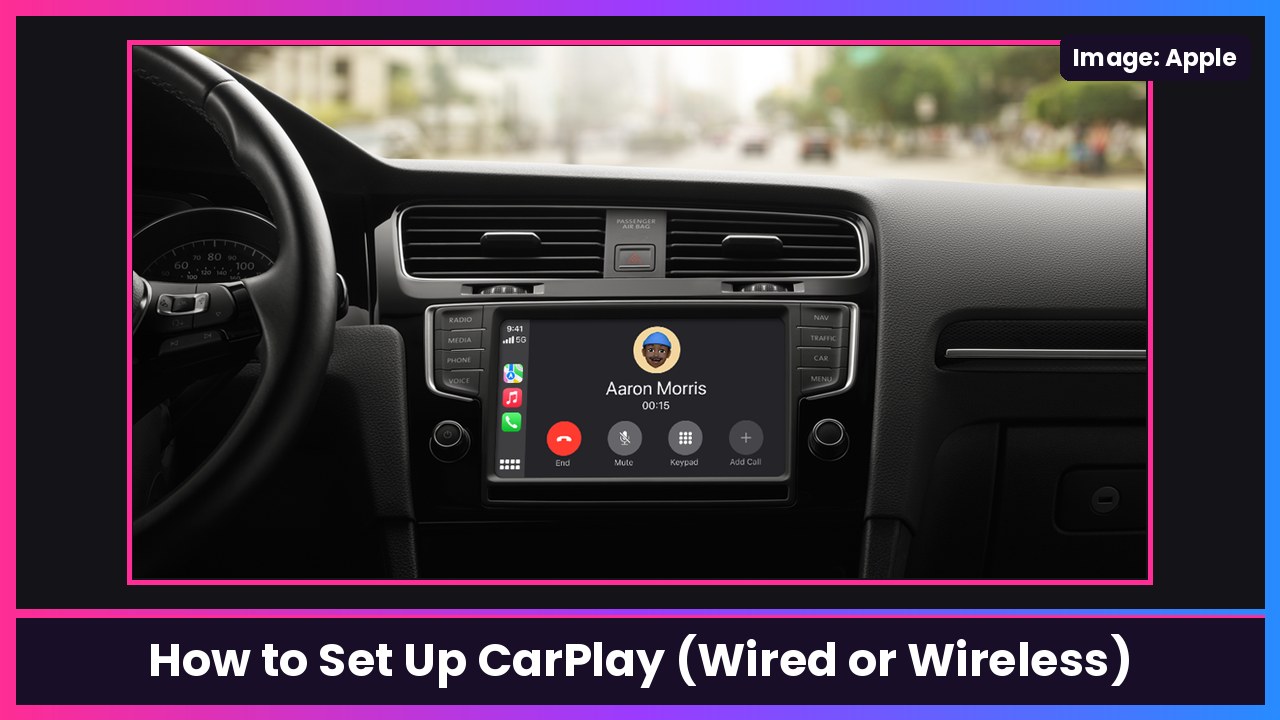
Quick summary: Setting up CarPlay the first time takes about a minute, but how you do it depends on whether your car does wired, wireless, or both. Engadget ran a good first-timer guide today, and I double-checked every step below against Apple’s own CarPlay setup page and its CarPlay troubleshooting page. These work on an iPhone Duo, an iPhone 18 Pro Max, or any recent iPhone.
What you’ll need
- A car (or aftermarket stereo) that supports CarPlay. Apple says to check that your country or region and your car support it, and to ask the manufacturer if you’re not sure.
- Your iPhone with Siri turned on
- A good USB cable if your car uses wired CarPlay
Step 1: Start the car and make sure Siri is on
Apple’s first step is simple: start your car, then make sure Siri is on. CarPlay leans on Siri, so if you’ve turned Siri off, turn it back on before you start.
Step 2: Connect your iPhone
Pick the option that matches your car:
If your car supports CarPlay with a USB cable: plug your iPhone into the car’s USB port. Apple says the port “might be labeled with a CarPlay icon or a smartphone icon.” Your iPhone will ask for permission, and Engadget says to tap Connect.
If your car supports both wired and wireless: plug in with the cable the first time. Apple says an alert on your iPhone “will offer to connect you wirelessly on your next drives,” so after that you can leave the cable in the bag.
If your car only supports wireless CarPlay:
- Press and hold the voice command button on your steering wheel.
- Make sure your stereo is in wireless or Bluetooth mode.
- On your iPhone, go to Settings > Wi-Fi and make sure Wi-Fi is on. Tap the Info button next to your CarPlay network and check that Auto-Join is on.
- Go to Settings > General > CarPlay and select your car.
Every car brand handles pairing mode a little differently, so if it’s not showing up, Apple and Engadget both say to check your car’s manual.
Step 3: Open CarPlay on the car’s screen
Some cars launch CarPlay as soon as you connect. Others need you to tap the CarPlay icon on the dashboard each time, Engadget notes.
Step 4: Arrange your apps
By default, CarPlay shows every compatible app on your phone. To clean it up:
- Go to Settings > General > CarPlay.
- Select your car, then tap Customize.
- Tap the Add or Delete button to add and remove apps, and drag apps to reorder them.
Apple says your new order shows up the next time you connect. Only apps that support CarPlay will appear.
Step 5: Turn on Announce Messages (optional, but great)
Siri can read your texts out loud while you drive. On your iPhone:
- Open Settings > Notifications.
- Tap Announce Notifications.
- Tap CarPlay, then turn on Announce Messages.
You can also change your wallpaper from the car’s screen: open the Settings app in CarPlay, select Wallpaper, pick one, then select Set.
If CarPlay won’t connect
Apple’s troubleshooting page says to check CarPlay after each of these:
- Wired: try a different USB cable and a different USB port if your car has one. Wireless: make sure Bluetooth and Wi-Fi are on, and that Auto-Join is on for the CarPlay network.
- If CarPlay doesn’t start on its own, look for the CarPlay logo on the car’s display and select it.
- Restart your iPhone and your car.
- Make sure Siri is on.
- If your iPhone isn’t detected, check that CarPlay isn’t restricted: go to Settings > Screen Time > Content & Privacy Restrictions. If restrictions are on, tap Allowed Apps and make sure CarPlay is enabled.
- Go to Settings > General > CarPlay, tap your car, tap Forget This Car, then set CarPlay up again.
- Make sure your car’s stereo has the latest firmware from the manufacturer.
Apple also notes that on iPhones with USB-C, some adapter and cable combos can disrupt a wired connection, so if you’re going through an adapter, try a direct USB cable instead. Engadget adds a nice tip: before you hit Forget This Car, screenshot your app layout so you can rebuild it after.
My take
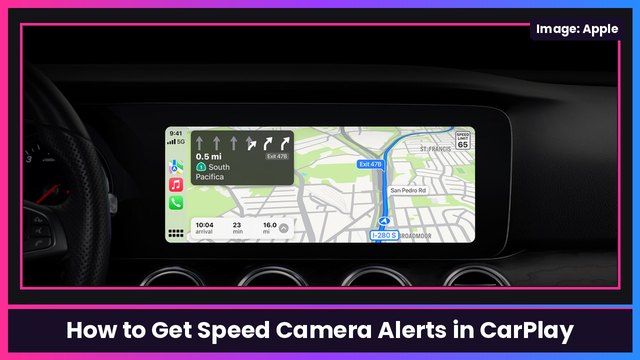
Wireless CarPlay is one of my favorite little luxuries, but it does warm up your phone and drain the battery on long drives. If your car doesn’t have a wireless charger, keep a MagSafe battery in the console. And if you’re on an iPhone Duo, a case with a kickstand like the MOBOSI MagSafe case makes it easier to set down. Want speed camera alerts next? I’ve got a guide for that: How to Get Speed Camera Alerts in Apple CarPlay.
Sources: Apple Support: Use CarPlay with your iPhone, Apple Support: If you can’t connect your iPhone to CarPlay, Engadget.
Subscribe to GregglesTV for daily tech news, reviews and walkthroughs.
See today’s GregglesTV Best Tech Deals or browse all deals posts.
Comments
Comments are moderated. Hate, slurs, spam and scam posts are blocked. Don’t include personal info you wouldn’t want public. See the privacy policy.
Loading comments…