How to Set Up X's New Parental Controls for Your Teen: Link Accounts, Set a Daily Time Limit and Lock Down DMs, Step by Step
X just launched its first-ever Parental Controls for teens aged 13 to 17. Here's who can use them, how to link your account to your teen's with the QR code invite, and how to set a daily time limit, follower approval, restricted words and who can message them, straight from X's Help Center.
Quick summary: All right, guys, if you’ve got a teenager on X, this one’s for you. X just rolled out its first-ever Parental Controls for teens aged 13 to 17. Once you link your account to your teen’s, you can see how much time they’ve spent on X over the last 7 days, set a daily time limit, approve new followers, filter restricted words, and choose who can message them. What you can’t do is read their messages or see what they search for. And I’ll be honest with you, the setup is literally a QR code and one tap on your teen’s side. Here’s exactly how it works, step by step, straight from X’s Help Center.
Key takeaways
- Who it’s for: Parents and guardians 18 or older supervising teens 13 through 17, based on the birth date on each X account.
- Both sides have to agree. You send an invite (QR code or link), and your teen chooses Link accounts or Decline.
- Invites expire after 72 hours. Making a new invite cancels the old one.
- Limits: One parent or guardian can supervise up to five teens. A teen can be linked to one adult at a time.
- It’s not spying. Parents can’t read messages, see searches or what posts and videos the teen looks at, post as the teen, or sign in to their account. The teen can see every change.
What X announced
X’s Safety team announced Parental Controls on November 25, saying they’re “designed for families with teens aged 13–17” and that the teen “keeps ownership of their own account.” GSMArena points out this sits on top of defaults X already applies to teen accounts: protected mode, restricted sensitive media and no targeted ads.
X’s Head of Safety Michael O’Herlihy put it this way in the announcement: “Parents want practical tools, and teens deserve room to grow.” And X’s product engineering lead Mridul Singhai summed it up as “guardrails, not a window into their teen’s private life.” Really, really like that framing, honestly.
Before you start: check both birth dates
X uses the birth date on each account to decide who can supervise and who can be supervised. Per X’s Help Center:
- Make sure your X account has a birth date that shows you’re 18 or older.
- Make sure your teen’s account has a birth date that shows they’re 13 to 17.
- If your account has no birth date, add one before you open Parental Controls.
Heads up: X says that in certain situations you might also be asked to verify your age with a selfie check or identity verification.
What you should see: Both accounts have a correct birth date, and you’re signed in to your own X account on your phone, with your teen’s phone nearby and signed in to their account.
Step 1: Open Parental Controls and create the invite (parent)
- On your phone, open the X app and go to Parental Controls. X’s Help Center just says to “open Parental Controls”; it doesn’t list the exact menu path. Launch reports say it’s in Settings and privacy, then the security and account access section. If you don’t see it yet, make sure your app is up to date and your birth date is set.
- Tap Get started.
- X shows you a QR code and a link.
What you should see: A QR code on your screen, plus a link you can send to your teen.
Step 2: Accept the invite (teen)
- Your teen scans the QR code with their phone camera, or opens the link on the device where they’re signed in to their X account.
- They’ll see who is asking, and what that person will and will not be able to do.
- They tap Link accounts (or Decline).
X says the invite expires 72 hours after it’s created, and if you make a new one, the old link stops working. So if your teen’s not around, don’t send it three days early.
What you should see: Once your teen accepts, the accounts are linked and the link shows up in your teen’s activity.
Step 3: Set a daily time limit
According to X, you can see how much time your teen spent on X over the last 7 days, and set a daily time limit in 15-minute increments.
- In Parental Controls, open the Time section and pick Daily time limit.
- Choose the limit that works for your family.
Here’s how X says the limit works:
- When your teen hits the limit, X is locked for the rest of the day, and they see a message saying the limit was reached and when it resets.
- The limit resets at midnight in your teen’s local time.
- If you raise or remove the limit, your teen gets access back right away, no waiting for the reset.
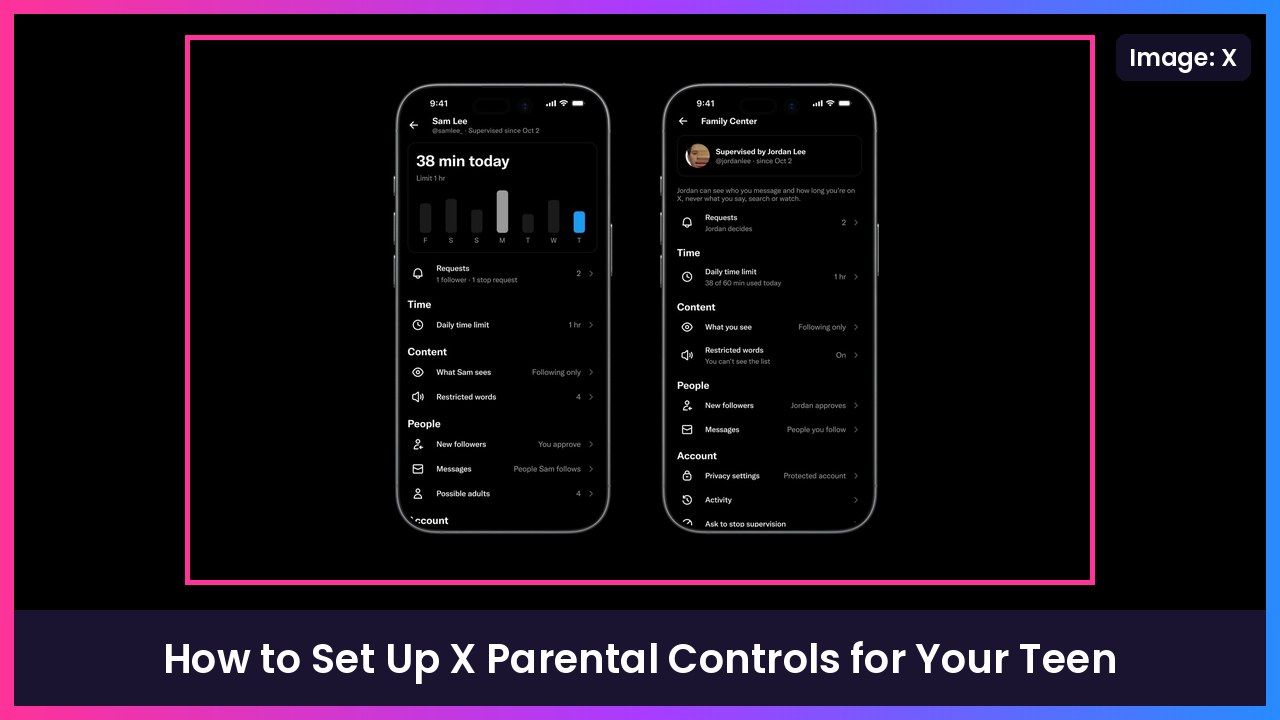
What you should see: In X’s official screenshots, the parent view shows a bar chart of daily use, like “38 min today” with a 1 hour limit, followed by Time, Content and People sections.
Step 4: Control what they see
X says you can limit For You recommendations and videos to accounts the teen follows, and turn off sensitive media. You can also add restricted words to hide from your teen’s posts and videos.
- In the Content section, set what your teen sees (X’s screenshot shows this set to Following only).
- Open Restricted words and add any words you want hidden.
Fun detail from X’s screenshots: on the teen’s side, restricted words show as On, with a note that they can’t see the list.
Step 5: Lock down followers and messages
- New followers: Turn on follower approval. X says anyone who asks to follow your teen then shows up in Parental Controls as a request that you approve or deny, and nobody new can follow until you do.
- Messages: Choose whether your teen can get messages from people they follow, from verified accounts, or from anyone.
- Privacy settings: X says you can also protect the account, control photo tagging, control whether your teen can be found by email or phone number, and turn off location on posts.
Important: X says turning on follower approval also protects your teen’s account, because only protected accounts can approve new followers. If you turn follower approval off later, the account stays protected, and your teen goes back to approving requests themselves.
What you should see: In the People section, New followers shows that you approve, and Messages shows the option you picked.
Step 6: Check “adults in chats” and the activity log
- X says you can see which accounts your teen has one-to-one chats with, so you can talk about who they’re in contact with. You can’t see the messages themselves.
- The Activity section is a record of every change to your teen’s settings, and every request that was approved or denied. Your teen sees the same record.
What your teen sees
Supervision isn’t hidden. Per X, a supervised teen can see:
- Who supervises their account
- Their own time on X for the last 7 days, and their daily limit if you set one
- Which settings you manage. Those show as locked, and they can’t change them
- The same record of changes you see
How to end supervision
- Parents can end supervision at any time from Parental Controls.
- Teens can ask to end it. The request goes to you to approve or deny, and they see your decision in their activity.
- Supervision also ends automatically when your teen becomes an adult, according to X.
When it ends, X says the link is removed and the settings you managed are unlocked. Your teen keeps their account, posts and followers, and settings stay the way they were until they change them.
Tips
- Set it up together. Since your teen has to tap Link accounts anyway, sit down and do it side by side. It’s literally a two-minute conversation, and it’s way better than surprising them.
- Start with the big one. If you’re mostly worried about strangers, start with Messages set to people they follow and follower approval on. If it’s late-night scrolling, start with the daily time limit.
- Pair it with your phone’s own tools. X’s limit only covers X. For bedtime cutoffs across every app, use your phone’s built-in screen time tools too.
- Mind the 72 hours. If the invite expires, just create a new one. The old link stops working.
Recap checklist
- Your account shows you’re 18+, your teen’s shows 13 to 17
- Parental Controls > Get started on your phone
- Teen scans the QR code (or opens the link) and taps Link accounts within 72 hours
- Daily time limit set (15-minute steps)
- For You limited to accounts they follow, sensitive media off, restricted words added
- Follower approval on, Messages set
- Privacy settings checked (photo tagging, findable by email/phone, location on posts)
- Teen opens Parental Controls and confirms you’re listed as their supervisor
My take
I’ll be honest with you, I really, really like how X did this one. It’s not a secret spy tool. Your teen agrees to it, they can see every single change, and their messages stay private, but you still get the stuff that actually matters: time limits, who can follow them, and who can DM them. Love it. If your teen’s getting a new phone this holiday season, like a Galaxy A37 5G, a Pixel 10 Pro or an iPhone Duo, set this up on day one. Got questions? Drop them in the comments. Thanks for reading, and have a great day.
Sources: X Help Center: About Parental Controls, X Safety announcement (Nov 25, 2026) (also the source of the lead image), GSMArena: X finally launches parental controls for teen accounts, TechRepublic: X Parental Controls for Teens.
Subscribe to GregglesTV for daily tech news, reviews and walkthroughs.
See today’s GregglesTV Best Tech Deals or browse all deals posts.
Comments
Comments are moderated. Hate, slurs, spam and scam posts are blocked. Don’t include personal info you wouldn’t want public. See the privacy policy.
Loading comments…