How to Make YouTube Thumbnails With Grok Bot (A Consistent Style Every Time)
A beginner's step-by-step guide to making YouTube thumbnails with Grok Bot: write a simple style guide, share your photo, get a 1280x720 thumbnail, try a few versions, check it at phone size, and reuse the same look for every video.
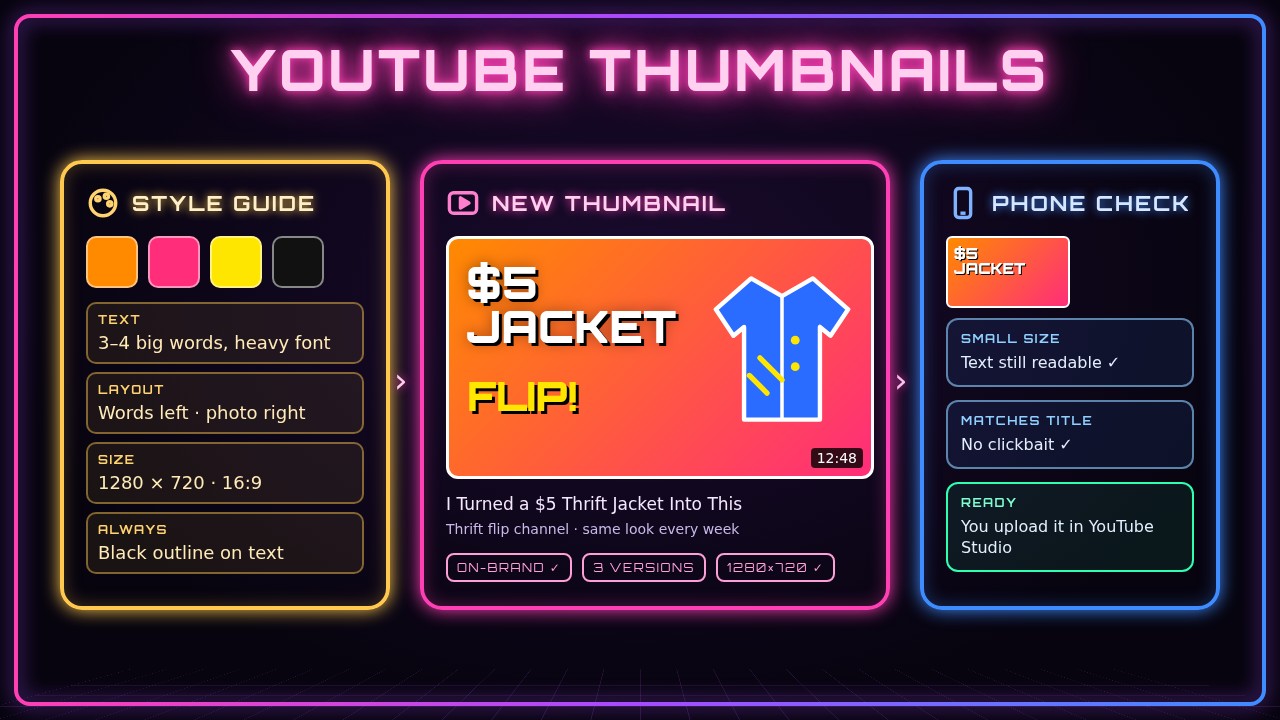
Your thumbnail is the first thing people see before they ever click your video. The channels that stand out usually have a look: the same colors, the same kind of text, the same layout, so viewers recognize them in a crowded feed. In this guide you’ll use Grok Bot to write a simple thumbnail style guide once, then make a new thumbnail in that style for every video, try a few versions, and check that it still works at phone size.
Grok Bot does the layout, the text options, and the checking. You bring the photo, pick the winner, and upload it to YouTube yourself.
You’ll follow one running example: Maya, who runs Second Stitch, a small YouTube channel about thrift flips (turning cheap secondhand clothes into new outfits). Her next video is “I Turned a $5 Thrift Jacket Into This,” and she wants every thumbnail to look like it belongs to the same channel.
What you need
- A Grok Bot chat
- Your video title (or a working title) and a one-line summary of the video
- One or two photos: a clear still of you, the thing you made, or both. A screenshot from your video works too.
- Optional: two or three thumbnails from your channel (or a channel you like) to show the look you want
- A YouTube channel where you can upload custom thumbnails
- About 20 minutes the first time, and about 5 minutes for each video after that
1. Describe your channel and the look you want
Start by telling Grok Bot who your videos are for and what kind of feeling you want. You don’t need design words. Plain descriptions work fine.
I run a small YouTube channel called Second Stitch. I make thrift-flip videos: I buy cheap secondhand clothes and sew them into new outfits. My viewers are mostly beginners who like DIY and fashion.
I want my thumbnails to feel bright, fun, and easy to read on a phone. Don't make anything yet. Ask me any questions you need to design a consistent thumbnail style for my channel.
What you should see: a few questions from Grok Bot, like which colors you like, whether you want your face in every thumbnail, and how much text you want. Answer them in the chat. This is where your style comes from.
2. Turn it into a one-page style guide
A style guide is just a short list of rules you’ll reuse every time. Ask Grok Bot to write one and keep it short.
Based on my answers, write a short thumbnail style guide for Second Stitch. Include:
- 3 or 4 main colors (with hex codes)
- the kind of font (big, bold, easy to read)
- how many words of text, max
- where the text goes and where the photo goes
- one or two "always" rules and one or two "never" rules
Size: 1280 x 720 pixels (16:9). Keep it to one screen.
What you should see: a short list, something like “orange, hot pink, yellow, and black; 3 to 4 big words on the left with a black outline; photo on the right; never more than 4 words; never tiny text.” If something feels wrong, say so: “use teal instead of pink” or “I don’t want my face in every one.”
3. Save the style guide so you can reuse it
You’ll want the exact same rules next week. Ask Grok Bot to keep the guide somewhere you can find it.
Save this style guide as "Second Stitch thumbnail style" so I can ask you to use it for every new video. Also give me a copy I can paste into my own notes.What you should see: a confirmation and a clean copy of the guide. Paste that copy into your notes app or a doc too. If you start a new chat later, you can paste it back in and say “use this style guide.”
4. Share your photo
Thumbnails with a clear, close photo usually work better than wide shots. Share the best one you have in the chat: a still of you holding the finished jacket, a before-and-after, or a screenshot from the video.
Here's a photo of me holding the finished jacket, and a photo of the jacket before I started. Tell me which one will work better at thumbnail size and why. If neither is great, tell me what kind of photo I should take instead.What you should see: Grok Bot’s take on each photo, like “the finished jacket photo is brighter and closer, use that one.” Take its advice seriously if it says a photo is too dark or too busy. A better photo helps more than any design trick.
5. Brainstorm the thumbnail text
Your thumbnail text should not repeat your title. It should add to it. Ask for options before any design work.
My video title is "I Turned a $5 Thrift Jacket Into This." Give me 8 options for thumbnail text, 4 words or fewer each, that add curiosity without repeating the title. No clickbait: everything has to be true to the video.What you should see: a short list like “$5 JACKET FLIP!”, “WORTH $5?”, “BEFORE → AFTER.” Pick one or two favorites. If they all feel off, tell Grok Bot what you liked and ask for another round.
6. Ask Grok Bot to make the thumbnail
Now put it together. Be specific about the size, the text, and the photo, and point back to your style guide.
Make a YouTube thumbnail using the "Second Stitch thumbnail style":
- Size: exactly 1280 x 720 pixels
- Text: "$5 JACKET FLIP!"
- Use my finished-jacket photo on the right
- Save it as a JPG under 2 MB that I can download
Show me the finished image.
What you should see: a finished thumbnail image in the chat that you can open and download. Check that it’s the right size, the text is spelled right, and the colors match your guide. If Grok Bot can’t use your photo the way you asked, it will tell you. You can ask it to try a simpler layout, or to make the background and text so you can drop your photo in yourself.
7. Get two or three versions to compare
One version is a guess. Two or three lets you actually choose. Keep the style the same and change just one thing.
Make two more versions of this thumbnail in the same style:
- Version B: same layout, but the text says "WORTH $5?"
- Version C: same text as version A, but put the before photo small in the corner with an arrow to the after photo
Label them A, B, and C.
What you should see: three labeled thumbnails that clearly belong to the same channel. Pick the one you’d click if you saw it in your own feed.
8. Check it at phone size
Most people will see your thumbnail tiny, on a phone, next to a dozen others. Ask Grok Bot to check that.
Look at version A as if it were shown small on a phone screen, about the size of a playing card. Is the text still readable? Does the photo still make sense? Is anything too small, too busy, or too close to the bottom-right corner where YouTube shows the video length? Suggest fixes.What you should see: a short list of notes, like “the word FLIP is readable, the jacket’s details get lost, zoom in on the jacket.” Ask Grok Bot to make those fixes. Then shrink the image on your own phone and look at it yourself.
9. Upload it to YouTube
Grok Bot makes the file. You add it to your video. Download your favorite version, then open your video’s details in YouTube Studio and upload it as the thumbnail.
Give me the final version A as a 1280 x 720 JPG under 2 MB, with a simple file name like second-stitch-5-dollar-jacket.jpg. Also write a short alt-style description of the thumbnail I can keep in my notes.What you should see: the final file, ready to download. If YouTube won’t let you upload a custom thumbnail, your channel may need to be verified first. Ask Grok Bot to find YouTube’s official help page on custom thumbnails and walk you through what it says.
10. Reuse the style for your next video
This is where the time savings show up. Next week, you just give Grok Bot the new title and photo.
New video: "I Made a Tote Bag From Old Jeans." Use the "Second Stitch thumbnail style." Here's my photo of the finished tote. Give me 5 text options first, then make the thumbnail with the one I pick, plus one alternate version.What you should see: text options, then a thumbnail that clearly matches last week’s. Line up a few of your thumbnails side by side. They should look like a set. (If you also turn your videos into Shorts or blog posts, see how to turn a long YouTube video into Shorts and how to turn a YouTube video into a blog post.)
Tips and troubleshooting
- Text hard to read? Ask for “bigger text, fewer words, and a thick black outline.” Three or four words is plenty.
- Thumbnail looks busy? Ask Grok Bot to “remove everything except the text, the photo, and one background color.”
- Colors look different from last time? Paste your style guide back in with the hex codes and ask it to match them exactly.
- Wrong size or file too big? Ask for “exactly 1280 x 720, JPG, under 2 MB.” YouTube recommends 1280 x 720.
- Keep it honest. If your thumbnail promises something the video doesn’t show, viewers leave fast. Ask Grok Bot to “check that the thumbnail matches what actually happens in the video.”
- Use photos you have the right to use. Your own photos, your own video stills, or official product photos from the brand. Don’t grab random images or other creators’ thumbnails from the web.
- Showing off a sponsored product? Follow YouTube’s rules for paid promotions and say it’s sponsored in the video and description.
- Not sure which version wins? Pick your favorite, then ask Grok Bot to look at your YouTube analytics with you later if you share the numbers, and compare click-through rates over time.
Recap checklist
- Described your channel and the feeling you want
- Got a one-page style guide with colors, font, text limits, and layout
- Saved the style guide and kept your own copy
- Shared your best, clearest photo
- Brainstormed short thumbnail text that adds to the title
- Made a 1280 x 720 thumbnail in your style
- Compared two or three versions
- Checked it at phone size and fixed anything too small
- Uploaded it in YouTube Studio
- Reused the same style for your next video
Gear that makes thumbnails easier
You can make good thumbnails from a phone, but a bigger screen helps you spot problems. A tablet like the Samsung Galaxy Tab S10 FE with its S Pen is handy for marking up photos and reviewing versions on the couch. A 2-in-1 laptop like the HP OmniBook 5 Flip 14” handles editing, uploading, and your Grok Bot chat in one machine. And a second screen like the Samsung 27” Odyssey G5 lets you keep your thumbnail versions side by side with YouTube Studio open next to them.
Subscribe to GregglesTV for daily tech news, reviews and walkthroughs.
See today’s GregglesTV Best Tech Deals or browse all deals posts.
Comments
Comments are moderated. Hate, slurs, spam and scam posts are blocked. Don’t include personal info you wouldn’t want public. See the privacy policy.
Loading comments…