How to Update Your PS5 for GTA VI (System Software 14.23, Step by Step)
Sony says you need the latest PS5 system software to play GTA VI. Here's how to update your PS5, check you're on version 14.23, turn on automatic updates, and what to do if the download gets stuck.
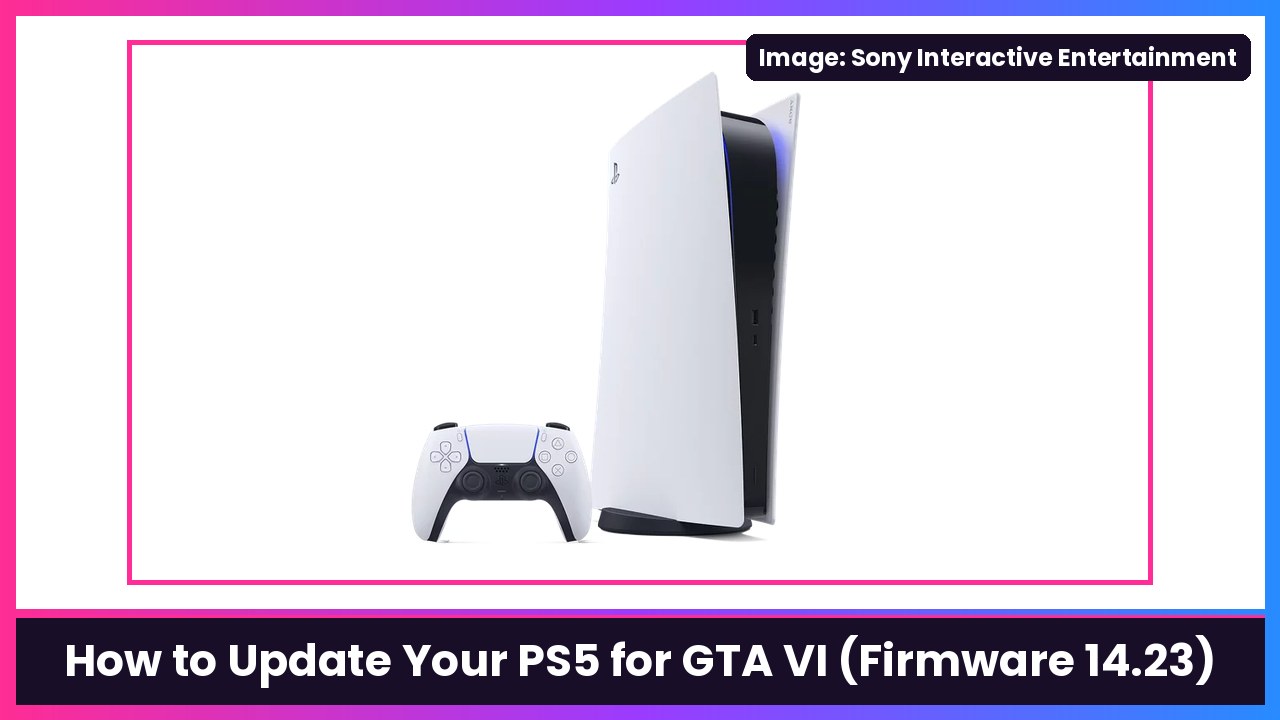
Quick summary: If you’re playing Grand Theft Auto VI on PS5 tonight, update your console first. PlayStation Support says a new PS5 system software update is required before playing GTA VI, and it wants you to grab it before midnight on November 19, when the game unlocks. The update is version 26.07-14.23.00 (people are calling it firmware 14.23), it’s about 1.267GB, and Sony’s notes only say it includes “security fixes to the system software.” Here’s exactly how to install it, how to confirm you’re on it, and how to make sure your PS5 handles the next one on its own.
“Sony Interactive has issued a PS5 system software update that is required before playing Grand Theft Auto VI. Players should download this update prior to midnight on November 19 so that they’re ready to play on launch day, November 19.” — PlayStation Support US on X
Preloaded the game already? You still need this update. Windows Report and IGN both note that preloading doesn’t replace the firmware requirement.
How to update your PS5 system software (manual, the fast way)
These steps are straight from PlayStation’s official update guide:
- From the PS5 home screen, go to Settings (the gear icon, top right).
- Select System.
- Select System Software > System Software Update and Settings.
- If a newer version is available, you’ll see Update Available.
- Select Update System Software and let it download and install.
Sony’s own notices say don’t turn off your console during the installation, because interrupting it can damage the console. Let it restart on its own.
How to check you’re on version 14.23
Per PlayStation Support:
- Go to Settings > System > System Software.
- Select Console Information.
- Your system software version is shown. If you see Up to date under it, you’ve got the latest version installed.
You’re looking for 26.07-14.23.00 (or newer). If it says 14.22, you’re not ready for GTA VI yet. Go back and run the update above.
Turn on automatic updates so this never catches you again
PlayStation’s auto-update guide has two parts.
Auto-install system software:
- Go to Settings > System > System Software > System Software Update and Settings.
- Turn on Download Update Files Automatically and Install Update Files Automatically.
Let it update while it’s in rest mode:
- Go to Settings > System.
- Select Power Saving > Features Available in Rest Mode.
- Turn on Stay Connected to the Internet.
While you’re there, Sony’s guide also lets you auto-update games: go to Settings > Saved Data and Game/App Settings > Automatic Updates and turn on Auto-Download or Auto-Install in Rest Mode. That matters for GTA VI too. Engadget reports Rockstar has been pushing pre-release patches (the latest about 600MB), and those should download automatically if you preloaded.
How to make sure GTA VI itself is updated
From PlayStation Support: highlight the game on your home screen, press the Options button on your controller, and select Check for Update. If there’s an update, follow the on-screen instructions.
Update stuck or failing?
PlayStation’s system software page says to restart the download like this:
- Press the PS button on your controller to open the control center and select Downloads/Uploads.
- Highlight the system software update and select View Error Info, then Try Again.
If it fails multiple times, Sony’s fallback is updating from a USB drive using a PC or Mac: format a USB drive as FAT32 or exFAT, create a folder named PS5, and inside it a folder named UPDATE. Download the official update file from PlayStation’s page, save it in that folder as PS5UPDATE.PUP, then start the PS5 in Safe Mode (hold the power button and release after the second beep), and choose Update System Software > Update from USB Storage Device. Sony says to type the folder and file names in uppercase, and to only ever use the official file from Sony.
Heads up: if the update or downloads just won’t connect at all, it might not be you. Android Authority reported a PlayStation Network outage this afternoon (Nov 18) that hit launching games and network features. PlayStation’s status page later showed all services operational, but if things act up, check status.playstation.com before you start resetting stuff.
Do you have room for GTA VI?
Engadget says the digital version is 212GB, which is a huge chunk of an 825GB PS5 Digital Edition. If you’re tight on space, an M.2 SSD is the easy upgrade. Something like the Samsung 990 PRO 2TB with heatsink is the version to get for a PS5, since it has the heatsink built in (Samsung’s non-heatsink 990 PRO listing on Amazon notes a heatsink is recommended for optimal PS5 thermal performance). And if you’re planning GTA nights with a friend, a second DualSense controller is worth grabbing before the weekend.
Also on the site: how to cloud stream games on PlayStation Portal.
Sources: PlayStation Support: How to update system software on a PS5 console, PlayStation Support: How to check for updates on PS5, PlayStation Support: Auto-downloads and updates, Engadget, The Verge, IGN, Windows Report, Android Authority.
Subscribe to GregglesTV for daily tech news, reviews and walkthroughs.
See today’s GregglesTV Best Tech Deals or browse all deals posts.
Comments
Comments are moderated. Hate, slurs, spam and scam posts are blocked. Don’t include personal info you wouldn’t want public. See the privacy policy.
Loading comments…