How to Get 4K 120Hz on Xbox Series X (and Check You're in the Right HDMI Port)
Your Xbox Series X might be stuck at 60Hz because it's in the wrong HDMI port on your TV. Here's how to check what your TV supports, find the right port and turn on 4K at 120Hz, step by step from Xbox's own instructions.
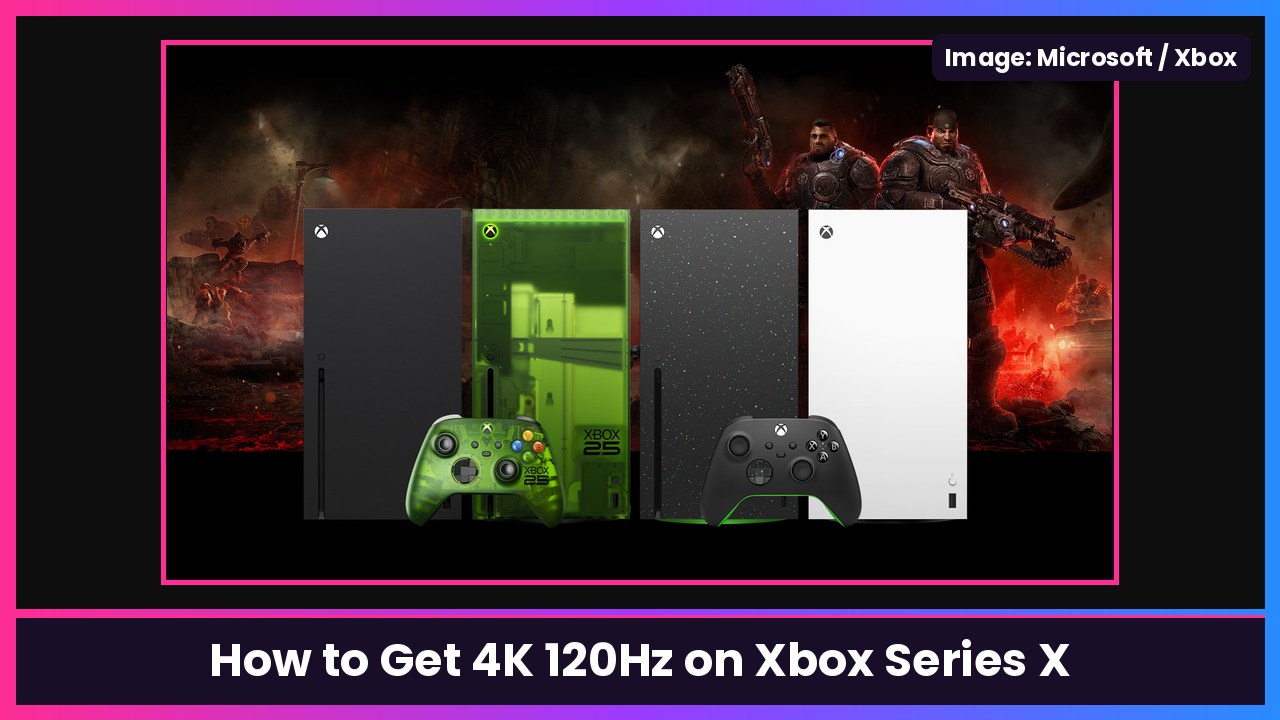
Quick summary: Engadget made a great point today: a lot of people with an Xbox Series X and a nice TV are still playing at 60Hz because the console is plugged into the wrong HDMI port. Many TVs only have one or two ports that do HDMI 2.1, and that’s what you need for 4K at 120Hz and VRR. I checked every step below against Xbox’s own 4K at 120 Hz support page and Microsoft’s Xbox Wire TV setup guide. It takes about five minutes.
What you need
Xbox says 4K gaming at 120 frames per second needs all three of these:
- An Xbox Series X console
- An Ultra High Speed HDMI cable that supports HDMI 2.1 (the one in the Series X box is exactly that)
- A TV that supports HDMI 2.1
If your TV only does HDMI 2.0, Engadget notes you’ll top out around 1440p at 120 fps or 4K at 60 fps, and no port swap will change that.
Step 1: Find out which of your TV’s ports are HDMI 2.1
Microsoft says “on some TVs, only specific HDMI ports support HDMI 2.1,” so check your TV’s manual or spec page. Many TVs also label the ports on the back (look for HDMI 2.1, 4K 120 or similar). Engadget gives one example: older Sony Bravia sets usually reserve HDMI 2.1 for ports 3 and 4. Newer premium OLEDs often have it on every port, but don’t assume.
Step 2: Plug the Xbox straight into that port with the included cable
- Use the Ultra High Speed HDMI cable that came with your Series X. Microsoft recommends it, and Engadget says you almost never need to replace it (only if you need a longer cable or a slimmer plug for a wall-mounted TV, and then make sure it’s HDMI 2.1 certified).
- Plug it into the HDMI 2.1 port you found in Step 1.
- If you use a soundbar or receiver, Microsoft says to connect the Xbox directly to the TV whenever possible and send audio to the soundbar with ARC/eARC instead of running the Xbox through the receiver.
Step 3: Check what your Xbox thinks your TV can do
- Press the Xbox button on your controller to open the guide.
- Go to Profile & system > Settings > General > TV & display options.
- Select 4K TV details.
Microsoft says you want to see “a series of green checkmarks across the board.” If 120Hz shows up without a check, try another HDMI port and look again. Microsoft literally suggests trying the different ports until the checkmarks turn green.
Step 4: Turn on 4K at 120Hz
Straight from Xbox Support:
- Press the Xbox button to open the guide.
- Select Profile & system > Settings > General > TV & display options.
- Set Resolution to 4K UHD.
- Set Refresh rate to 120 Hz.
Your screen may go black for a second while the TV switches modes. That’s normal.
Step 5: Check the rest of your TV’s settings
Xbox Series X also supports Auto Low Latency Mode (ALLM) and Variable Refresh Rate (VRR), and Microsoft says many TV makers added those through firmware updates. So:
- Update your TV’s firmware (and your receiver’s, if you use one).
- Look in your TV’s menu for a special mode that turns on full HDMI bandwidth or 4K/HDR for that input. Every brand names it differently, so your TV manual is the best guide here.
- In the same Xbox TV & display options menu, the Video modes section is where the console’s allow options live, including VRR if your TV supports it.
If it still won’t work
Microsoft’s troubleshooting list from the Xbox Wire guide:
- Make sure the Xbox is auto-detecting your TV. 4K isn’t available if you’ve manually picked HDMI or DVI.
- Remove anything between the Xbox and TV (switches, older receivers) and connect directly.
- If you get a blank screen, Microsoft says you can go to Settings > General > TV & display options > Video modes and uncheck Allow 4K to step down while you sort it out.
- If you’re running through a receiver and still can’t get 4K at 120Hz, Xbox Support says to make sure you’re using the included Ultra High Speed cable and contact the receiver maker.
One more thing: not every game runs at 120
Engadget points out that many big games still run at 60 fps on Series X, and lots of 120 fps games drop resolution to get there (Call of Duty is a good example). So 120Hz mostly pays off in games that offer a performance mode.
My take
This is one of those “check it tonight” tips. It’s free, it takes five minutes, and if you’ve been playing on the wrong port, VRR alone makes games feel smoother. If you’re shopping for a TV this Black Friday for your Xbox, check the spec sheet for HDMI 2.1 / 4K 120 on more than one port before you buy. Two OLEDs I’ve been tracking for Black Friday are the LG B6E OLED and Samsung S90H OLED (confirm the port details on the listing). I also linked a PowerA FUSION Pro 2 controller and a HyperX CloudX Stinger 3 headset for Xbox if you’re upgrading the setup.
Sources: Xbox Support: Set up 4K gaming at 120 Hz on Xbox Series X, Xbox Wire: Is your TV ready?, Engadget (Nov 17, 2026).
Subscribe to GregglesTV for daily tech news, reviews and walkthroughs.
See today’s GregglesTV Best Tech Deals or browse all deals posts.

Comments
Comments are moderated. Hate, slurs, spam and scam posts are blocked. Don’t include personal info you wouldn’t want public. See the privacy policy.
Loading comments…