How to Use Temporary Threads in Google AI Mode (So Gift Searches Don't Spoil the Surprise)
Google just added temporary threads to AI Mode in Search. They aren't saved to your history and don't change your recommendations. Here's how to start one on your phone or computer, plus how to do the same thing in the Gemini app.
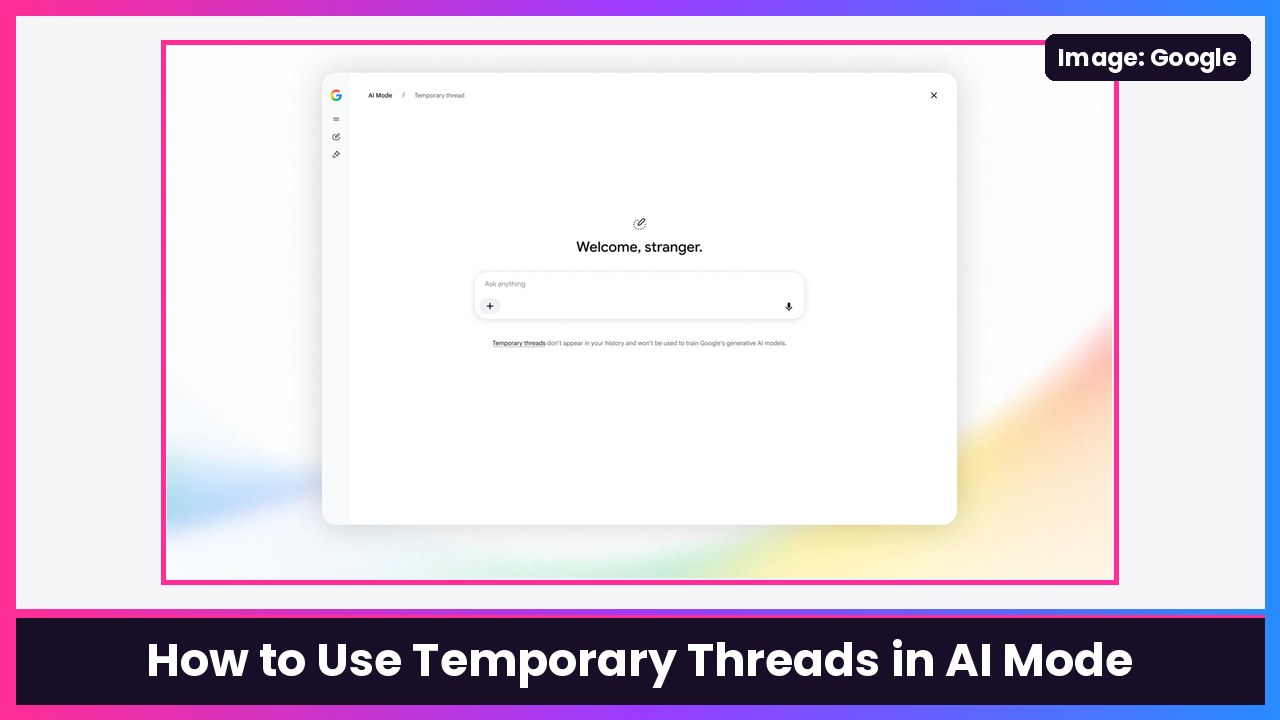
Quick summary: It’s gift-shopping season, and the last thing you want is your spouse grabbing your phone and seeing “best gifts for my wife” in your Google history. Google announced today that temporary threads are now in AI Mode in Search. Google says a temporary thread is “completely detached from your account,” so it won’t be saved to your history, won’t use your past preferences and won’t change future recommendations. It’s rolling out globally on desktop and mobile browsers in every language AI Mode supports. Here’s how to use it on a Pixel 10 Pro, an iPhone Duo or your laptop.
Step 1: Open AI Mode
Google’s AI Mode help page lists three ways in:
- Go to google.com/ai
- Go to google.com, type a question in the search bar and tap AI Mode
- In the Google app, tap AI Mode on the home screen
Google says temporary threads are rolling out in browsers, so if you don’t see the option in the Google app yet, use Chrome or Safari.
Step 2: Tap the temporary threads icon
Google says to “click the temporary threads icon in the upper right corner of AI Mode.” 9to5Google describes it as a pen button with a dotted border, the same icon the Gemini app uses for temporary chats.
You’ll know it worked because, per 9to5Google, the personalized greeting changes to “Welcome, stranger.”
Step 3: Ask away
Type (or speak) your question like normal. You don’t have to change any settings first, Google says. Just keep in mind that answers won’t be personalized, since the thread can’t see your past preferences.
Step 4: Close it when you’re done
When you close the thread, Google says “it’s gone.” There’s no way to reopen it later, so copy anything you want to keep (like a product name or a link) before you leave. Then you’re back to regular, personalized AI Mode.
Bonus: Do the same thing in the Gemini app
The Gemini app has had this for a while as Temporary chat. From Google’s Gemini Apps Help:
On your phone:
- Open the Gemini app or go to gemini.google.com.
- At the top, tap Menu.
- Next to New chat, tap Temporary chat.
- Type your prompt and tap Submit.
On your computer:
- Go to gemini.google.com.
- Next to New chat, click Temporary chat.
- Type your prompt and click Submit.
A few limits from Google: you need to be signed in with a personal Google Account (not work or school), and inside a temporary chat you can’t use Gems, Connected Apps, personalized responses or feedback. Google also says temporary chats are kept for up to 72 hours to respond to you, and aren’t used to personalize Gemini or train its models.
My take
This is a small feature that’s going to get used a lot in the next six weeks. I’d use AI Mode’s temporary threads for gift ideas and anything a little personal, and keep regular threads for stuff I actually want AI Mode to remember. And if you’re the one buying gifts, I’ve got you covered with our Best Tech Gifts 2026 list and today’s picks below, including the Pixel 11 Pro Fold and the HP Googlebook 14.
Sources: Google Keyword: Temporary threads in AI Mode (Nov 17, 2026), Google Search Help: AI Mode, Gemini Apps Help: Use Gemini Apps, Google Keyword: Temporary Chat in Gemini, 9to5Google, Android Authority.
Subscribe to GregglesTV for daily tech news, reviews and walkthroughs.
See today’s GregglesTV Best Tech Deals or browse all deals posts.

Comments
Comments are moderated. Hate, slurs, spam and scam posts are blocked. Don’t include personal info you wouldn’t want public. See the privacy policy.
Loading comments…