Don't Reply STOP to Spam Texts. Here's How to Report and Block Them on iPhone, Pixel and Galaxy, Step by Step
Replying STOP to a scam text tells the sender your number is real. Here's what to do instead on an iPhone, a Pixel or a Galaxy phone: report it, block it and filter future junk, step by step.
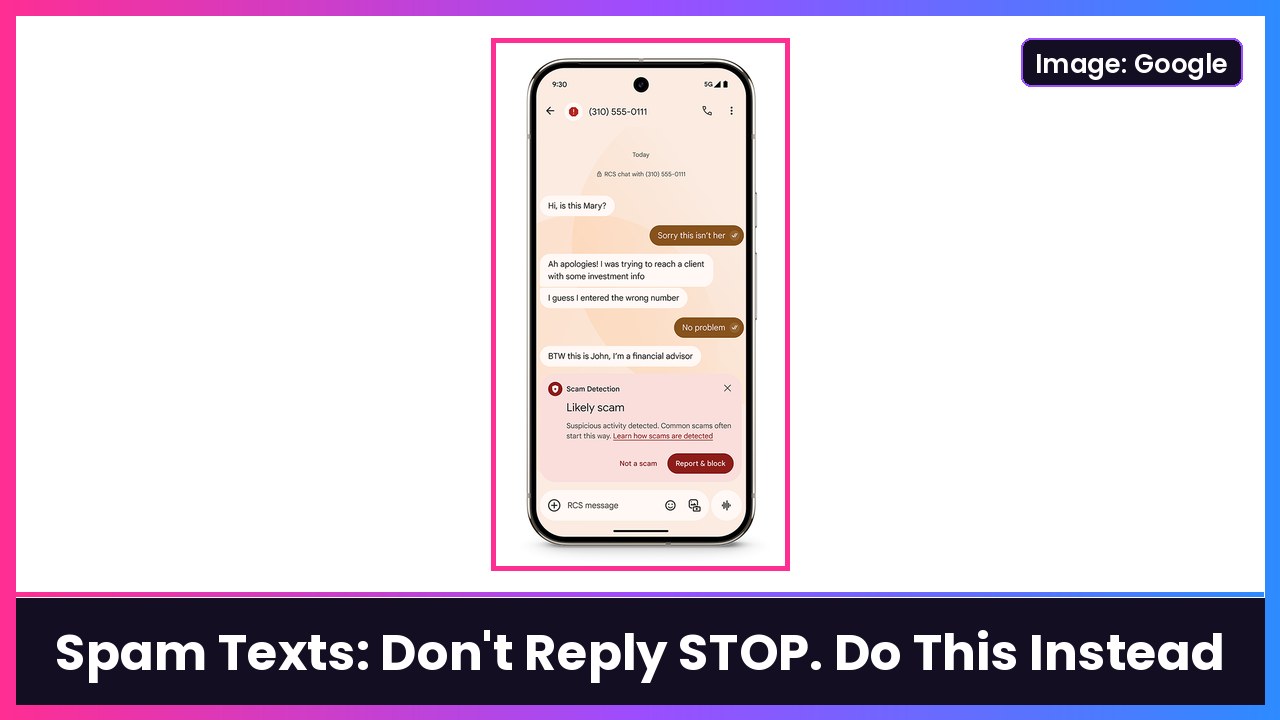
Quick summary: When a random number texts you about an “unpaid toll,” a “delivery problem” or a job you never applied for, your thumb wants to type STOP. Don’t. Engadget pointed out today that replying to a scam text just confirms your number is active, which can mean even more junk. The wireless industry group CTIA says the same thing: don’t reply to texts you don’t recognize, even to say “STOP.” Here’s what to do instead on an iPhone, a Pixel or a Galaxy phone. I checked every menu below against Apple’s, Google’s and Samsung’s own support pages. It takes about a minute per text.
When STOP is OK (and when it isn’t)
- OK: Texts you actually signed up for, like a restaurant, a store’s loyalty program or a survey. Those businesses have to give you a way out, and Engadget notes they legally get 10 business days to stop after you reply STOP.
- Not OK: Anything from a number you don’t recognize: fake toll bills, package “problems,” “wrong number” chats, job offers, prize alerts. These senders aren’t playing by marketing rules, so replying only tells them a real person is on the other end.
Rule of thumb: If you don’t remember signing up, don’t reply. Don’t tap the link, and don’t call the number in the text either.
On iPhone: report it, then block it
These steps are from Apple’s Report spam and block senders in Messages on iPhone guide.
Step 1: Report the text as spam
- Open Messages.
- Pick one:
- Haven’t opened it yet? Swipe left on the conversation, tap the trash (delete) button, then tap Delete and Report Spam.
- Already opened it? Look for the Report Spam link at the bottom of the message. Tap Report Spam, then Delete and Report Spam.
What you should see: The conversation disappears from your list.
Two things to know from Apple’s page:
- You can’t report a message after you’ve replied to it. One more reason not to type STOP.
- For regular SMS, MMS or RCS texts, reporting shares the info with your carrier, depending on your carrier and country. If you don’t see the report option for those texts, Apple says to contact your carrier.
Engadget also notes that on texts that include a STOP line, the button may say Stop or Report Spam, with a Delete and Stop choice. That one sends a STOP reply for you, so for scammy texts pick Delete and Report Spam.
Step 2: Block the number
Apple is clear that reporting doesn’t block the sender. If the same number keeps texting:
- Open the conversation.
- Tap the person’s icon (or number) at the top.
- Tap Info, scroll down and tap Block Contact.
What you should see: The number is now in Settings > Privacy & Security > Blocked Contacts. Blocking it in Messages also blocks it in Phone, FaceTime, Mail and Calendar, and the sender isn’t told.
Step 3: Screen unknown senders so junk stays out of sight
From Apple’s Screen and filter text messages on iPhone page:
- In Messages, tap the filter button in the conversation list, then tap Manage Filtering.
- Turn on Screen Unknown Senders.
- Want verification codes to still ping you? Tap Allow Notifications and turn on the categories you want.
- Spam filtering is on by default. In the same Manage Filtering screen, make sure Filter spam is on.
What you should see: Texts from numbers that aren’t in your contacts go to an Unknown Senders folder, and you won’t get notified unless you allowed that type. If a real person lands there, open it and tap Mark as Known.
On Pixel and Galaxy (Google Messages): block and report spam
Pixels and a lot of Galaxy phones use Google Messages. These steps are from Google’s Report spam in Google Messages help page.
Step 1: Block and report the conversation
- Open Google Messages.
- Touch and hold the spam conversation.
- Tap Block, then Report spam, then OK.
Or from inside the chat: tap More options (the three dots) > Details > Block & report spam > OK.
What you should see: The chat moves to your Spam & blocked folder. Google says a report may also create a separate “Spam reporting” conversation that sends the spammer’s number and latest message to your carrier. That’s normal.
Step 2: Make sure spam and scam protection is on
Google says it’s on by default in Standard mode, but it’s worth a 10-second check (Google Messages Help):
- In Google Messages, tap your profile picture or initials at the top right.
- Tap Messages settings > Protection & Safety > Spam and scam protection.
- Pick Enhanced protection, Standard protection or No protection. I’d leave it on at least Standard. Enhanced can use Google’s cloud Gemini models to catch trickier scams.
What you should see: When Google flags a text, you get a Likely scam warning with Report & block and Not a scam buttons, like the one in Google’s image at the top of this article.
Made a mistake? Profile picture > Spam & blocked, pick the number and tap Unblock, per Google’s block senders help page.
Using Samsung Messages instead?
From Samsung’s Block a phone number or contact on your Galaxy phone page:
- Open Samsung Messages.
- Touch and hold the conversation, tap More, tap Block, then Block again to confirm.
- To review your list: More options (three dots) > Settings > Block numbers and spam.
Spam calls too? I walk through that in how to block spam, scam and unknown calls on a Samsung Galaxy, and Galaxy owners can lock things down further with Samsung’s Auto Blocker.
Bonus: forward it to 7726 (works on any phone)
7726 spells SPAM on a keypad, and CTIA says forwarding a suspicious text there reports it to your carrier so it can block spammers network-wide.
- iPhone: Open the chat, touch and hold the message bubble, tap More, select the message, tap the forward arrow, enter 7726 and send (Apple’s forwarding steps).
- Android: Touch and hold the message, copy the text, start a new chat to 7726 and paste it. (Google Messages’ Report spam may already send your carrier a copy, as mentioned above.)
Engadget says your carrier may text back asking for the sender’s number, so do the 7726 forward before you delete and block.
Tips
- Watch for fake delivery texts. CTIA lists unexpected toll and package delivery messages as classic warning signs, and a lot of us are waiting on Black Friday orders right now. Check orders in the store’s own app instead of tapping text links.
- Verify the real way. CTIA’s advice: if you’re not sure, contact the company using a number or website you already trust, not the one in the text.
- Government agencies won’t ask you to pay by gift card, crypto, wire transfer or payment app, per CTIA.
- Didn’t mean to report someone? On iPhone, tap the filter button > Spam, open the chat, tap Not Spam > Move to Messages.
- Group spam texts can’t be blocked as a group on iPhone. Apple says to leave the conversation or mute its notifications.
Recap checklist
- Never reply STOP (or anything) to a text you didn’t sign up for
- Don’t tap links or call numbers in the text
- Optional: forward it to 7726 first
- iPhone: Report Spam > Delete and Report Spam, then Info > Block Contact
- iPhone: Manage Filtering > Screen Unknown Senders on, Filter spam on
- Google Messages: touch and hold > Block > Report spam > OK
- Google Messages: Messages settings > Protection & Safety > Spam and scam protection on
- Samsung Messages: touch and hold > More > Block
Sources: Engadget, CTIA: Protecting Yourself from Spam Text Messages, Apple Support: Report spam and block senders in Messages on iPhone, Apple Support: Screen and filter text messages on iPhone, Apple Support: Forward and share messages on iPhone, Google Messages Help: Report spam, Google Messages Help: Spam and scam protection, Google Messages Help: Block senders, Samsung Support: Block a phone number or contact. Lead image: Google.
Subscribe to GregglesTV for daily tech news, reviews and walkthroughs.
See today’s GregglesTV Best Tech Deals or browse all deals posts.
Comments
Comments are moderated. Hate, slurs, spam and scam posts are blocked. Don’t include personal info you wouldn’t want public. See the privacy policy.
Loading comments…