Android App Icons Won't Move? How to Unlock Your Home Screen on Galaxy and Fix It on Pixel, Step by Step
If your Galaxy or Pixel home screen icons won't budge, or keep rearranging themselves, it's almost always one setting. Here's how to unlock the layout, fix the Apps screen sort order, and clear the launcher cache.
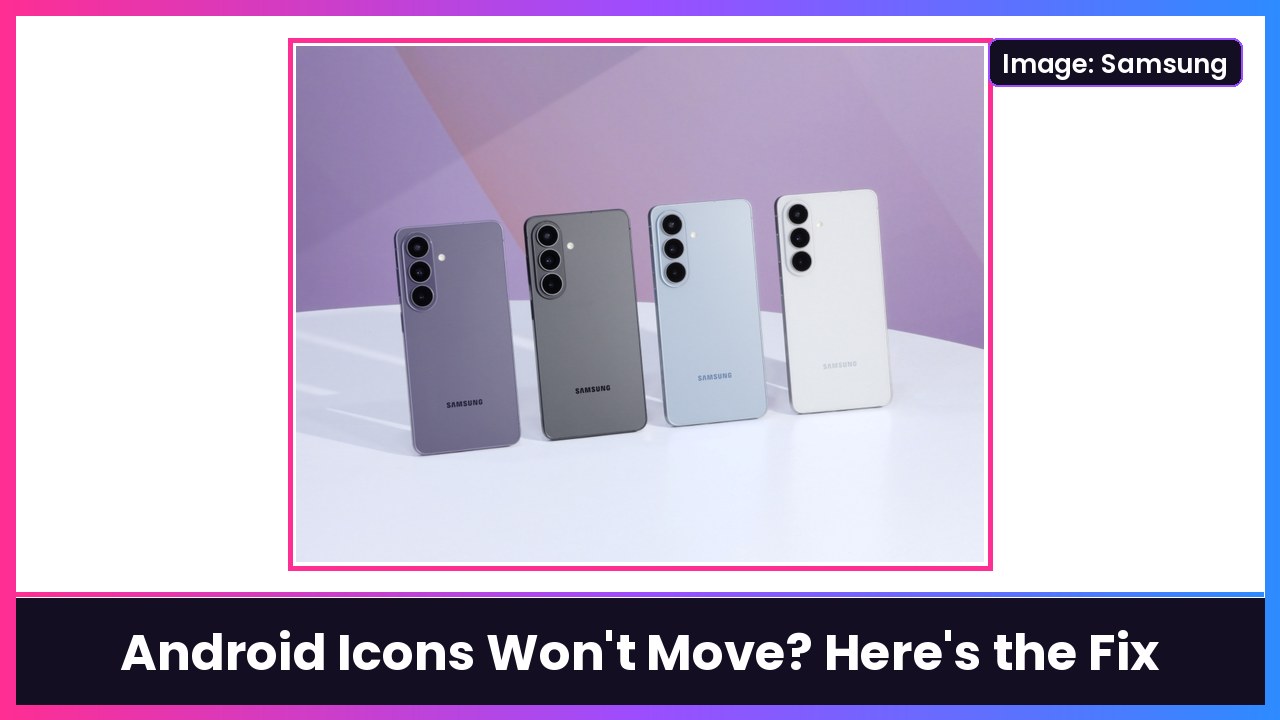
Quick summary: You long-press an app to move it and… nothing. Or you finally get your home screen perfect and the next day it’s shuffled. Engadget ran through the usual causes today, and it’s almost always one of three things: a locked home screen layout, your Apps screen sort order, or a cranky launcher cache. Here’s how to fix each one on a Samsung Galaxy like the Galaxy S26 Ultra and on a Google Pixel like the Pixel 10 Pro. Every menu path below comes from Samsung’s and Google’s own support pages, linked at the bottom.
Example: You hand your phone to your kid, they drag half your apps into a folder, and you lock the layout so it never happens again. A month later you want to move one icon and can’t. That’s the lock doing exactly what it’s supposed to do.
Key takeaways
- Galaxy: touch and hold an empty spot on the Home screen > Settings > turn off Lock Home screen layout.
- Samsung says when the layout is locked, you can’t move or remove apps and widgets on the Home screen.
- Galaxy Apps screen: if it’s sorted Alphabetical order, switch to Custom order to arrange apps by hand.
- Pixel: there’s no lock switch, so if icons freeze, clear the Pixel Launcher cache: Settings > Apps > See all apps > the app > Storage & cache > Clear cache.
- Restart your phone after each fix.
Before you start
Samsung notes that available screens and settings vary by carrier, software version and model, and Google says some Pixel steps only work on newer Android versions. The steps below match current One UI and Android, but if a label looks slightly different on your phone, look for the closest match.
Part 1: Samsung Galaxy
Step 1: Turn off Lock Home screen layout
This is the big one. Engadget calls a locked home screen “the main culprit on most phones.”
- On your Home screen, touch and hold an empty spot (no app or widget under your finger).
- Tap Settings at the bottom of the screen.
- Find Lock Home screen layout and tap the switch to turn it off.
You can also get here from the Settings app > Home screen (Samsung’s Singapore support page lists it under Settings > Display > Home screen on some models). If you can’t find it, just open Settings and search “Home screen.”
What you should see: The Lock Home screen layout switch is off. Go back to your Home screen, touch and hold an app, and it should lift so you can drag it.
Tip: Once everything is where you want it, turn the lock back on. Samsung says it prevents Home screen items from being removed or repositioned, which is perfect for a phone you share or hand to kids.
Step 2: Move an app on the Home screen
- Touch and hold the app.
- Drag it to where you want it and let go.
- To make a folder, drag one app on top of another and release. Tap Folder name to name it.
What you should see: The icon stays where you dropped it.
Step 3: Check your Apps screen sort order
If the icons you can’t move are on the Apps screen (the one you get by swiping up), the issue is usually the sort setting, not the lock. Samsung says Custom order lets you arrange apps by hand, while Alphabetical order puts everything on one A-to-Z list you scroll vertically.
- Swipe up on your Home screen to open the Apps screen.
- Tap More options (the three vertical dots) on the search bar. Samsung notes the search bar can be at the top or bottom depending on your model and settings.
- Tap Sort.
- Tap Custom order.
What you should see: Your apps go back to pages you swipe left and right. Now you can touch and hold an app and drag it anywhere, or drop it on another app to make a folder.
Want A-to-Z back later? Same menu, pick Alphabetical order. Just know that’s what “reorganizes” your Apps screen, and new apps will slot in alphabetically.
Step 4: Restart and check again
- Swipe down for Quick settings and tap the power icon, then Restart.
- Try moving an icon again.
What you should see: Icons move normally. If they still don’t, try Part 2’s cache fix on the One UI Home app, since that’s Samsung’s launcher (Engadget notes the same cache trick applies across Android phones).
Part 2: Google Pixel
Pixel phones don’t have a “lock layout” switch, so when icons freeze or act weird, Engadget recommends clearing the launcher’s cache. Google says clearing cache removes temporary files and is a short-term fix. It doesn’t erase your apps, photos or layout data like Clear storage would.
Step 1: Move an app the normal way first
Google’s Android Help says:
- Touch and hold the app.
- Slide it to where you want it, then lift your finger.
- To group apps, drag one on top of another.
If that works, you’re done. If the icon won’t lift, keep going.
Step 2: Clear the Pixel Launcher cache
- Open your phone’s Settings app.
- Tap Apps > See all apps.
- Find and tap Pixel Launcher (the app that runs your home screen).
- Tap Storage & cache.
- Tap Clear cache.
What you should see: The cache number drops to a small amount. Don’t tap Clear storage unless you really want to reset the app. Google warns that deletes the app’s data.
Step 3: Restart
- Restart your Pixel from the power menu (tap Restart).
- Try moving an icon again.
What you should see: Your home screen responds normally. Engadget says if it’s still acting up, restarting in safe mode can tell you whether a third-party app (like another launcher) is causing it.
Tips
- Icons moved after an update? Engadget notes that app or OS updates can change your home screen grid, so a big update shifting things around isn’t a bug.
- Using a third-party launcher? Settings like auto-sort and layout lock live inside that launcher’s own settings, not the phone’s.
- Foldables: On a Galaxy Z Fold 8 Ultra, check icons on both the cover screen and the big inner screen after you unlock the layout, since you probably arranged them separately.
- Want the stock look back? If a theme changed your icons, here’s how to go back to the original Samsung theme and icons.
Recap checklist
- Galaxy: Lock Home screen layout turned off (touch and hold empty spot > Settings)
- Galaxy Apps screen: More options > Sort > Custom order
- Icons moved where you want them
- Galaxy: lock turned back on (optional, recommended)
- Pixel: Settings > Apps > See all apps > Pixel Launcher > Storage & cache > Clear cache
- Phone restarted
My take
Nine times out of ten, this is the lock. I turn it on myself on every Samsung I set up because I’m always bumping icons, and then I forget about it and wonder why nothing moves. Thirty seconds and you’re back in business. If you’re shopping for a new phone this week, the Galaxy S26 FE is the value pick, and the Galaxy S26 Ultra and Pixel 10 Pro are the flagships I’d look at.
More phone how-tos: the first things to do on a new Galaxy S26 and how to clear the cache on your Fire TV.
Sources: Engadget: Common reasons your Android phone’s icons won’t move, Samsung US: Organize the Home screen on your Galaxy phone or tablet, Samsung US: Manage apps on your Galaxy phone or tablet, Samsung Canada: Manage apps on your Samsung Galaxy, Samsung Singapore: Add apps and widgets on your Galaxy phone’s Home screen, Google Pixel Help: Fix an installed app that isn’t working, Android Help: Add apps, shortcuts & widgets to your Home screens.
Subscribe to GregglesTV for daily tech news, reviews and walkthroughs.
See today’s GregglesTV Best Tech Deals or browse all deals posts.
Comments
Comments are moderated. Hate, slurs, spam and scam posts are blocked. Don’t include personal info you wouldn’t want public. See the privacy policy.
Loading comments…