Samsung Galaxy: How to Restore the Original Theme and Icons
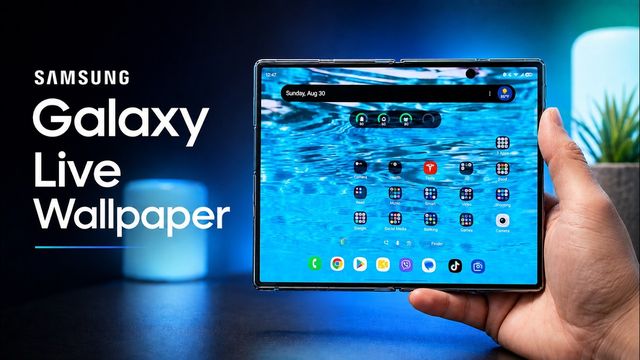
Downloaded a theme or icon pack on your Galaxy and want the original back? The default option is hidden under My stuff. Here's where to find it.
Quick summary: Downloading new themes, icon packs, wallpapers and Always On Display styles on a Samsung Galaxy is easy. Getting back to the original is easy too, but it’s hidden under My stuff.
Step by step
- Press and hold a blank spot on your home screen and tap Themes.
- Tap the menu button, then My stuff at the top.
- Themes: tap Default, then Apply. Your phone goes back to its original theme.
- Wallpapers: tap Wallpapers to pick your original wallpaper.
- Icons: tap Icons, choose Default and apply it.
- Always On Display: tap Always On Display, choose Default and tap OK.
I wish there was a “restore original” button right at the top of Themes, but once you know it’s under Menu > My stuff, it takes seconds.
Related
Watch the full video on YouTube, and subscribe to GregglesTV for daily tech news, reviews and walkthroughs.
See today’s GregglesTV Best Tech Deals or browse all deals posts.

Comments
Comments are moderated. Hate, slurs, spam and scam posts are blocked. Don’t include personal info you wouldn’t want public. See the privacy policy.
Loading comments…