How to Make Your Samsung Galaxy Feel More Like an iPhone
Switched from iPhone? Built-in Samsung settings for home-screen-only layout, tinted icons and iPhone-style split swipe-down panels, plus two apps to try.
This video was sponsored by HiBy (Digital XENO USB-C earbuds).
Quick summary: Coming from an iPhone to a Samsung Galaxy? You can bring over some of that iPhone look and feel with settings already built into One UI, and still keep Android’s customization.
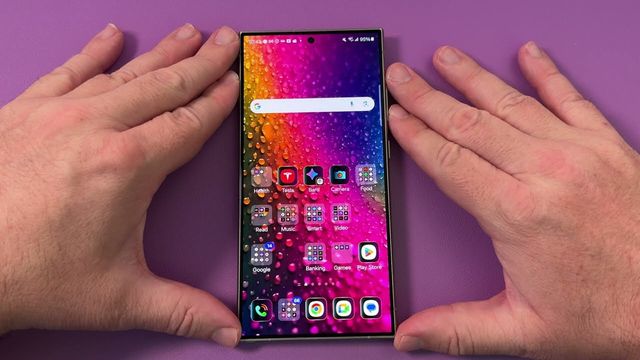
1. Use home screens only (no app drawer)
- Press and hold a blank spot on the home screen and tap Settings.
- Tap Home screen layout, choose Home screens only and tap Apply.
All your apps live on your home screens, like an iPhone. Swiping up opens a menu where you can search and see recently used apps.
2. Tint your app icons
On an iPhone you can recolor your icons. On a Galaxy:
- Press and hold a blank spot and tap Wallpaper and style.
- Tap Color palette and pick a color. It recolors buttons and menus across the phone.
- Turn on Apply palette to app icons and tap Apply. Supported icons take on that color.
3. Split notifications and quick settings like iOS
On an iPhone, swiping down from the top shows notifications, and from the top right shows Control Center.
- Swipe down and tap the pencil in the top right.
- Tap Quick settings instant access and turn it on.
Now swiping down from the top right goes straight to your quick toggles, just like Control Center.
Apps worth trying
- AirMessage: if you have a Mac, install it on the Mac and on your Galaxy, and it forwards your iMessages to Android. It’s not perfect, but it works.
- Apple Music: it’s available on Android if that’s what you used on iPhone. (I use Spotify.)
You could go further with a different launcher or iPhone-style icon packs, but these built-in options give you the iPhone feel without changing much.
Related
Watch the full video on YouTube, and subscribe to GregglesTV for daily tech news, reviews and walkthroughs.
See today’s GregglesTV Best Tech Deals or browse all deals posts.

Comments
Comments are moderated. Hate, slurs, spam and scam posts are blocked. Don’t include personal info you wouldn’t want public. See the privacy policy.
Loading comments…