Galaxy Z Flip 8: First 20 Things To Do
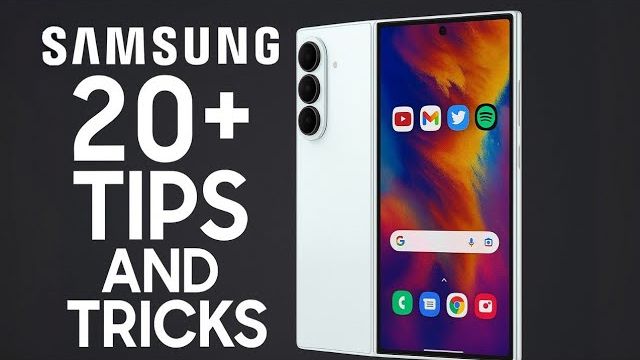
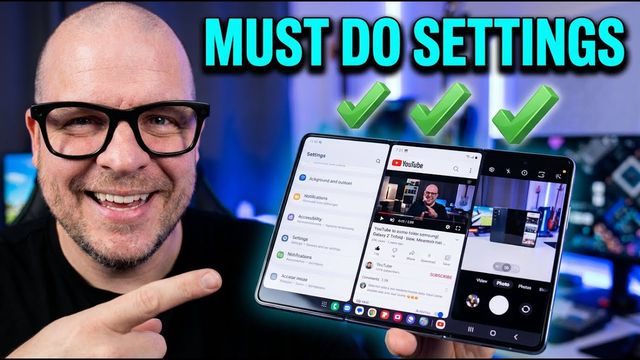
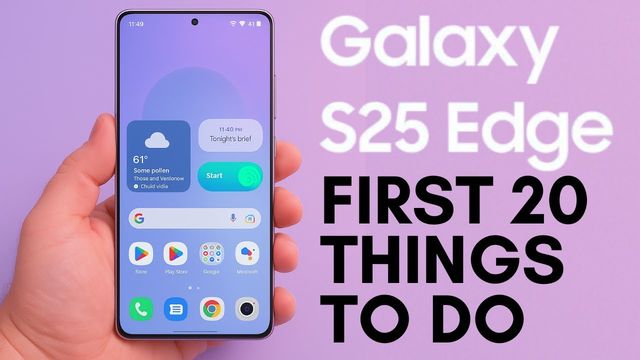
The first 20 things I change on the Galaxy Z Flip 8: cover screen apps, 4K60 video, 24MP photos, call screening, face unlock and faster animations.
Quick summary: Here are the first 20 things I do on a new Samsung Galaxy Z Flip 8, in the order I do them.
Cover screen and home
- Add apps to the cover screen: on the cover screen, swipe all the way to the end, tap Add apps and install Good Lock’s MultiStar when it asks. Tap the apps you want (up to 50) and tap Done. Pick the ones that matter most to you.
- Sort apps alphabetically: open the phone, swipe up, tap the three dots > Sort > Alphabetical order.
- Notifications and toggles together: swipe down, tap the pencil > Panel settings > Together, so one swipe shows both from anywhere.
Camera
- 4K60 video and HDR off: in Video, switch every camera to UHD (4K) at 60 fps for smooth video. Turn HDR off, since it can look washed out on social media.
- Camera settings: turn on location tags, turn on the show palm and voice command shooting methods, and turn off the shutter sound. FlipShot adds filters if you want them. I find them cheesy.
- Camera Assistant and 24MP: download Camera Assistant from camera settings. Turn on Quick tap shutter (no delay) and 24MP resolution, then set Photo to 24MP once in the camera. It sticks, so you get higher resolution photos than the default 12MP.
Calls
- Call screening and spam protection: in the Phone app’s Settings, turn on Call screening (an AI assistant answers for you), auto screen for suspected spam, Caller ID and spam protection and block spam and scam calls. I also like call captions, call brief and scam detection (it plays a tone or vibrates to warn you).
- Answering calls: under Answering and ending calls, change the gesture to Tap, and turn on answer using speaker if you, like me, never hold the phone to your ear.
Settings
- Open Wi-Fi notifications off: Connections > Wi-Fi > three dots > Advanced settings, turn off Wi-Fi network notifications.
- Galaxy AI: go through and turn features on. Don’t turn on Process data only on device, since it blocks a lot of AI features.
- Dolby Atmos and sounds: in Sound quality and effects, turn on Dolby Atmos set to Auto. Change ringtones and turn off system sounds you don’t need.
- Dark mode, vivid colors and timeout: schedule dark mode (sunset to sunrise) or keep it on like I do. Set Screen mode with white balance one step back and everything turned up in Advanced settings. Set Screen timeout to 2 minutes with Keep screen on while viewing. Turn on touch sensitivity if you use a screen protector.
- Battery protection: I turn it off for full, fast charging because I get new phones often. Basic or Maximum protects the battery long-term.
- Wallpaper, color palette and themes: change your wallpaper and color palette, and try Themes. There are free and paid themes, icons and Always On Display styles.
- Home screen search: in Home screen settings, set the media page (or turn it off), and turn on search and Finder at the bottom of the home screen. Customize the lock screen and Always On Display (set it to Always if you want it on all the time; I keep it off to save battery).
Security and advanced features
- Face and fingerprint unlock: set up Face recognition, turn off require open eyes, brighten screen and stay on lock screen until swipe. Turn on Fingerprint always on for the cover and main screens.
- Multitasking and the side button: in Labs, turn on Multi window for all apps, plus swipe for split screen. Double press the side button for the camera. For older users, I’d set long press to the power off menu instead of the assistant. Turn on all the motions and gestures.
- Faster animations: About phone > Software information, tap Build number 7 times, then in Developer options set all three animation scales to 0.5x.
- Update everything: check Software update, then update apps in the Galaxy Store and the Play Store (Manage apps and device).
- Gboard and the cover screen: install Gboard, set it as your keyboard, turn on the number row, pick a theme, turn off don’t suggest offensive words, and use voice typing. Then customize the cover screen in Settings > Cover screen. You can even use a video as the background.
Get it
Watch the full video on YouTube, and subscribe to GregglesTV for daily tech news, reviews and walkthroughs.
See today’s GregglesTV Best Tech Deals or browse all deals posts.
Comments
Comments are moderated. Hate, slurs, spam and scam posts are blocked. Don’t include personal info you wouldn’t want public. See the privacy policy.
Loading comments…