Galaxy Z Fold 7: First 20 Things To Do
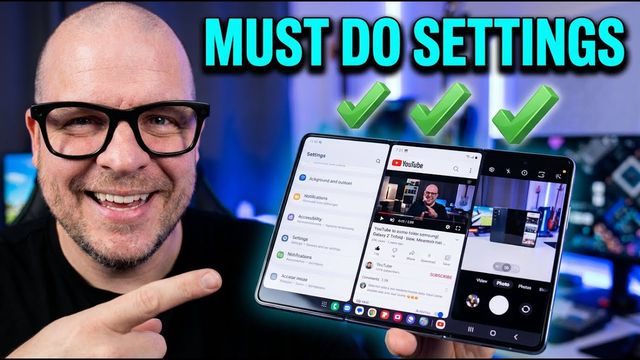
The first 20 things I change on the Galaxy Z Fold 7: quick panel, 200MP and 4K camera, Dolby Atmos, vivid display, fingerprint, faster animations and more.
Quick summary: Here are the first 20 things I do on a new Samsung Galaxy Z Fold 7, in the order I do them.
Quick panel and home screen
- Notifications and quick settings together: swipe down, tap the pencil, open Panel settings and choose Together. I also set device control and media output to show when the quick panel collapses, and brightness to always show. Now one swipe shows notifications and toggles, like the old days.
- Rearrange quick toggles: tap the pencil, then press, hold and drag tiles where you want them. Tap Done.
- Home screen settings: press and hold the home screen, tap Settings, and turn on Add new apps to Home screen and Swipe down for notification panel.
Camera
- 200MP photos: in the camera, tap the resolution button and pick 200 (or stay at 12MP).
- 4K video on every camera: in Video, change FHD to UHD 30. Do it on the selfie camera and on the cover screen camera too. If your HDR footage looks washed out when you import it to a computer or social app, turn HDR off.
- Camera settings: turn on location tags (if you’re OK with it) and grid lines. Under Shooting methods, turn on voice commands (“smile,” “cheese,” “capture”) and show palm. I turn the shutter sound off.
Connections and Galaxy AI
- Stop open Wi-Fi pop-ups: Settings > Connections > Wi-Fi > three dots > Advanced settings, turn off Wi-Fi network notifications. I also turn on Sync with Samsung Cloud.
- Turn on Galaxy AI features: many are off until you turn them on. Open Galaxy AI and switch on the ones you want, like Writing assist and Interpreter.
Sound and display
- Ringtones and Dolby Atmos: pick your ringtone and notification sound, then go to Sound quality and effects and turn on Dolby Atmos set to Auto.
- Vivid display: under Display, choose light or dark mode (or a schedule), set Screen mode to Vivid, and turn up the vividness in Advanced settings.
- Screen timeout: 2 minutes, plus Keep screen on while viewing.
- Navigation and Circle to Search: I use gestures, but buttons are an option. Circle to Search lets you press and hold to search anything on screen.
- Screen layout and zoom: I use Multi view so apps show a menu and content side by side on the big screen.
Battery, lock screen and security
- Battery percentage: turn on Show battery percentage.
- Now Bar and Always On Display: the lock screen’s Now Bar shows live info like sports scores. Always On Display is nice, but it costs some battery.
- Fingerprint: in Security and privacy > Screen lock and biometrics, register your fingerprint, moving your finger around so it covers every part. Turn on Fingerprint always on for the cover and main screens so you can unlock without pressing anything.
Advanced features
- Multi window for all apps and the side button: in Advanced features > Labs, turn on Multi window for all apps. That makes apps like Instagram work in split screen. Set the side button to double press for camera, and choose whether long press opens the power menu or your assistant (Gemini).
- Motions and gestures plus Dual Messenger: I turn on double tap to turn the screen on/off, lift to wake and the vibrate when picked up alert for missed calls (I skip palm swipe screenshots). Dual Messenger installs a second copy of apps like Facebook or Telegram for a second account.
- Faster animations: go to About phone > Software information, tap Build number 7 times and enter your PIN. In Developer options, set the window, transition and animator scales to 0.5x. The phone feels faster.
- Update everything and set up the phone app: check Software update, then update apps in the Galaxy Store (Updates > Update all) and the Play Store (your profile > Manage apps and device). In the Phone app, set up visual voicemail, and in Settings turn on Caller ID and spam protection to block spam and scam calls.
Get it
Watch the full video on YouTube, and subscribe to GregglesTV for daily tech news, reviews and walkthroughs.
See today’s GregglesTV Best Tech Deals or browse all deals posts.

Comments
Comments are moderated. Hate, slurs, spam and scam posts are blocked. Don’t include personal info you wouldn’t want public. See the privacy policy.
Loading comments…