How to Avoid Roaming Charges When You Travel: Turn Off Data Roaming and Use a Travel eSIM on iPhone, Galaxy and Pixel, Step by Step
Heading out of the country for the holidays? Here's how to turn off data roaming on your home line, add a travel eSIM and make it your data line on iPhone, Samsung Galaxy and Google Pixel, straight from Apple, Samsung and Google's support docs.
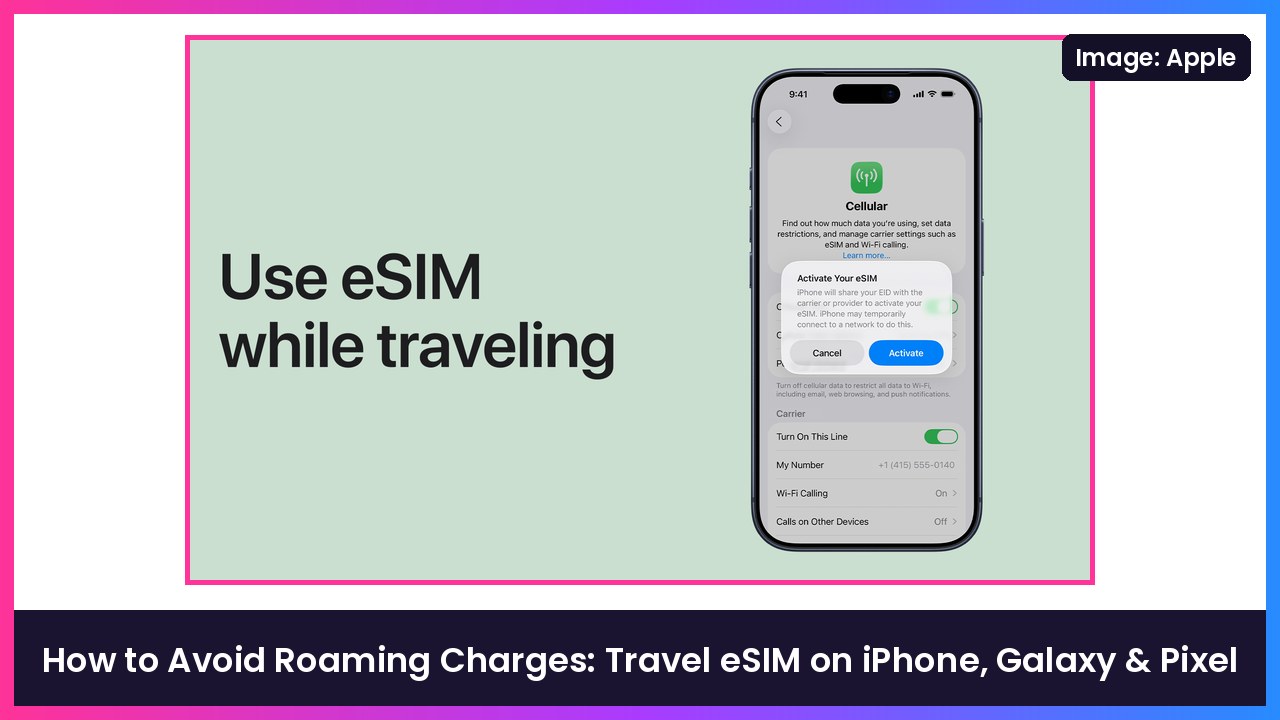
Quick summary: All right, guys, if you’re flying out of the country for the holidays, the fastest way to come home to a scary phone bill is leaving data roaming on with your home carrier. The fix is really, really simple: turn off data roaming on your home line, add a travel eSIM for data, and set that eSIM as your data line. Your home number can stay on for calls and texts. And it’s timely, because WhatsApp just announced it will soon let you buy a travel eSIM right inside the app. Below are the exact steps for iPhone, Samsung Galaxy and Google Pixel, pulled from Apple, Samsung and Google’s own support pages.
Key takeaways
- Roaming can cost you: Apple, Samsung and Google all warn that data roaming may come with extra charges from your carrier. Check your carrier’s international plan before you go.
- Option 1, your carrier’s travel plan: Apple says some carriers include international roaming on select plans, or sell travel passes you can buy ahead of time.
- Option 2, a travel eSIM: You buy a data plan from a local carrier or a worldwide provider, add it as a second line, and use it for data.
- One data line at a time: Your phone uses one SIM for mobile data at a time, so you pick which line does the data.
- Your phone may need to be unlocked to use another carrier’s eSIM.
Before you start
- Check that your phone is unlocked. Apple says to use your iPhone with another carrier while traveling, your iPhone cannot be locked to a carrier. On iPhone, go to Settings > General > About. If it’s unlocked, you’ll see “No SIM Restrictions” next to Carrier Lock. On Galaxy or Pixel, ask your carrier if you’re not sure.
- Check your phone supports eSIM. Apple says iPhone XS, XS Max, XR and later support eSIM. Google says Pixel 3a and later can use two SIMs, and on Pixel 7 and later you can run two eSIM profiles at once if your carrier allows it.
- Buy your travel eSIM before you leave. Apple notes you can buy a plan from a local carrier (often with a local number) or a prepaid data eSIM from a worldwide provider that covers lots of countries. You’ll usually get a QR code or an app to install it.
- Be on Wi-Fi when you install it. Apple says your iPhone needs a Wi-Fi network or hotspot to set up an eSIM in most places.
On iPhone (including iPhone Duo)
Step 1: Turn off Data Roaming on your home line
- Open Settings.
- Tap Cellular (or Cellular Data).
- If you have one line: tap Cellular Data Options and turn off Data Roaming.
- If you have two lines: tap your home number, then tap Cellular Data Options and turn off Data Roaming.
What you should see: The Data Roaming switch is gray (off) on your home line. Per Apple’s iPhone User Guide, this is the switch that avoids roaming charges when you’re outside your carrier’s network.
Step 2: Add your travel eSIM
Follow the provider’s instructions, usually a QR code or their app. With iOS 26 and later, Apple says if you buy a travel eSIM before leaving, you might be asked whether you’ll use it at home or while you travel.
Step 3: When you land, turn on the travel eSIM
Apple says that when you arrive and get the Turn On Travel eSIM notification:
- Choose Travel eSIM Only or Travel eSIM and Current eSIM. If you keep both, your travel eSIM is used for data, but Apple notes you might still incur roaming fees from your home eSIM.
- You’ll be asked to Turn on Low Data Mode or tap Not Now. Pick one.
- Your travel eSIM activates.
Step 4: Make sure the travel eSIM is your data line
- Go to Settings > Cellular > Cellular Data.
- Select your travel eSIM.
Travel eSIMs connect through local networks, so if the provider tells you to, turn on Data Roaming for the travel line only: Settings > Cellular, tap the travel line, tap Cellular Data Options, and turn on Data Roaming.
What you should see: Under Cellular Data, the checkmark is next to your travel line. Apple says FaceTime and iMessage keep working on your home number even if you only use the travel eSIM.
Step 5: When you get home
Apple says with iOS 26 and later, your iPhone will automatically turn off the travel eSIM and turn your home line back on in many places. If it doesn’t, go to Settings > Cellular, make sure Turn On This Line is on for your home line, and turn off the travel line.
On Samsung Galaxy
Step 1: Turn off Data Roaming
- Open Settings.
- Tap Connections, then tap Mobile networks.
- Turn off the switch next to Data roaming (on U.S. Galaxy phones Samsung calls it Data Roaming Access).
Samsung notes the Mobile networks menu can be grayed out if you don’t have an active SIM or you’re on Wi-Fi only, and that options vary by carrier.
Step 2: Add your travel eSIM
- Go to Settings > Connections > SIM manager.
- Tap Add eSIM.
- Tap Scan QR code, then scan your provider’s QR code.
- Restart your phone if asked, to apply the eSIM profile.
What you should see: Both lines listed in SIM manager, each with its own on/off switch.
Step 3: Set the travel eSIM for mobile data
- Go to Settings > Connections > SIM manager.
- Under your preferred SIM settings, tap Mobile data (on some models, tap Primary SIM) and pick the travel eSIM.
- Keep your home SIM as the choice for calls and text messages if you want people to reach you on your normal number.
When you land, if the eSIM provider says roaming has to be on, go back to Connections > Mobile networks and turn on data roaming, after you’ve confirmed the travel eSIM is your data SIM.
On Google Pixel
Step 1: Turn off Roaming on your home SIM
- Open Settings.
- Tap Network & internet, then SIMs.
- Tap your home SIM, then turn off Roaming.
Google says data roaming may be the only way to connect in some places, and some carriers charge extra for it. Also good to know: Google Fi users don’t need to turn on Roaming to roam domestically.
Step 2: Add your travel eSIM
- Go to Settings > Network & internet > SIMs.
- Tap Add SIM, then Set up an eSIM, and follow your provider’s steps.
- When asked to set your SIM preferences, tap Get started, Next, then Done.
Step 3: Set the travel eSIM as your data SIM
- Go to Settings > Network & internet > SIMs.
- Make sure Mobile data is on.
- Under “Your primary SIMs,” tap Mobile data and choose the travel eSIM. Google says only one SIM can be the default for data.
- Leave Calls and Texts on your home SIM if you want to keep your normal number.
If your eSIM provider says to, tap the travel SIM and turn on Roaming for that line only.
Tips
- Watch the data-switching setting. On iPhone, Apple’s Allow Cellular Data Switching lets your phone use data from both lines depending on coverage. If you don’t want your home line touching data abroad, leave it off. (Apple also notes this switching doesn’t work while you’re using Data Roaming.)
- Calls and texts can still cost money. Turning off data roaming only stops data. Calls and texts on your home number abroad follow your carrier’s international rates, so check those too.
- Check your usage. On iPhone, Apple says you can see data used under Settings > Cellular. If you’re on a small eSIM plan, Low Data Mode helps. Here’s how to use Low Data Mode on iPhone.
- No service when you land? Apple suggests making sure Date & Time is set automatically, toggling Airplane Mode for about 30 seconds, and checking that Data Roaming is on for the line you’re using for data.
- Heading off the grid? If you’ve got an iPhone Duo, also set up its satellite features before you travel.
- Pack a power bank. Navigation and translation apps eat battery fast. I like the Anker 25,000mAh power bank for long travel days.
Recap checklist
- Phone is unlocked (iPhone: Settings > General > About > Carrier Lock)
- Data roaming off on your home line
- Travel eSIM bought and installed on Wi-Fi before you leave
- Travel eSIM turned on when you land
- Travel eSIM set as your mobile data line
- Roaming on for the travel line only, if the provider says so
- Home line still on for calls and texts (optional)
- Switch back to your home line when you get home
My take
I’ll be honest with you, this takes like five minutes, and it can literally save you hundreds of dollars. Turn off roaming on your home line tonight, grab a travel eSIM before your flight, and flip it on when you land. Love it. Got questions about your specific phone? Drop them in the comments. Thanks for reading, and safe travels.
Sources: Apple Support: Use eSIM while traveling internationally with your iPhone, Apple Support: About cellular data roaming options for your iPhone and iPad, Apple iPhone User Guide: View or change cellular data settings, Apple Support: Use Dual SIM on your iPhone, Samsung US: Manage data usage on your Galaxy phone, Samsung US: SIM cards for your Galaxy phone or tablet, Samsung US: Dual SIM phones, Pixel Phone Help: Reduce & manage mobile data usage, Pixel Phone Help: How to use dual SIMs on your Google Pixel phone, WhatsApp Blog: Stay Connected on WhatsApp When You Travel, Apple Support video thumbnail: Use eSIM while traveling (image).
Subscribe to GregglesTV for daily tech news, reviews and walkthroughs.
See today’s GregglesTV Best Tech Deals or browse all deals posts.
Comments
Comments are moderated. Hate, slurs, spam and scam posts are blocked. Don’t include personal info you wouldn’t want public. See the privacy policy.
Loading comments…