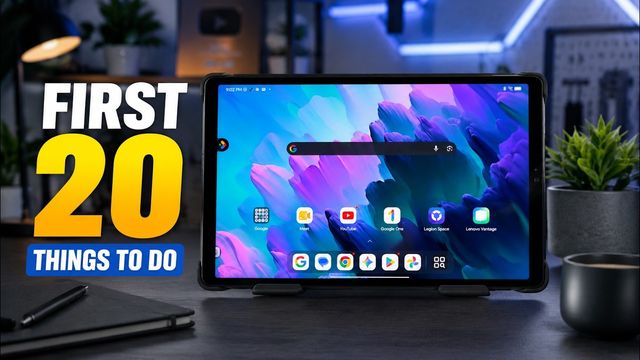
Walmart Onn Tablet 13 Pro: First 20 Things To Do
The first 20 things I set up on the Walmart Onn Tablet 13 Pro: wallpaper, quick toggles, Wi-Fi, default apps, 120Hz, battery and face unlock.
Quick summary: The Onn Tablet 13 Pro is Walmart’s no-frills tablet, and it’s really easy to use. These are the first things I change on a new one, from the look of the home screen to battery and face unlock.
Home screen and look
- Change your wallpaper: press and hold a blank spot on the home screen, choose Wallpaper and style, then Change wallpaper. Pick one of your photos or an on-device wallpaper, tap Set wallpaper, and choose lock screen, home screen or both.
- Match the system colors: on the same screen, pick a color palette for your quick toggles and the rest of the system.
- Themed icons (optional): you can tint your app icons to match. I leave this off because it makes apps harder to find.
- Hide instant games: press and hold the home screen, open Home settings, and turn off Show instant games. It feels like an ad to me.
- Rearrange quick toggles: swipe down from the top and tap the small pencil. Press and drag tiles where you want them, add ones like Screenshot or Quick Share, and remove ones you won’t use on a tablet, like Wallet. Tap back to save.
Wi-Fi and apps
- Stop public network alerts: go to Settings > Network and internet > Internet > Network preferences and turn off Notify for public networks.
- Turn on Wi-Fi automatically so it comes back on near saved, high-quality networks like your home.
- Pick your default apps: in Apps > Default apps, you can change your browser (Brave, for example), your digital assistant (you can switch to ChatGPT), your home app and your SMS app. The app has to be installed first.
- Turn on notification history under Notifications, so you can see anything you swiped away.
- Wireless emergency alerts: further down in Notifications, choose which alerts you get. I keep extreme and severe threats on.
Sound and display
- Turn off system sounds you don’t need, like screen lock, charging and tap sounds, and change your default notification sound if you want.
- High fidelity mode: under Sound enhancement, make sure it’s on for better audio.
- Adaptive brightness: I keep it on.
- Distance reminder: this one is unique. It warns you if you’re holding the screen too close to your eyes.
- Screen timeout: set it to 2 minutes.
- Dark theme on a schedule: turn it on from sunset to sunrise.
- Refresh rate: if you don’t use a pen, set it to 120Hz for a smoother screen. If you use the pen, keep it at 90Hz. Turn on Lift to wake and Tap to wake too.
Battery and system
- Battery percentage: it’s off by default, so turn it on. If you plan to keep the tablet a long time, you can also limit charging to 80% after 24 hours of continuous charging, or use optimized charging.
- System settings: set double press the power button to open the camera (or your wallet), choose gesture navigation or buttons, and check System updates. Note that Circle to Search isn’t available on this tablet. I also turn off the feature that boosts the foreground app by restricting background apps, because it can delay notifications.
- Face unlock: go to Privacy > Device unlock and set up face unlock. Turn on skip the lock screen after unlocking. I turn off require eyes open.
Verdict
It’s a really nice, simple tablet. If you want to pick one up:
Watch the full video on YouTube, and subscribe to GregglesTV for daily tech news, reviews and walkthroughs.
See today’s GregglesTV Best Tech Deals or browse all deals posts.

Comments
Comments are moderated. Hate, slurs, spam and scam posts are blocked. Don’t include personal info you wouldn’t want public. See the privacy policy.
Loading comments…